
tinpost
v0.7.9
Published
A self-contained mail server with a web interface for lab environments. Supports a message timeline, live SMTP logs viewing, ICAP scanning and gateway relay

Maintainers
 cventour
Readme
A self-contained mail server for lab environments. It listens on SMTP, accepts mail for any domain you point at it, and shows every mailbox in a webmail UI that anyone can open by typing an address. You can reply and compose from the UI, and those messages are delivered back into the same instance.
Nothing leaves the machine unless you tell it to. Out of the box there is no outbound relay, no DNS lookup and no network call of any kind. Two integrations are opt-in and point at your own network: ICAP scanning, which sends every attachment to a virus scanner or content filter for a verdict before the message is accepted, and an upstream relay, which hands whole messages to a security gateway and takes them back once scanned.
One dependency: Node.js 22.5 or newer. Nothing compiles, there is no database to install, and it runs the same on macOS, Windows and Linux.
Why this was built
Testing anything that touches email is awkward. Real mail servers want DNS, TLS and credentials before they will do anything; the hosted testing services want your data on someone else's machine; and neither lets you watch a message being refused, scanned or rewritten while it happens.
Tinpost exists because a lab needs mail that behaves like the real thing and goes nowhere. It was built to rehearse phishing and security-awareness exercises with real attachments and HTML bodies, and to sit downstream of a security gateway — OPSWAT MetaDefender Email Security, in the lab it grew up in — so that a message can be watched all the way through: accepted, handed to the gateway, scanned, returned and delivered, with every SMTP command and reply readable afterwards.
It is deliberately open. There are no passwords anywhere, because a lab that makes you manage credentials is a lab nobody uses. That is a design decision, not an oversight — see Security.
What it is for
- A simple, flexible mail server for your lab environment — one command, no DNS, no TLS and no credentials to arrange before mail starts flowing
- Phishing and security-awareness exercises, with real attachments and HTML bodies
- Incident-response and forensics training, where
.emlfiles and full headers matter - Testing an application's signup, password-reset or notification flows
- Exercising a security gateway or ICAP scanner, and watching what it did to a message
- Demos that need believable mail without touching anyone's real inbox
What it is not for
Tinpost is not a production mail server, and must not be used as one. It is a sink: mail comes in and stops there.
- It never delivers real email. There is no MX lookup, no queue and no retry. A message addressed to a real person at a real domain is stored in a local mailbox and goes nowhere. The one way anything leaves is the opt-in upstream relay, and that hands mail to one server you name — intended to be a scanning gateway on your own network, which sends it straight back.
- It is not a security boundary. There are no passwords anywhere — anyone who can reach the web port reads every mailbox, changes every setting and deletes all the mail. That is deliberate, and it is why it binds to loopback by default.
- It is not durable storage. The mail store is meant to be thrown away between exercises — the admin page has a Purge control that deletes every message, and there are no backups.
- Do not put it on the internet, or on any network you do not control. Use
--host 0.0.0.0only on an isolated lab network.
If you need mail that actually reaches people, you need a real MTA — Postfix, Exim, or a hosted provider. Tinpost is for the part of the work where you specifically do not want that.
Authorised use only
Tinpost is for testing in environments you control — your own machines and lab networks, or a client's systems where you have permission to do the work.
It accepts mail for any domain, composes messages from any sender address you type, and carries real attachments. Those are exactly the features that make it useful for a phishing exercise or a gateway test, and exactly the features that make misuse possible. Using it to deceive people who have not agreed to be tested, to impersonate a real organisation outside an authorised exercise, or to prepare an attack on systems you do not own is not an intended use — and in most countries it is a criminal offence. The MIT licence grants broad permission; it does not grant permission from the people on the receiving end, and the law still applies.
SECURITY.md has the longer version, including what Tinpost deliberately does not protect and how to report a vulnerability.
Features
- Mail sink — accepts mail for any domain over SMTP and stores it instead of forwarding it, so nothing reaches a real inbox.
- Webmail — open any mailbox by typing its address, with no password, and read,
reply, compose and download
.emlfiles from the browser. - Timeline — every message and connection the instance has seen, across all mailboxes, on one page with an activity chart, filters and search.
- Live view of connections — a Logs page that tails the server's own output as it
is written, and can record the full SMTP conversation, every
C:andS:line, tagged per connection. - ICAP support — hand every attachment to a virus scanner or content filter and accept the message only if it comes back approved.
- Upstream relay — route mail crossing your local domain boundary through a security gateway, which scans it and sends it back for delivery.
- Accepts any credentials — advertises
AUTHand accepts any username, password or token, so clients that refuse to talk to a server without it still connect. - Domain policy — accept every domain as a catch-all, or restrict to an allowlist
and watch unlisted recipients get a realistic
550. - Realistic refusals — size, recipient and connection limits that answer with the same SMTP codes a real MTA would, so a client under test sees a real failure.
- Safe by construction — HTML bodies render in a sandboxed frame with no scripts and no network access, and attachments always download rather than execute.
Installing
Three ways, in order of how little they leave behind. All of them need Node.js 22.5 or
newer and nothing else — brew install node on macOS,
winget install OpenJS.NodeJS.LTS on Windows.
Run it without installing anything
npx tinpost serveIdentical in PowerShell, a macOS or Linux shell, anywhere. npm fetches the package, runs it, and keeps nothing on your PATH. Best for trying it, or for a throwaway lab that only needs to exist for an afternoon.
Install the command
npm install -g tinpost
tinpost serve
Gives you a tinpost command that stays. On Windows this creates tinpost.cmd, so it
works from PowerShell and cmd.exe alike. npm update -g tinpost moves it forward.
From the repository
For reading the source, running the tests or changing it:
git clone https://github.com/cventour/tinpost.git
cd tinpost
npm ci
npm start
The same three commands on macOS, Windows and Linux. npm ci downloads pure
JavaScript; no build step runs and no compiler is needed. npm install -g . from the
checkout puts your working copy on the PATH instead of the published one.
Whichever route
It prints where it is listening:
  Webmail   http://127.0.0.1:8025
  Admin     http://127.0.0.1:8025/admin   (no password)
  SMTP      127.0.0.1:2525   (any credentials, no TLS)
Open the webmail URL, type any address — [email protected] will do — and you are in
that mailbox. Stop it with Ctrl+C.
Send it a test message
macOS or Linux:
node -e "const n=require('nodemailer');n.createTransport({host:'127.0.0.1',port:2525}).sendMail({from:'[email protected]',to:'[email protected]',subject:'Hello',text:'First message.'})"Windows (PowerShell) — works on macOS too:
$smtp = [System.Net.Mail.SmtpClient]::new('127.0.0.1', 2525)
$smtp.Send('[email protected]', '[email protected]', 'Hello', 'First message.')
It appears in the open page within a second, without a reload.
Running it
The examples below use node src/cli.js serve, which is the form for a clone. If you
installed the command, write tinpost serve instead; if you are using npx, write
npx tinpost serve. The options are the same in all three. Stop it with Ctrl+C.
macOS and Linux
npm start                                              # defaults: SMTP 2525, web 8025
node src/cli.js serve --smtp-port 2525 --http-port 8025  # choose the ports
node src/cli.js serve --host 0.0.0.0                   # reachable from other machines
node src/cli.js serve --data-dir ~/labmail             # keep the mail somewhere specific
sudo node src/cli.js serve --smtp-port 25 --data-dir /usr/local/var/tinpost
Windows (PowerShell)
npm start                                                 # defaults: SMTP 2525, web 8025
node src\cli.js serve --smtp-port 2525 --http-port 8025    # choose the ports
node src\cli.js serve --host 0.0.0.0                      # reachable from other machines
node src\cli.js serve --data-dir C:\labmail               # keep the mail somewhere specific
node src\cli.js serve --smtp-port 25                      # no elevation needed on Windows
Exposing it with --host 0.0.0.0 on Windows also needs a firewall rule — see
Keeping it running.
Port 25 needs root — except on Windows
Ports below 1024 are reserved for root on macOS and Linux. That is a rule of those systems, not a choice Tinpost makes, and it is why the default is 2525.
| | Default port 2525 | Standard port 25 |
|---|---|---|
| macOS | ordinary user | sudo required |
| Linux | ordinary user | sudo required, or grant CAP_NET_BIND_SERVICE |
| Windows | ordinary user | ordinary user — Windows does not reserve low ports |
Run as root with no port flag at all and Tinpost takes 25 by itself, because running as root is read as intent to be a real mail server. Run as an ordinary user on macOS or Linux and it falls back to 2525 and says why, on the entry page and in the log. It never refuses to start over this.
Pass --data-dir whenever you use sudo. Under sudo the default location
resolves against root's environment rather than yours, so a sudo run and an ordinary
run would otherwise keep two separate mail stores, each looking empty to the other.
Anything written under sudo also belongs to root, so a later ordinary run cannot
delete it.
On Linux there is a third way, and it is the one the reference deployment uses: leave the process unprivileged and grant the one capability it needs. See the systemd unit under Keeping it running.
Parameters
tinpost serve [options]| Option | What it does |
|---|---|
| --http-port <n> | Port for the web interface and admin page. Default 8025. |
| --smtp-port <n> | Port senders connect to. Default 2525. |
| --host <addr> | Address to bind. Default 127.0.0.1; use 0.0.0.0 to reach it from other machines. |
| --data-dir <path> | Where the database and stored mail live. |
| --max-size <bytes> | Largest message accepted. Default 25 MB. |
| -h, --help | Show the options and exit. |
| -v, --version | Show the version and exit. |
Each has an environment variable equivalent: TINPOST_HTTP_PORT,
TINPOST_SMTP_PORT, TINPOST_HOST, TINPOST_DATA_DIR, TINPOST_MAX_SIZE.
Most settings — limits, ports, server name, scanning and relay — can also be changed on the admin page. A value given on the command line always wins.
Port 25 needs root on macOS and Linux, because those systems reserve ports below 1024. Windows does not reserve them, so an ordinary account binds 25 there with no elevation. See Port 25.
How it looks
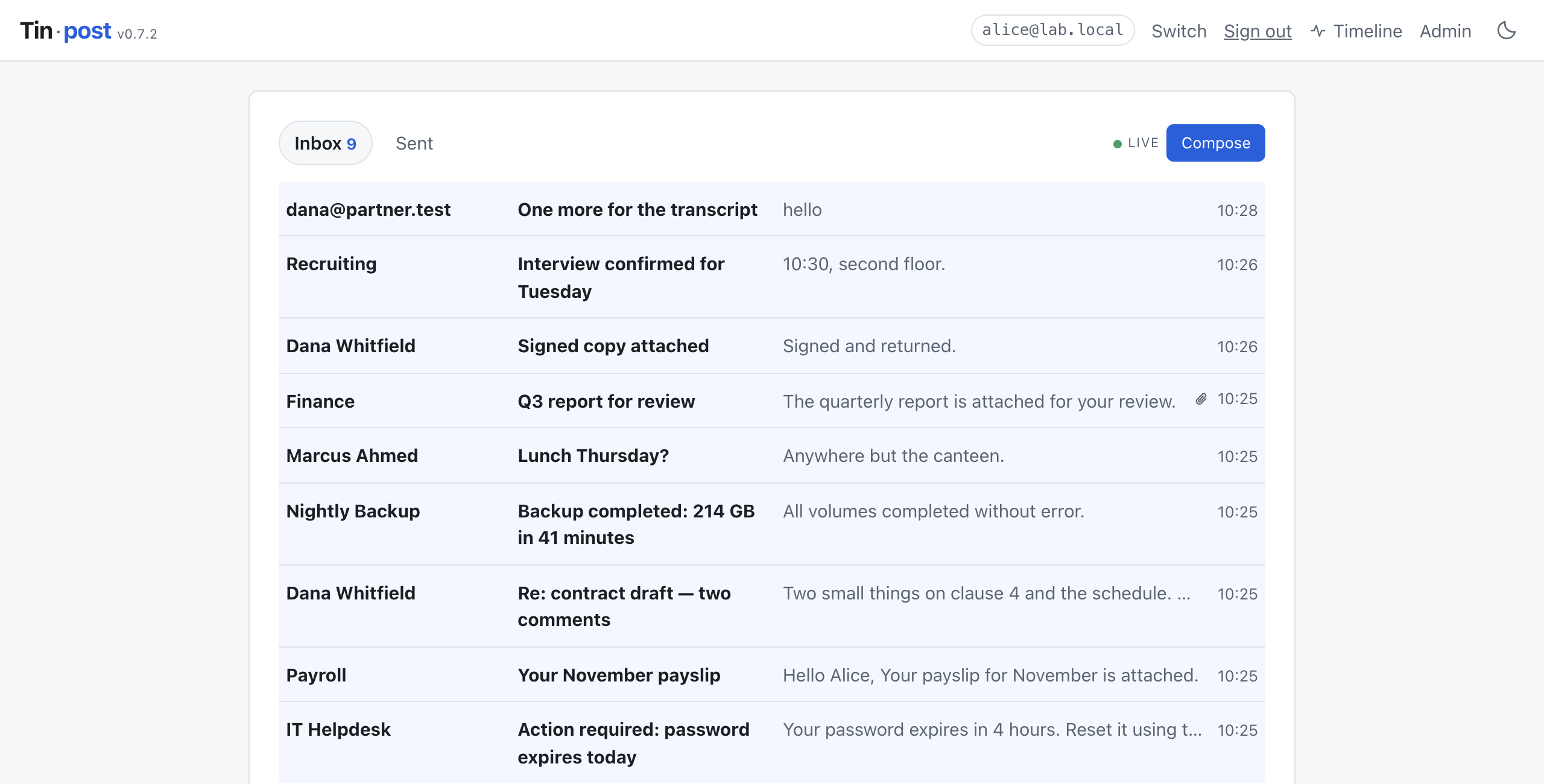
Inbox — open a mailbox by typing its address. New mail arrives without a reload.
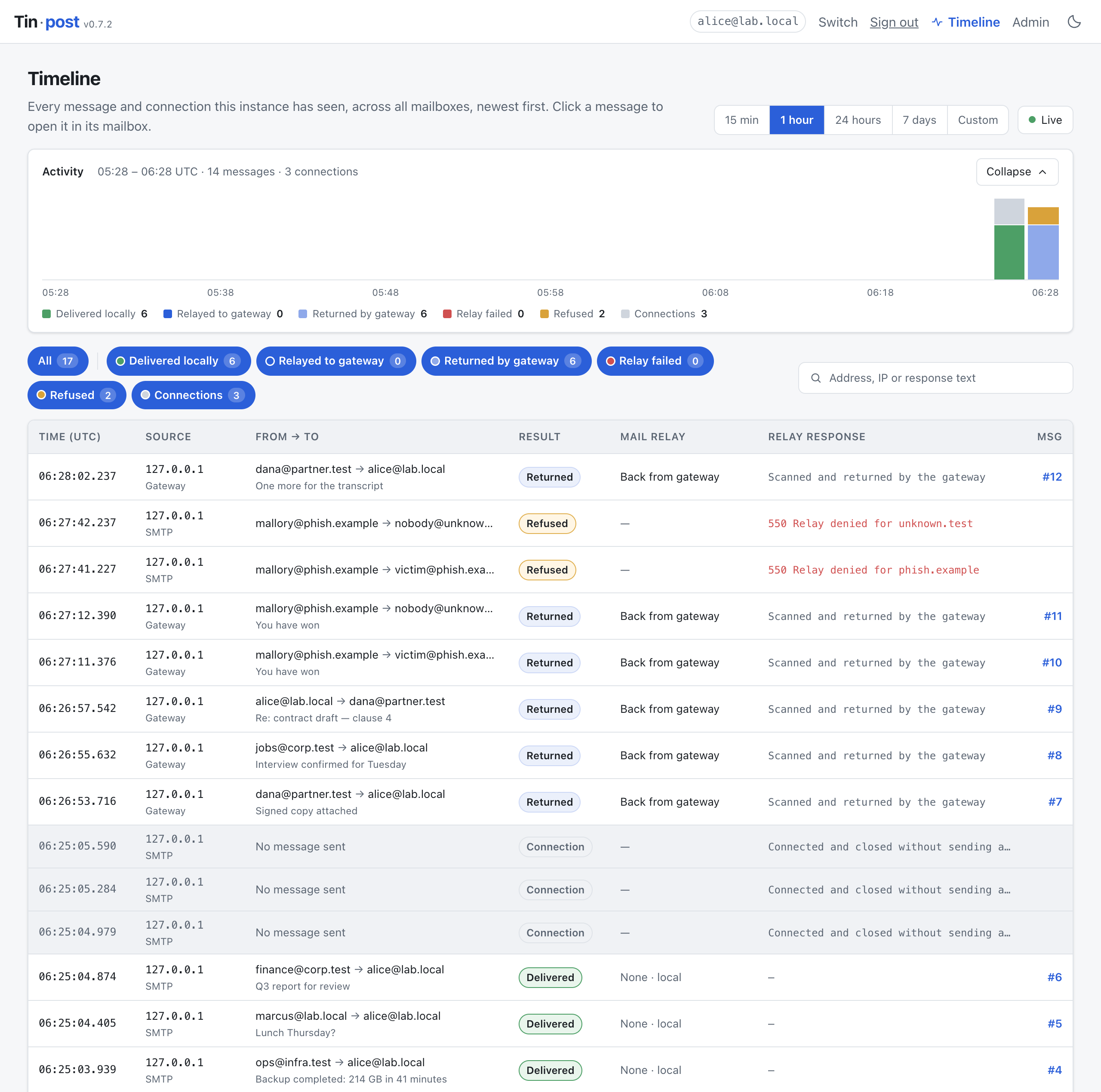
Timeline — every message and connection across all mailboxes, with an activity chart, one filter per outcome, and search. Click a message to open it.
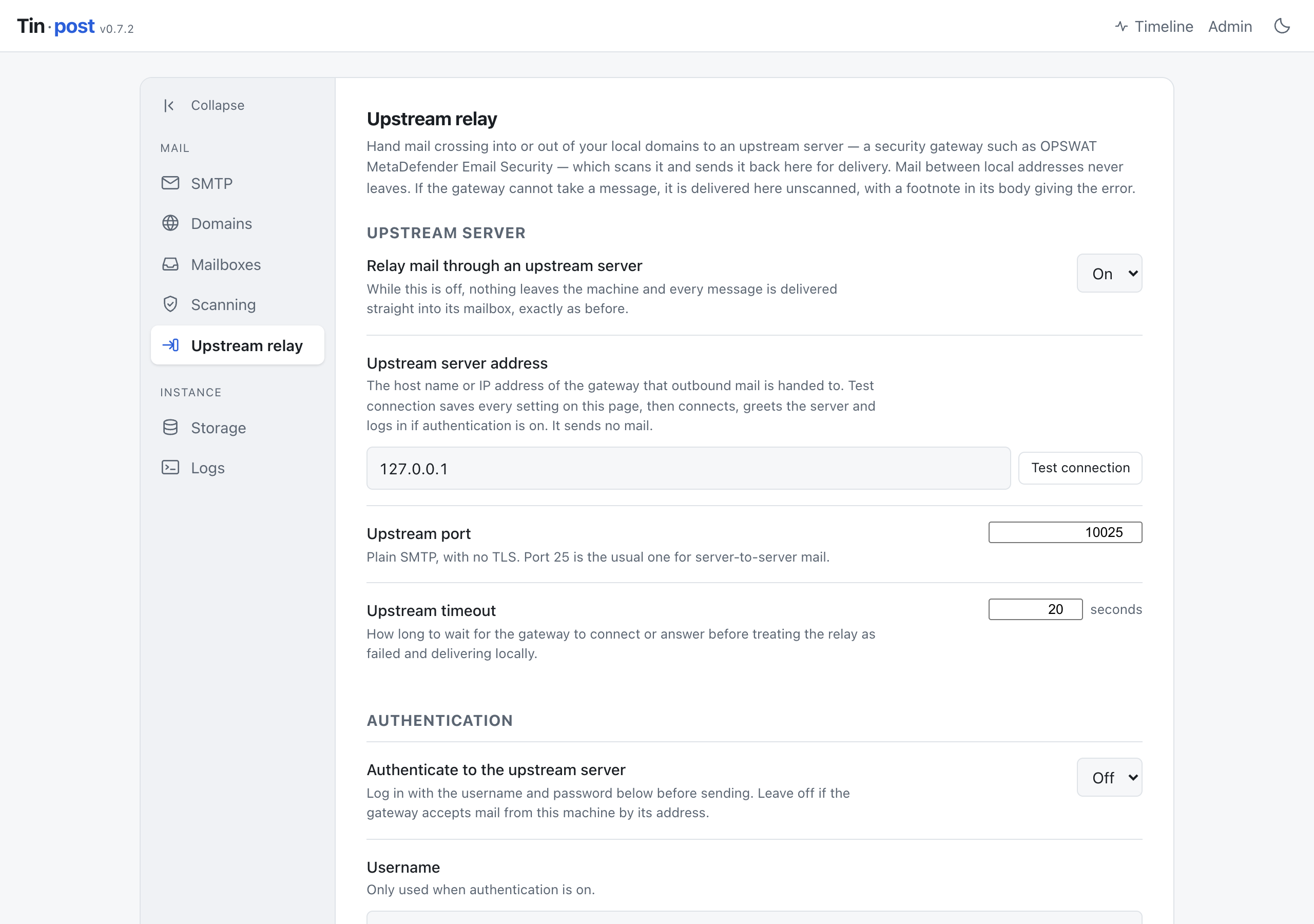
Upstream relay — hand mail crossing your domain boundary to a security gateway, which scans it and sends it back.
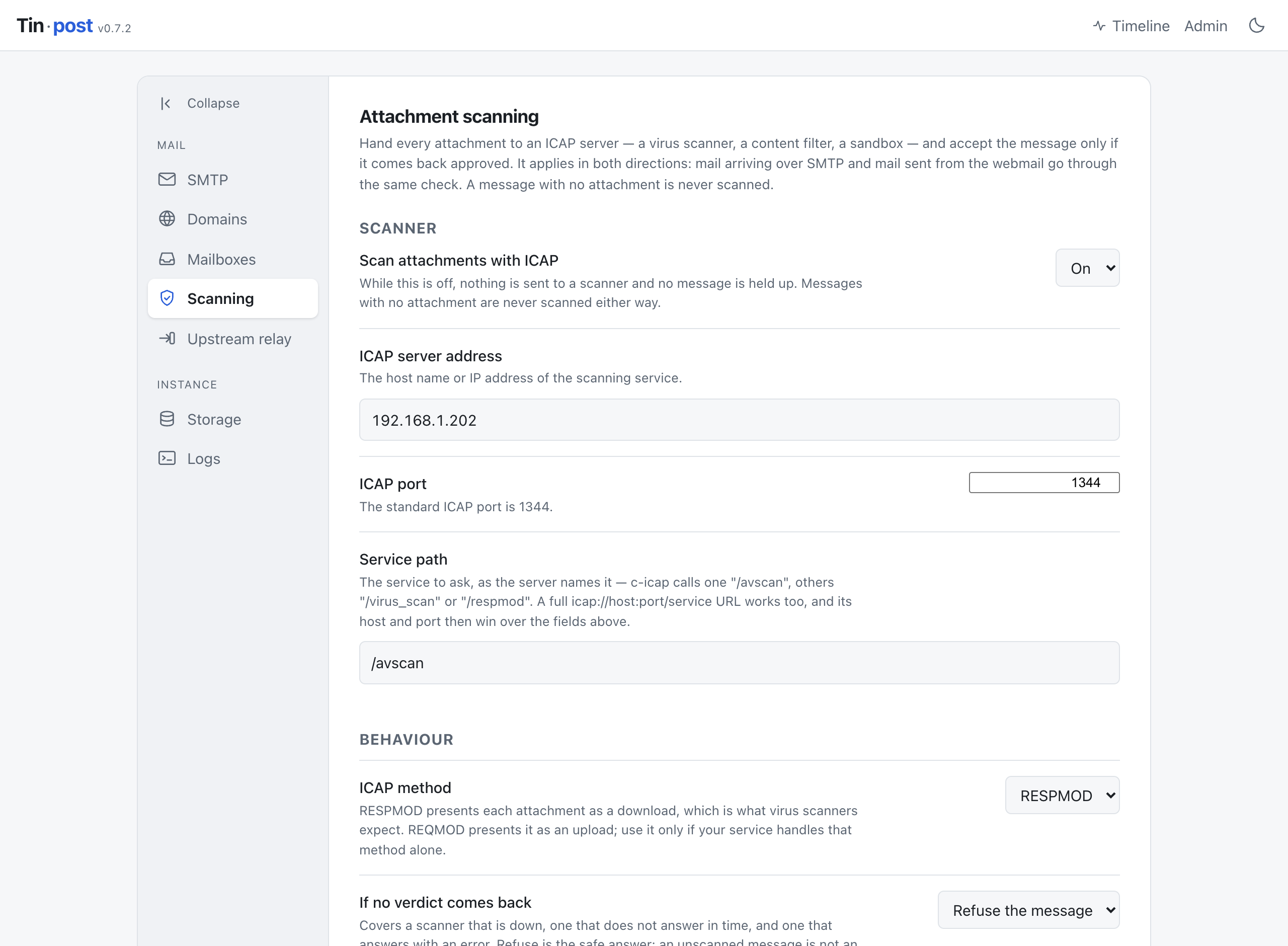
Attachment scanning — send every attachment to an ICAP server and accept the message only if it comes back approved. Configurable per domain as well as globally.
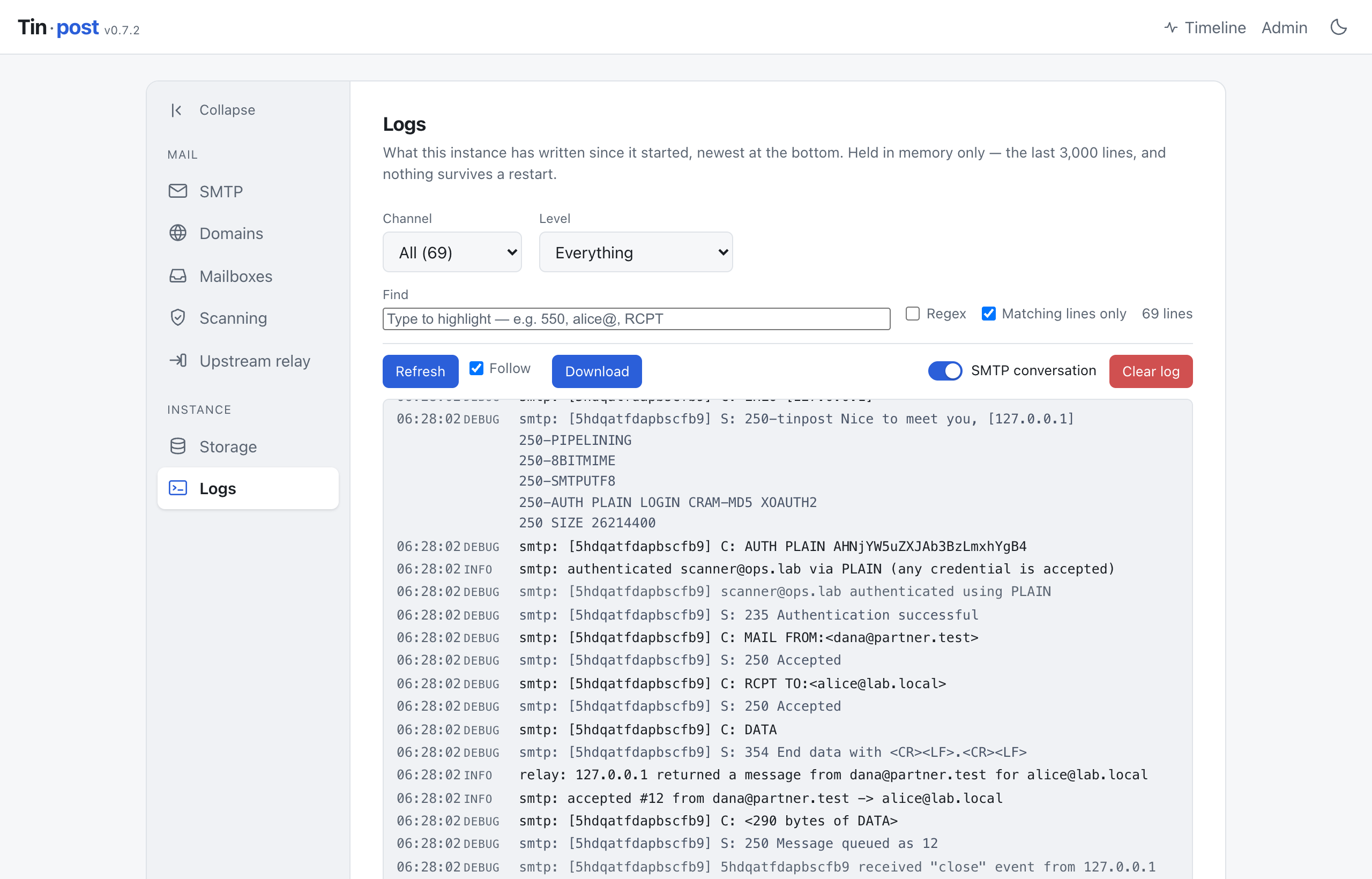
Logs — the server's own output, live, with the full SMTP conversation recorded per connection. What the sender said and what Tinpost answered are toned differently.
What changed
Every release is written up in plain language in CHANGELOG.md, newest first — what changed for someone running a lab, and what a fix looked like from their side. Versioning follows semantic versioning.
Sending mail to it
Point any client or library at 127.0.0.1:2525. There is no TLS, because lab senders
are scripts on loopback. AUTH is offered and accepts any credential at all, but is
never required — see Authentication.
Node:
import nodemailer from 'nodemailer';

const transport = nodemailer.createTransport({ host: '127.0.0.1', port: 2525, secure: false });

await transport.sendMail({
  from: '"IT Helpdesk" <[email protected]>',
  to: '[email protected]',
  subject: 'Action required',
  html: '<p>Please review the <b>attached</b> report.</p>',
  attachments: [{ filename: 'report.pdf', path: './report.pdf' }],
});
Python:
import smtplib
from email.message import EmailMessage

msg = EmailMessage()
msg["From"] = "[email protected]"
msg["To"] = "[email protected]"
msg["Subject"] = "Action required"
msg.set_content("Please review the attached report.")
msg.add_attachment(open("report.pdf", "rb").read(),
                   maintype="application", subtype="pdf", filename="report.pdf")

with smtplib.SMTP("127.0.0.1", 2525) as s:
    s.send_message(msg)
An application under test usually just needs its SMTP settings pointed at
127.0.0.1:2525 with authentication and TLS turned off.
Reading mail
Type an address on the entry page and you are reading that mailbox. There is no password, because in a lab the whole point is that anyone can look at any mailbox. A mailbox is not something you create: it exists as soon as mail is addressed to it.
Addresses this instance has already seen complete as you type. With one candidate the rest of the address fills in and stays selected, so carrying on typing replaces it; with several, they are listed and the arrow keys pick one. A new address is never harder to enter than an existing one.
Each message can be read three ways:
- HTML — rendered in a sandboxed frame with scripts disabled and every network
source blocked. Inline
cid:images are embedded directly, so embedded graphics still display while nothing is fetched from outside. - Plain text — the text part, or a readable rendering of the HTML when the message has no text part.
- Source — the full original message, headers and all, with a Download .eml button for feeding it into another tool.
Attachments are listed with their type and size and always download; they are never rendered or executed in the browser. That matters when the lab scenario deliberately involves a hostile file.
The inbox updates on its own as mail arrives, using a server-sent event stream with a polling fallback.
Sending from the webmail
Compose and Reply work from any mailbox you are reading. Recipients can be on any domain the accept policy allows, and delivery is internal — the message simply lands in the recipient's mailbox on the same instance. You can attach files, and choose whether the body is sent as plain text or HTML (a plain-text alternative is generated either way, so the message is readable in both views).
Mail composed in the UI goes through exactly the same delivery path as mail that arrived over SMTP, so it is stored as a genuine RFC822 message and is indistinguishable from received mail.
Timeline
Timeline, beside Admin in the top bar, shows everything the instance has seen,
across every mailbox, newest first: each message stored, each message relayed to or
returned by the upstream gateway, each relay failure, each refusal (550, 552 and
the like), and each connection that came and went without sending anything.
- A small activity chart sits above the table, one bar per slice of the window, coloured by what happened. Collapse folds it to a single line; the page remembers that per browser.
- Pick the window: 15 minutes, 1 hour, 24 hours, 7 days, or Custom with a start and an end. Every time on the page is UTC.
- The pills under the chart are on/off switches, one per category and colour:
Delivered locally, Relayed to gateway, Returned by gateway, Relay failed (the
gateway said no or could not be reached), Refused (Tinpost itself said no —
550,552, a scanner verdict) and Connections. Turn one off and its rows and its colour on the chart disappear; All turns every one back on. Everything that touched the gateway is Relayed + Returned + Relay failed. Search by address, IP, subject or response text as well. - Each row gives the time to the millisecond, the source IP and whether it came in over SMTP, from the webmail or from the gateway, sender and recipients, the result, whether the relay was involved and which way, and the relay's exact reply.
- Click a message to open it. Tinpost switches to a mailbox that holds it — the recipient's, or the sender's while the gateway still has it — and shows it in the ordinary message view, ready to reply to or download.
- While the window ends now, new events are announced as a count to show, rather than pushed into the table under your cursor.
The timeline is stored in the database, so it survives a restart. Mail stored before v0.7.0 is added to it once, on the first start, without the details that were not recorded then. Purge everything on the Storage page clears it too.
Admin
/admin has no password. Gating it would protect nothing: the mailboxes beside it are
already readable by anyone who can reach the web port, so the honest answer is to bind
to loopback and say so plainly rather than put a lock on one of two open doors.
From there you can:
- Switch between any domain (catch-all) and allowlist only, and manage the
list of accepted domains. Under the allowlist, other domains are refused at the
SMTP layer with a
550, exactly as a real MTA would, so a client under test sees a realistic failure. The compose form honours the same rule. - Point Tinpost at an ICAP server and have every attachment scanned before a message is accepted — see below.
- Send outbound mail through an upstream relay, such as an email security gateway, and take it back once scanned — see below.
- See every mailbox with its message counts, open one, or delete its mail.
- See how much disk the stored files use, reclaim space, or purge everything to reset the lab between runs.
- Read the server's own log, and follow it live — see below.
Logs
Admin ▸ Logs shows what the instance has written since it started: the raw lines, newest at the bottom, with a find box that highlights every match as you type and hides everything else until you clear it. Plain text by default, or tick Regex for a pattern. Channel (SMTP, Scanning, Admin, Web) and level are query parameters, so a filtered view can be bookmarked and shared, and the page works with JavaScript switched off.
Follow tails the log while you watch, asking only for lines newer than the last
one on screen. Refresh pulls the newest lines without reloading, so whatever you
have typed in the find box survives. Download saves what is on screen as a plain
.log file, and Clear log empties the buffer when the last hour is no longer
interesting.
The log is held in memory only — the last 3,000 lines, and nothing survives a restart. A lab instance is started, used and thrown away; a file on disk would have to be rotated, permissioned and cleaned up to answer a question that the last few thousand lines already answer.
Every connection is logged as it arrives, whether or not anything is then sent: a
sender that connects and gets no further still leaves smtp: connection from … and
… closed without sending a message, which is usually the whole diagnosis.
In the action bar is a pill switch for the SMTP conversation: with it on, every command
and reply is recorded — C: MAIL FROM:<…>, S: 250 Accepted and the rest
— tagged with the connection it belongs to so overlapping senders stay apart.
It is off by default because it is several lines per command, and it is only ever
written to this page, never to the terminal.
Authentication
There is nothing to authenticate to: every mailbox is readable by anyone who can
reach the web port, by design. But a sender that finds no AUTH advertised may
simply hang up rather than deliver, and then the lab cannot receive the mail it
exists to receive. So Tinpost advertises AUTH and accepts anything at all —
any username, any password, any token, over PLAIN, LOGIN, CRAM-MD5 or
XOAUTH2. It proves nothing, and is not meant to.
Authentication is never required. A sender that skips it is accepted exactly as
before, so nothing that worked yesterday stops working. The username offered is
written to the log, which is often the fastest way to catch a client that
authenticates as one identity and then puts something else in MAIL FROM.
Turn the offer off under SMTP ▸ Authentication on the admin page if you want to test how a client behaves against a server that refuses it.
STARTTLS is still not offered. A lab sender would need a certificate it could
trust, and issuing one for a .lab name is a great deal of ceremony for a server
whose whole point is that nothing about it is secret.
Keeping it running
Nothing below is required — npm start in a terminal is a perfectly good way to run
a lab for an afternoon, and Tinpost needs no service manager. These are only for when
you want it back after a reboot. Each uses what the platform already ships; none
needs extra software.
Replace /path/to/tinpost and the Node path with your own. node --version and
which node (Get-Command node on Windows) will tell you them.
macOS — launchd
Save as ~/Library/LaunchAgents/local.tinpost.plist:
<?xml version="1.0" encoding="UTF-8"?>
<!DOCTYPE plist PUBLIC "-//Apple//DTD PLIST 1.0//EN" "http://www.apple.com/DTDs/PropertyList-1.0.dtd">
<plist version="1.0">
<dict>
  <key>Label</key><string>local.tinpost</string>
  <key>ProgramArguments</key>
  <array>
    <string>/opt/homebrew/bin/node</string>
    <string>/path/to/tinpost/src/cli.js</string>
    <string>serve</string>
  </array>
  <key>RunAtLoad</key><true/>
  <key>KeepAlive</key><true/>
  <key>StandardOutPath</key><string>/tmp/tinpost.log</string>
  <key>StandardErrorPath</key><string>/tmp/tinpost.log</string>
</dict>
</plist>
launchctl load ~/Library/LaunchAgents/local.tinpost.plistlaunchctl unload the same path to stop it. A LaunchAgent runs as you, so it cannot
bind port 25; leave the SMTP port at 2525, or use a LaunchDaemon in
/Library/LaunchDaemons if you need the standard port.
Windows — Task Scheduler
Built into Windows, so there is nothing to install. From an elevated PowerShell:
$node = (Get-Command node).Source
$action  = New-ScheduledTaskAction -Execute $node -Argument 'C:\path\to\tinpost\src\cli.js serve' -WorkingDirectory 'C:\path\to\tinpost'
$trigger = New-ScheduledTaskTrigger -AtStartup
$settings = New-ScheduledTaskSettingsSet -RestartCount 3 -RestartInterval (New-TimeSpan -Minutes 1)
Register-ScheduledTask -TaskName 'Tinpost' -Action $action -Trigger $trigger -Settings $settings -User 'SYSTEM' -RunLevel Highest
Start-ScheduledTask -TaskName 'Tinpost'
Stop-ScheduledTask -TaskName 'Tinpost' stops it; Unregister-ScheduledTask removes
it. Windows does not reserve ports below 1024, so an ordinary account can bind port 25
there — -User 'SYSTEM' is only so the task runs with nobody logged in.
You will likely need a firewall rule before another machine can reach it:
New-NetFirewallRule -DisplayName 'Tinpost SMTP' -Direction Inbound -Protocol TCP -LocalPort 2525 -Action Allow
New-NetFirewallRule -DisplayName 'Tinpost web'  -Direction Inbound -Protocol TCP -LocalPort 8025 -Action Allow
Linux — systemd
Save as /etc/systemd/system/tinpost.service:
[Unit]
Description=Tinpost lab mail server
After=network-online.target
Wants=network-online.target

[Service]
Type=simple
User=tinpost
WorkingDirectory=/path/to/tinpost
ExecStart=/usr/bin/node /path/to/tinpost/src/cli.js serve --host 0.0.0.0 --data-dir /var/lib/tinpost
Restart=on-failure
NoNewPrivileges=true
ProtectSystem=strict
ProtectHome=true
ReadWritePaths=/var/lib/tinpost

[Install]
WantedBy=multi-user.target
sudo systemctl enable --now tinpostTo take port 25 without running as root, add AmbientCapabilities=CAP_NET_BIND_SERVICE
and CapabilityBoundingSet=CAP_NET_BIND_SERVICE to the [Service] block, then
--smtp-port 25 to ExecStart. Debian's standard image enables postfix on
127.0.0.1:25, which will hold the port — systemctl disable --now postfix first.
Attachment scanning over ICAP
Tinpost can hand every attachment to an ICAP server — a virus scanner such as c-icap with ClamAV, a commercial content filter, a sandbox — and accept the message only if it comes back approved. The same check covers both directions: mail arriving over SMTP and mail sent from the webmail go through it.
Turn it on under Scanning on the admin page and give it the address, port and
service path of your ICAP server (the standard port is 1344; c-icap typically calls
its scanning service /avscan). The field also accepts a whole
icap://host:port/service URL, which then supplies the host and port itself. "Test
the connection" sends an ICAP OPTIONS request and reports what the service says it
supports, without sending any mail.
What happens then:
- A message with no attachment is never scanned. There is nothing for a scanner to look at, and no message is delayed for one. Inline images count as attachments here: they are files a message carries, whatever a mail client chooses to show.
- Each attachment is sent on its own, as a
RESPMODrequest (orREQMODif that is all your service does), wrapped in the synthetic HTTP message the protocol requires.Previewis supported: set one and only the first N bytes go over first, with the rest following if the scanner asks for them. - The verdict is read from the
X-Response-Infoheader where the scanner sets one, because the status line is not reliable across products: MetaDefender ICAP Server answersRESPMODwith a200whether it refused the file or merely rewrote it, and reserves403for a method Tinpost does not use. Where there is no such header, a204is clean, a403is a refusal, and a200carrying replacement content is read as one too. - A refusal stops the message. Over SMTP the sender gets a
550naming the threat and the file; from the webmail the compose form says the same and keeps the draft. - A file the scanner sanitised or redacted rather than refused is approved, and is delivered. Tinpost stores mail exactly as it arrived and has nowhere to put a rewritten MIME part, so what lands is the original, not the scanner's cleaned copy — and the log says so on every such message.
- If no verdict comes back — the scanner is down, times out, or returns an error —
the default is to refuse the message, and you can switch that to deliver anyway,
which is then said plainly in the log. A scanner that is merely unreachable gets a
451, a real MTA's "come back later". A misconfiguration gets a550instead: a wrong service path or an unsupported method will not fix itself on a retry, and answering451would hide the fault behind a queue that never drains. The message names the fix. - Nothing is written to a mailbox until the verdict is in, so a refused message never appears anywhere. Its raw file is cleaned up by the next pass of "Reclaim space".
Scanning is configured per domain as well. Each domain can be set to scan, not to scan, or to follow the global default, and a message is scanned when either side asks for it — the sender's domain or any recipient's — so one entry covers a domain's mail in both directions.
Upstream relay
Admin ▸ Upstream relay hands mail crossing into or out of your local domains to another SMTP server — in practice a security gateway such as OPSWAT MetaDefender Email Security — which scans it and sends it back to Tinpost's SMTP port for delivery. Give it the gateway's host and port, optionally a username and password, and the list of local domains. It speaks plain SMTP; there is no TLS.
How each message is routed:
| Message | What happens | |---|---| | From a local domain to a local domain | Internal mail. Delivered directly, never leaves. ICAP scanning applies as usual. | | From a local domain to a domain that is not local | Handed to the gateway. The sender's copy is marked relayed, awaiting scan; the recipients get it when the gateway sends it back. Tinpost's own ICAP scan is skipped. | | From a domain that is not local to a local domain | Handed to the gateway too, whether it was written in the webmail or arrived over SMTP. The local recipients get it when the gateway sends it back. | | Sent back by the gateway | Delivered to the recipients it was relayed for, and never relayed again. | | Gateway unreachable, or it refuses the message | Delivered locally without scanning, with a footnote in the body giving the error, SMTP reply included. | | Between two domains that are not local | Delivered directly. ICAP scanning applies as usual. |
A message addressed to both kinds of recipient is split: local recipients of a local sender get it straight away, and everyone else gets it through the gateway. Mail that the gateway itself delivers to Tinpost — including inbound mail it has already scanned — is recognised by its address and delivered directly, never sent round again.
Tinpost recognises the gateway's returned mail by the address it connects from, not by
anything in the message, because a sender cannot forge its source address. Under
Gateway return addresses, list the IP addresses or host names the gateway sends
from; leave the field empty if that is the same address it listens on. Every message
handed to the gateway is stamped with an X-Tinpost-Relayed header. If one comes back
from an address that is not listed, Tinpost refuses it with 554 as a mail loop and
logs which setting to fix, rather than relaying it forever.
There is no queue. A message the gateway cannot take is delivered, not retried, so "Test the connection" is worth pressing before a session: it connects, greets and logs in, and sends nothing. Relay activity is under the Relay channel on the Logs page.
Mail on its way out is accepted even under the allowlist policy, since the allowlist is about which domains Tinpost hosts, and outbound recipients are not hosted here.
Anything that sends straight to Tinpost's SMTP port from a domain that is not local
into a local one goes through the gateway as well. A product whose notifications come
from a local address — [email protected] writing to [email protected] — is internal mail
and is delivered directly.
Where the data goes
The data directory holds a small SQLite file and a blobs/ directory:
~/.tinpost/
  tinpost.db     index only: who sent what, to whom, when
  blobs/            the actual bytes: raw messages, HTML parts, attachments
The database stays an index and never grows large — after delivering a 10 MB
attachment it is still a few kilobytes, because the bytes are on the filesystem. That
keeps it fast, keeps du -sh honest about how much disk the lab is using, and lets
you back up or wipe the store with ordinary file tools. Files are named by the SHA-256
of their content, so the same attachment sent to ten mailboxes is stored once, and an
attacker-chosen filename never touches a path.
On Windows the default is %LOCALAPPDATA%\Tinpost.
You can move it from Admin ▸ Storage rather than passing --data-dir every time.
The location is remembered in a small pointer file — ~/.config/tinpost/datadir, or
%APPDATA%\Tinpost\datadir on Windows — because it cannot be kept in the database
that lives inside the directory it names. Moving copies nothing: the new location
starts empty unless it already holds a lab, and the old mail stays where it is. A
--data-dir flag overrides the saved location for that run.
Security
This is a lab tool, and it is deliberately open: there are no passwords anywhere.
Anyone who can reach the web port can read every mailbox, change the settings and
delete all the mail. That is the feature, not an oversight — a lab that makes you
manage credentials is a lab nobody uses. It binds to 127.0.0.1 by default for that
reason. Use --host 0.0.0.0 only on an isolated lab network; the admin page and the
startup log both warn you when it is in effect.
Within that model, the reader is protected from the mail:
- HTML bodies render in a sandboxed frame with no scripts and a CSP denying every network source, so a message cannot run code or call home
- Attachments are always served as downloads with a neutral content type and
nosniff, so nothing executes in the browser - Stored files are named by content hash, so hostile filenames cannot traverse paths
- Sender-chosen text sent to an ICAP server (attachment names, addresses, subject) is stripped of line breaks and quotes, so a hostile message cannot forge a protocol header
- The upstream relay password is stored in the Tinpost database as typed and is never shown on the page again. The relay uses plain SMTP, so it and every relayed message cross the network unencrypted — keep the gateway on the lab network
Do not put real credentials or real personal data into it, and do not expose it to an untrusted network. SECURITY.md covers intended use, what is in and out of scope for a vulnerability report, and how to send one privately.
Development
npm install
npm test          # 58 tests, no network access required
npm start         # runs the server from source
Versioning
Tinpost follows Semantic Versioning and is in the 0.x series. See
VERSIONING.md for what each number means and how a release is cut,
and CHANGELOG.md for what has changed.
Licence
MIT — use it, change it, ship it, with no warranty and no liability.
The licence grants permission; it does not describe what Tinpost is built for or what it deliberately leaves unprotected. SECURITY.md does both, and is worth reading before you point it at anything.