
tnmi-components
v1.0.1
Published
常用组件封装


Readme
zlit-components
常用组件封装
yarn add zlit-components
// or
npm i -S zlit-components
// or
pnpm i -S zlit-components

// main.js全局注册
import zlit-components from 'zlit-components'
Vue.use(zlit-components)【zlTableEllipsis】表格单元格文字过多鼠标浮层组件
zlTitle------页面标题组件
1. 全局注册
// main.js
import { zlTitle } from 'zlit-components'
Vue.use(zlTitle)
2. 组件内单独使用
components: {
    zlTitle: () => import('zlit-components/components/zlTitle/index.vue')
}
3. API属性
| 属性 | 说明 | 类型 | 默认值 | 版本 | | -------------- | ---------------------------- | ------- | ----------------- | ----- | | top | 标题距离浏览器窗口顶部的距离 | Number | 56 | 1.0.0 | | newPageTitle | 页面标题 | String | $route.meta.title | 1.0.0 | | visibleOk | 保存按钮是否显示 | Boolean | true | 1.0.0 | | disabledOk | 保存按钮是否禁用 | Boolean | false | 1.0.0 | | okText | 保存按钮文字 | String | 保存 | 1.0.0 | | visibleCancel | 退出按钮是否显示 | Boolean | true | 1.0.0 | | disabledCancel | 退出按钮是否禁用 | Boolean | false | 1.0.0 | | cancelText | 退出按钮文字 | String | 退出 | 1.0.0 | | visibleDivider | 分割线是否显示 | Boolean | true | 1.0.0 |
4. 事件
| 事件名称 | 说明 | 回调参数 | 版本 | | -------- | ---------------- | ---------- | ----- | | ok | 点击保存按钮回调 | function() | 1.0.0 | | cancel | 点击退出按钮回调 | function() | 1.0.0 |
5. 插槽
| 插槽名称 | 说明 | 版本 | | -------- | ------------------------------------------------------------ | ----- | | left | 组件左侧位置插槽,用于扩展标题显示,一般展示简短描述语 | 1.0.0 | | middle | 组件中间位置插槽,一般用作扩展显示步骤条、tab切换 | 1.0.0 | | right | 组件右侧位置插槽,此插槽位于保存按钮的左侧,用于扩展显示额外的按钮 | 1.0.0 |
6. 使用示例
具体操作请根据适用场景以及业务逻辑来取舍

// template
<zl-title
	newPageTitle="这是标题这是标题这是标题"
    :top="80"
	:visibleOk="true"
	:disabledOk="false"
	okText="确定"
	:visibleCancel="true"
	:disabledCancel="false"
	cancelText="关闭"
	:visibleDivider="true"
	@ok="okHandler"
	@cancel="cancelHandler">
    <template #left>
		<span class="tips">这是描述</span>
    </template>
    <template #middle>
		<div class="stepsBox">
    		<a-steps
                :current="1"
                size="small">
        		<a-step title="创建" />
        		<a-step title="编辑" />
        		<a-step title="完成" />
        	</a-steps>
        </div>
    </template>
    <template #right>
		<a-button>右插槽</a-button>
		<a-button>右插槽</a-button>
    </template>
</zl-title>

// script
<script>
export default {
    data() {
        return {}
    },
    methods: {
        okHandler() {
            // do something...
        },
        cancelHandler() {
            // do something...
        }
    },
    components: {
        zlTitle: () => import('zlit-components/components/zlTitle/index.vue')
    }
}
</script>

// style
<style lang='less' scoped>
span.tips {
	color: rgba(0, 0, 0, 0.6);
	font-size: 14px;
}
div.stepsBox {
	width: 500px;
}
</style>
zlTabs------tab切换组件
多用于列表页面数据筛选条件切换,也可用作tab选项卡切换,但推荐使用UI库tab选项卡切换组件
1. 全局注册
// main.js
import { zlTabs } from 'zlit-components'
Vue.use(zlTabs)
2. 组件内单独使用
components: {
    zlTabs: () => import('zlit-components/components/zlTabs/index.vue')
}
3. API属性
| 属性 | 说明 | 类型 | 默认值 | 版本 | | ---------- | ------------------------------------------ | ------ | ------------------------------ | ----- | | tabList | tab列表 | Array | [],详细说明见下方 | 1.0.0 | | tabIndex | 执行选中的tab下标,内部已实现v-model语法糖 | Number | 0 | 1.0.0 | | styleModel | 组件样式风格,目前只有两种风格。【1 | 2】 | Number | 1 | 1.0.0 |
- tabList 属性值说明,
// 数据格式:[{ title: 'tab名称', .... }],其中 title 字段是必须,其余根据业务逻辑随意扩展
tabList: [
    { title: '我的题库' },
    { title: '我的收藏' },
    { title: '历史记录' }
]
4. 事件
| 事件名称 | 说明 | 回调参数 | 版本 | | --------- | ------------------------------------------------------------ | ----------------------- | ----- | | tabChange | 点击tab的回调函数,包含两个参数。record:当前选中的tab信息;index:当前选中tab的下标 | function(record, index) | 1.0.0 |
5. 使用示例
具体操作请根据适用场景以及业务逻辑来取舍
(1)示例一

(2)示例二

// template
<zl-tabs
	:tabList="tabList"
	v-model="tabIndex"
	@tabChange="tabChange" />

// script
<script>
export default {
    data() {
        tabIndex: 2,
        // 数据格式:[{ title: 'tab名称', .... }],其中 title 字段是必须,其余根据业务逻辑随意扩展
      	tabList: [
        	{ title: '我的题库' },
        	{ title: '我的收藏' },
        	{ title: '历史记录' }
      	]
    },
    methods: {
        /**
         * 切换tab回调函数
         * @param record  当前选中的tab信息
         * @param index   当前选中tab的下标
         */
    	tabChange(record, index) {
            // do something...
      		console.log(record, index)
    	}
    },
    components: {
        zlTabs: () => import('zlit-components/components/zlTabs/index.vue')
    }
}
</script>
zlTextarea------文本域组件
在UI库文本域基础上增加了字数统计功能,所有属性、事件均与UI库一致
1. 全局注册
// main.js
import { zlTextarea } from 'zlit-components'
Vue.use(zlTextarea)
2. 组件内单独使用
components: {
    zlTextarea: () => import('zlit-components/components/zlTextarea/index.vue')
}
3. API属性
| 属性 | 说明 | 类型 | 默认值 | 版本 | | ---------------- | ----------------------------------- | ------- | ------ | ----- | | value | 文本域的值,内部已实现v-model语法糖 | String | '' | 1.0.0 | | maxLength | 限制文本域字符输入的最大长度 | Number | 100 | 1.0.0 | | visibleStatistic | 控制是否显示字数统计区域 | Boolean | true | 1.0.0 | | ... | 其余API和UI库相同 | ... | ... | ... |
4. 使用示例
具体操作请根据适用场景以及业务逻辑来取舍

// template
<zl-textarea v-model="textareaValue" />

// script
<script>
export default {
    data() {
        textareaValue: undefined
    },
    components: {
        zlTextarea: () => import('zlit-components/components/zlTextarea/index.vue')
    }
}
</script>
zlImportFile------分步骤导入excel文件组件
项目依赖
spark-md5第三方包,用于文件加密,需要在项目中另行安装yarn add spark-md5
npm i spark-md5 -S
pnpm i spark-md5 -S
1. 全局注册
// main.js
import { zlImportFile } from 'zlit-components'
Vue.use(zlImportFile)
2. 组件内单独使用
components: {
    zlImportFile: () => import('zlit-components/components/zlImportFile/index.vue')
}
3. API属性
| 属性 | 说明 | 类型 | 默认值 | 版本 | | ---------- | ------------------------------------------------------------ | ------- | --------------------------- | ----- | | visible | 导入组件是否显示,内部已实现v-model语法糖 | Boolean | false | 1.0.0 | | apiProps | 执行导入的相关接口命名,详细参数见下方。 | Object | 详细说明见下方 | 1.0.0 | | moduleName | 当前导入模块的名称,如”学生“、”激活码“等描述性文字,用于组件内展示 | String | '' | 1.0.0 | | tipsInfo | 第一步操作提示信息,存在默认值 | Object | 详细说明见下方 | 1.0.0 |
- apiProps属性值说明,以下为默认值
{
    apiModuleName: undefined, // api接口文件名
    doImportCheckName: undefined, // 执行导入检查数据的方法名
    doImportName: undefined, // 执行导入的方法名
    cancelImportName: undefined, // 取消导入的方法名,若后台没有提供此方法,可不传
    downloadName: undefined // 下载模板的方法名
}- tipsInfo属性值说明,以下为默认值
{
    downloadTips: '请按照数据模板的格式准备导入数据,模板中的表头名称不可更改,表头行不能删除,单次导入的数据不超过10MB',
    uploadTips: '文件后缀名必须为xls或xlsx(即Excel格式),文件大小不得大于10MB'
}
4. 事件
| 事件名称 | 说明 | 回调参数 | 版本 | | -------- | ------------------------------------------------------------ | ---------- | ----- | | finished | 导入文件完成后的回调函数,可以在此回调中执行更新数据列表等操作。 | function() | 1.0.0 |
5. 使用示例
具体操作请根据适用场景以及业务逻辑来取舍
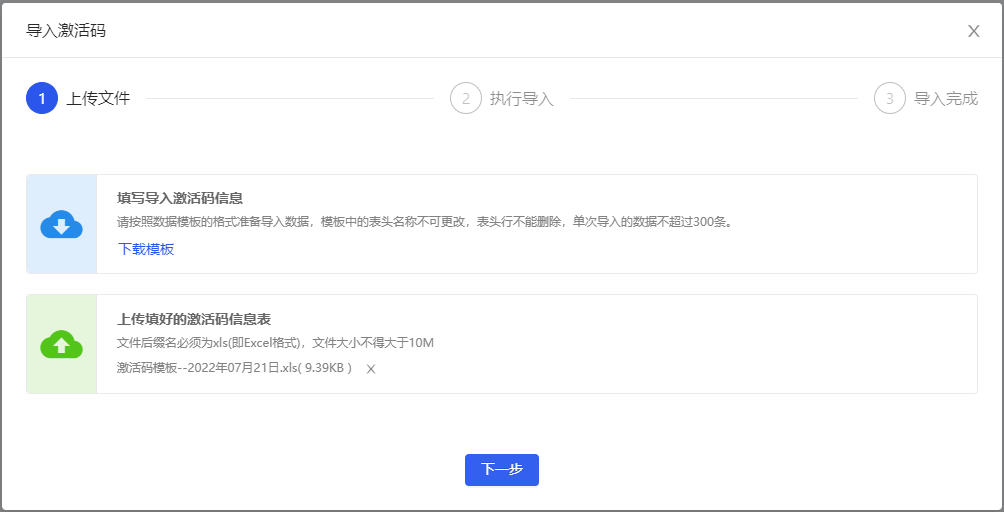
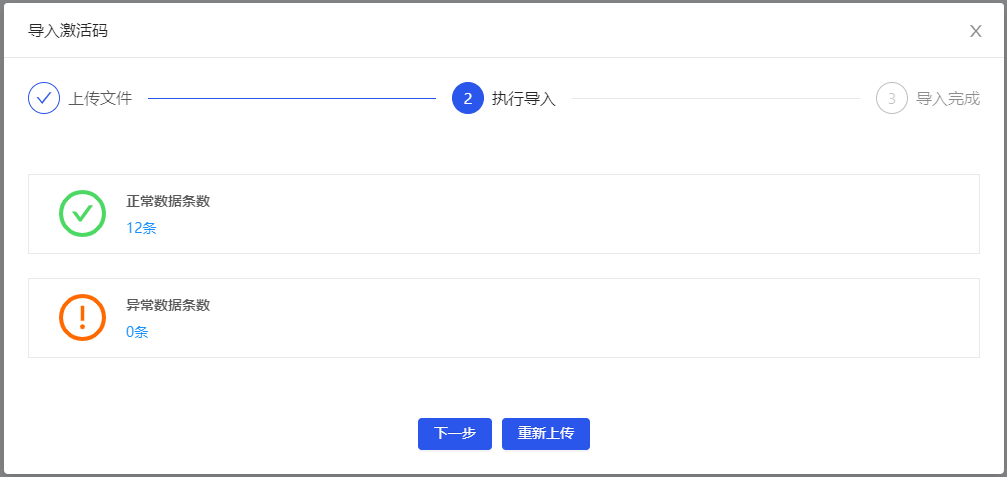
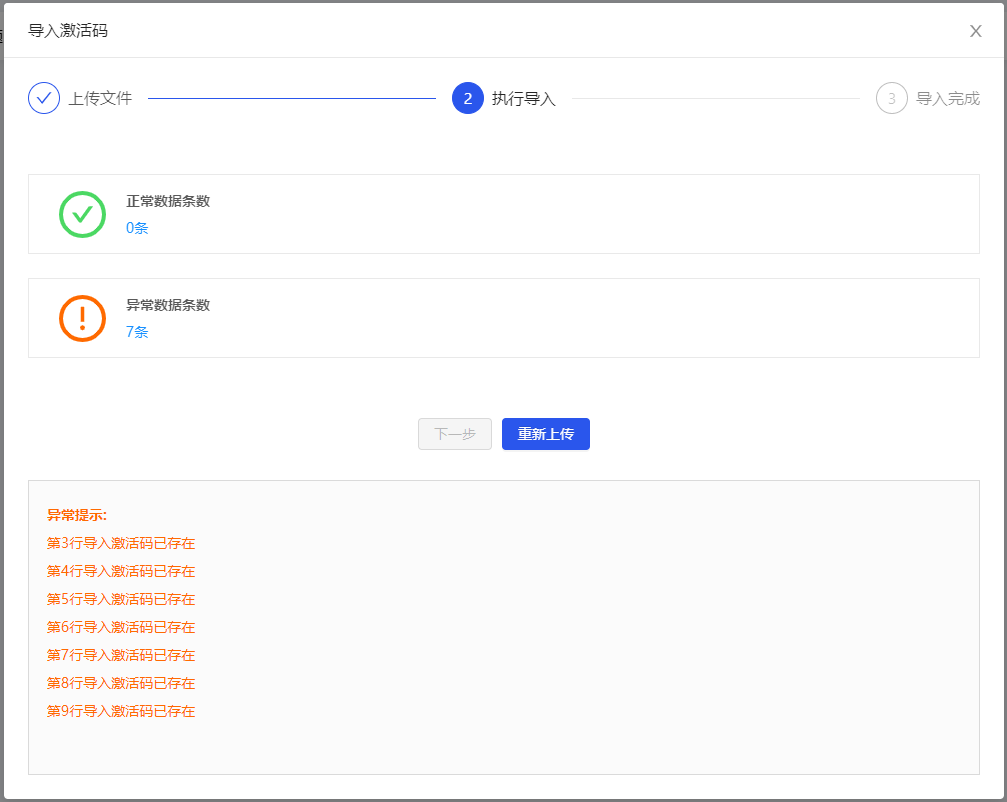
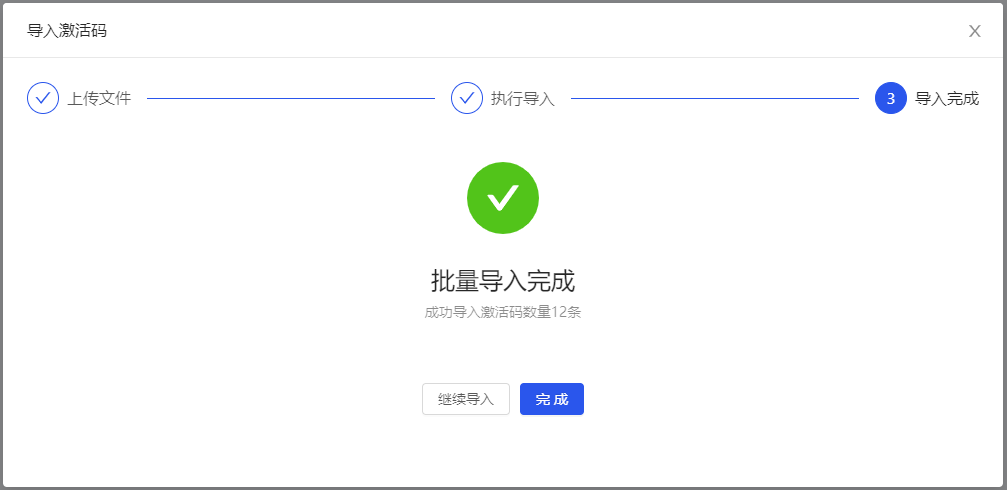
// template
<a-button
	type="primary"
    @click="visibleImport = true">
    导入激活码
</a-button>
<zl-import-file
    :apiProps="{
		apiModuleName: 'mmipsSystemSetApi',
        doImportCheckName: 'importCheck',
        doImportName: 'import',
        cancelImportName: 'cancelImport',
        downloadName: 'downImportTemplate'
	}"
    moduleName="激活码"
    v-model="visibleImport"
    @finished="finished" />

// script
<script>
export default {
    data() {
        visibleImport: false
    },
    methods: {
        finished() {
        	// do something...
        }
    },
    components: {
        zlImportFile: () => import('zlit-components/components/zlImportFile/index.vue')
    }
}
</script>
zlTableFilter------表格页面筛选区域组件
1. 全局注册
// main.js
import { zlTableFilter } from 'zlit-components'
Vue.use(zlTableFilter)
2. 组件内单独使用
components: {
    zlTableFilter: () => import('zlit-components/components/zlTableFilter/index.vue')
}
3. API属性
| 属性 | 说明 | 类型 | 默认值 | 版本 |
| --------------------- | ------------------------------------------------------------ | ------- | ------ | ----- |
| visibleFilter | 控制表单区域是否显示 | Boolean | true | 1.0.0 |
| visibleTableOperation | 控制【表格类型】页面按钮操作区是否显示,显示在组件左侧 | Boolean | true | 1.0.0 |
| visibleAdd | 控制添加按钮是否显示 | Boolean | true | 1.0.0 |
| addText | 添加按钮的文字描述 | String | 添加 | 1.0.0 |
| visibleDelete | 控制删除按钮是否显示 | Boolean | true | 1.0.0 |
| deleteText | 删除按钮的文字描述 | String | 删除 | 1.0.0 |
| selected | 表格中复选框选中的数据,用于处理是否需要显示批量操作按钮,仅限表格页面布局使用 | Array | 详细说明见下方 | 1.0.0 |
| visibleCardOperation | 控制【卡片类型】页面按钮操作区是否显示,显示在组件右侧 | Boolean | false | 1.0.0 |
| visibleCardBatchSwitch | 控制卡片类型页面批量操作【切换按钮】是否显示前提条件 visibleCardOperation 的值必须为true | Boolean | true | 1.0.0 |
| visibleListSwitch | 控制表格布局、卡片列表布局的【切换按钮】是否显示前提条件 visibleCardOperation 的值必须为true | Boolean | true | 1.0.0 |
| orderList | 表格或列表数据排序切换菜单的数据 | Array | 详细说明见下方 | 1.0.0 |
- selected属性值说明
// 一般传入的值为选中数据的id集合
[1, 2, 3, ...]- orderList属性值说明,以下为默认值
// title、value字段为必须,其余根据业务路基随意扩展
[
    { title: '最近更新', value: 1 },
    { title: '最早更新', value: 2 },
    { title: '名称A-Z', value: 3 }
]
4. 事件
| 事件名称 | 说明 | 回调参数 | 版本 | | --------------- | ------------------------------------------------------------ | ---------------- | ----- | | resetFilterForm | 重置按钮点击事件 | function() | 1.0.0 | | add | 添加按钮点击事件 | function() | 1.0.0 | | del | 删除按钮点击事件 | function() | 1.0.0 | | openBatch | 卡片类型页面:批量操作按钮点击事件 | function() | 1.0.0 | | closeBatch | 卡片类型页面:取消批量操作按钮点击事件 | function() | 1.0.0 | | switchLayout | 切换表格、卡片页面布局按钮的回调,参数为当前切换布局的类型值 | function(type) | 1.0.0 | | selectAll | 全选按钮点击事件,参数为checkbox的事件对象 | function(e) | 1.0.0 | | switchSort | 切换排序方式的回调,参数为当前切换排序的值 | function(record) | 1.0.0 |
5. 插槽
| 插槽名称 | 说明 | 版本 | | ------------------- | -------------------------------------------------- | ----- | | filterFormModelItem | 组件筛选区域的插槽,用于接收表单DOM | 1.0.0 | | nonBatchOperation | 组件非批量操作按钮区域的插槽,【表格布局页面】 | 1.0.0 | | batchOperation | 组件批量操作按钮区域的插槽,【表格布局页面】 | 1.0.0 | | cardBatchOperation | 组件批量操作按钮区域的插槽,【卡片式列表布局页面】 | 1.0.0 |
6. 使用示例
具体操作请根据适用场景以及业务逻辑来取舍
以下data、methods中声明的变量或方法仅为展示示例使用,切勿直接复制使用,请根据实际场景对变量、方法等进行规范命名。
(1)示例一
表格布局页面,显示筛选、重置、添加、删除、批量操作。

// template,部分属性采用了组件的默认值
<zl-table-filter
	addText="添加学生"
    deleteText="移除"
    :selected="selected"
    @resetFilterForm="resetFilterForm"
    @add="add"
	@del="del">
    <template #filterFormModelItem>
		<a-form-model-item label="学生名称">
            <a-input-search
                style="width: 200px"
                placeholder="请输入学生名称"
                allowClear />
        </a-form-model-item>
    </template>
    <template #nonBatchOperation>
		<a-button
			type="primary"
            ghost>
            扩展非批量操作按钮
        </a-button>
    </template>
    <template #batchOperation>
		<a-button
            type="primary"
            ghost>
            扩展批量操作按钮
        </a-button>
    </template>
</zl-table-filter>

// script
<script>
export default {
    data() {
        return {
          // 以下表示表格选中的2条数据,当数组长度为0时,批量操作按钮将会隐藏
          selected: [1, 2]
        }
	},
  	methods: {
        // 重置按钮点击事件
        resetFilterForm() {
          	console.log('点击重置')
        },
        // 添加按钮点击事件
        add() {
          	console.log('点击添加')
        },
        // 删除按钮点击事件
        del() {
          	console.log('点击删除')
        }
  	},
  	components: {
    	zlTableFilter: () => import('zlit-components/components/zlTableFilter/index.vue')
  	}
}
</script>
(2)示例二
使用
visibleCardOperation属性设置显示表格、卡片布局切换按钮


// template,部分属性采用了组件的默认值
<zl-table-filter
	:visibleCardOperation="true"
    @resetFilterForm="resetFilterForm"
    @add="add"
    @del="del"
    @openBatch="openBatch"
    @closeBatch="closeBatch"
    @switchLayout="switchLayout"
    @selectAll="selectAll"
    @switchSort="switchSort">
    <template #filterFormModelItem>
		<a-form-model-item label="学生名称">
			<a-input-search
				style="width: 200px"
            	placeholder="请输入学生名称"
            	allowClear />
        </a-form-model-item>
	</template>
	<template #cardBatchOperation>
        <a-button
            type="primary"
            ghost>
            扩展按钮1
        </a-button>
        <a-button
            type="primary"
            ghost>
            扩展按钮2
        </a-button>
    </template>
</zl-table-filter>

// script
<script>
    export default {
    data() {
        return {}
	},
  	methods: {
        // 重置按钮点击事件
        resetFilterForm() {
          	console.log('点击重置')
        },
        // 添加按钮点击事件
        add() {
          	console.log('点击添加')
        },
        // 删除按钮点击事件
        del() {
          	console.log('点击删除')
        },
        // 批量操作按钮点击事件
        openBatch() {
          	console.log('点击批量操作')
        },
        // 取消按钮点击事件
        closeBatch() {
          	console.log('点击取消')
        },
        // 切换页面布局事件
        switchLayout(type) {
          	console.log(`切换页面布局为:${type}方式`)
        },
        // 全选按钮点击事件
        selectAll(e) {
          	console.log('点击全选', e)
        },
        // 切换排序事件
        switchSort(record) {
          	console.log('切换排序', record)
        }
  	},
  	components: {
    	zlTableFilter: () => import('zlit-components/components/zlTableFilter/index.vue')
  	}
}
</script>
(3)示例三
使用
visibleCardBatchSwitch属性设置隐藏卡片式列表批量操作按钮

// template,部分属性采用了组件的默认值
<zl-table-filter
	:visibleCardOperation="true"
    :visibleCardBatchSwitch="false"
    @resetFilterForm="resetFilterForm"
    @add="add"
    @del="del"
    @switchLayout="switchLayout"
    @switchSort="switchSort">
    <template #filterFormModelItem>
		<a-form-model-item label="学生名称">
			<a-input-search
				style="width: 200px"
            	placeholder="请输入学生名称"
            	allowClear />
        </a-form-model-item>
	</template>
</zl-table-filter>

// script
<script>
    export default {
    data() {
        return {}
	},
  	methods: {
        // 重置按钮点击事件
        resetFilterForm() {
          	console.log('点击重置')
        },
        // 添加按钮点击事件
        add() {
          	console.log('点击添加')
        },
        // 删除按钮点击事件
        del() {
          	console.log('点击删除')
        },
        // 切换页面布局事件
        switchLayout(type) {
          	console.log(`切换页面布局为:${type}方式`)
        },
        // 切换排序事件
        switchSort(record) {
          	console.log(`切换排序`, record)
        }
  	},
  	components: {
    	zlTableFilter: () => import('zlit-components/components/zlTableFilter/index.vue')
  	}
}
</script>
(4)示例四
使用
visibleListSwitch属性设置隐藏表格、卡片列表布局切换按钮

// template,部分属性采用了组件的默认值
<zl-table-filter
	:visibleCardOperation="true"
    :visibleListSwitch="false"
    @resetFilterForm="resetFilterForm"
    @add="add"
    @del="del"
    @openBatch="openBatch"
    @closeBatch="closeBatch"
    @selectAll="selectAll"
    @switchSort="switchSort">
    <template #filterFormModelItem>
		<a-form-model-item label="学生名称">
			<a-input-search
				style="width: 200px"
            	placeholder="请输入学生名称"
            	allowClear />
        </a-form-model-item>
	</template>
</zl-table-filter>

// script
// script
<script>
    export default {
    data() {
        return {}
	},
  	methods: {
        // 重置按钮点击事件
        resetFilterForm() {
          	console.log('点击重置')
        },
        // 添加按钮点击事件
        add() {
          	console.log('点击添加')
        },
        // 删除按钮点击事件
        del() {
          	console.log('点击删除')
        },
        // 批量操作按钮点击事件
        openBatch() {
          	console.log('点击批量操作')
        },
        // 取消按钮点击事件
        closeBatch() {
          	console.log('点击取消')
        },
        // 全选按钮点击事件
        selectAll(e) {
          	console.log('点击全选', e)
        },
        // 切换排序事件
        switchSort(record) {
          	console.log(`切换排序`, record)
        }
  	},
  	components: {
    	zlTableFilter: () => import('zlit-components/components/zlTableFilter/index.vue')
  	}
}
</script>
(5)示例五
隐藏筛选区,多用于配合其他筛选布局

// template,部分属性采用了组件的默认值
<zl-table-filter
	:visibleFilter="false"
    :visibleCardOperation="true"
    @add="add"
    @del="del"
    @openBatch="openBatch"
    @closeBatch="closeBatch"
    @switchLayout="switchLayout"
    @selectAll="selectAll"
    @switchSort="switchSort"></zl-table-filter>

// script
<script>
    export default {
    data() {
        return {}
	},
  	methods: {
        // 添加按钮点击事件
        add() {
          	console.log('点击添加')
        },
        // 删除按钮点击事件
        del() {
          	console.log('点击删除')
        },
        // 批量操作按钮点击事件
        openBatch() {
          	console.log('点击批量操作')
        },
        // 取消按钮点击事件
        closeBatch() {
          	console.log('点击取消')
        },
        // 切换页面布局事件
        switchLayout(type) {
          	console.log(`切换页面布局为:${type}方式`)
        },
        // 全选按钮点击事件
        selectAll(e) {
          	console.log('点击全选', e)
        },
        // 切换排序事件
        switchSort(record) {
          	console.log(`切换排序`, record)
        }
  	},
  	components: {
    	zlTableFilter: () => import('zlit-components/components/zlTableFilter/index.vue')
  	}
}
</script>
zlTable------表格组件
基于UI库表格组件的二次封装,包括部分默认值、表格文字超出鼠标显示浮层处理等,需要配合
tableMixins.js使用。
1. 全局注册
// main.js
import { zlTable } from 'zlit-components'
Vue.use(zlTable)
2. 组件内单独使用
components: {
    zlTable: () => import('zlit-components/components/zlTable/index.vue')
}
3. API属性
| 属性 | 说明 | 类型 | 默认值 | 版本 |
| --------------- | ------------------------------------------------------------ | ------------------ | -------- | ----- |
| rowKey | 表格行 key 的取值 | String | Function | id | 1.0.0 |
| columns | 表格列配置项,和UI库相同,新增isHtml属性,详细说明见下方 | Array | [] | 1.0.0 |
| selectedRowKeys | 表格选中的数据keys,内部已实现v-model语法糖 | Array | [] | 1.0.0 |
| nonSelect | 是否关闭表格选择 | Boolean | false | 1.0.0 |
| tableType | 表格选择类型,单选或多选,checkbox radio | String | checkbox | 1.0.0 |
| ... | 其余API和UI库相同 | ... | ... | ... |
- columns新增属性值
isHtml说明
使用
ellipsisisHtml前提必须存在scopedSlots属性,内部借助了UI库表格插槽渲染
ellipsis:设置为true时,表格文字长度不够展示时,显示气泡浮层展示全部,覆盖了UI库默认的样式
isHtml:设置为true时,内容将以innerHTML形式渲染
// 所有配置项内容与UI库保持一致
const tableColumns = [
    { title: '课程名称', dataIndex: 'title', width: 160 },
    {
        title: '详细内容',
        dataIndex: 'content',
        width: 220,
        scopedSlots: { customRender: 'content' },
        ellipsis: true,
        isHtml: true
    },
    ...
    { title: '操作', dataIndex: 'operation', width: 160, scopedSlots: { customRender: 'operation' } }
]
4. 事件
| 事件名称 | 说明 | 回调参数 | 版本 | | -------- | -------------------------- | ------------------------------------- | ----- | | change | 分页、排序、筛选变化时触发 | function(pagination, filters, sorter) | 1.0.0 |
5. 插槽
表格插槽为根据列配置项动态配置的,唯一不同点是,组件内部封装使用了插槽props,所以使用时需要对象解构,与UI库不同。详情见使用示例。
6. 使用示例
具体操作请根据适用场景以及业务逻辑来取舍
(1)示例一
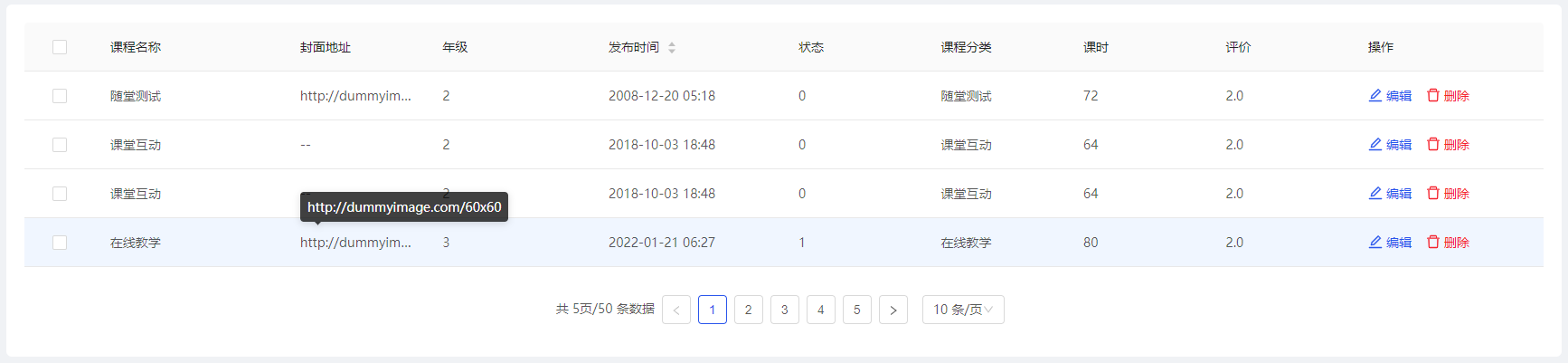
配置列内容超出显示鼠标浮层,在列配置项中设置
isHtmlellipsisscopedSlots实现内容以innerHTML渲染,且超出显示文字样式统一化
// template
<zl-table
	:loading="tableLoading"
	:pagination="tablePagination"
	:dataSource="tableDataSource"
	:columns="tableColumns"
	v-model="selectedRowId"
    @change="
        (pagination, filters, sorter) => {
            handleTableChange(pagination, sorter)
        }
    ">
    <!-- 使用解构获取数据,存在3个值,text,record,index -->
    <template #operation="{ record }">
		<a-space :size="16">
			<span
				class="ctrl-iconfont-primary"
          		@click="showEditModal(record)">
       		 	<a-icon type="edit"/>编辑
        	</span>
    		<a-popconfirm
				placement="topRight"
                title="删除后不可恢复,是否确认删除?"
                @confirm="singleDel(record)"
                okType="danger"
                okText="删除">
        		<span class="ctrl-iconfont-danger">
            		<a-icon type="delete"/>删除
       			</span>
        	</a-popconfirm>
		</a-space>
	</template>
</zl-table>

// script 仅为示例数据
<script>
// 表格常用混入,内置部分变量、方法等
import tableMixins from '@/Mixins/tableMixins'
const tableColumns = [
    { title: '课程名称', dataIndex: 'title', width: 160 },
  	{
        title: '封面地址',
        dataIndex: 'previewUrl',
        width: 120,
        scopedSlots: { customRender: 'previewUrl' },
        ellipsis: true,
        isHtml: true
    },
  	{ title: '年级', dataIndex: 'grade', width: 140 },
  	{ title: '发布时间', dataIndex: 'publishTime', width: 160, sorter: true, field: 'F_publishTime' },
  	{ title: '状态', dataIndex: 'state', width: 120 },
  	{ title: '课程分类', dataIndex: 'curricularTaxonomy', width: 120 },
  	{ title: '课时', dataIndex: 'classHour', width: 120 },
  	{ title: '评价', dataIndex: 'evaluate', width: 120 },
  	{ title: '操作', dataIndex: 'operation', width: 160, scopedSlots: { customRender: 'operation' } }
]
export default {
    mixins: [tableMixins],
    data() {
        return {
            tableColumns
        }
    },
    methods: {
        getList() {
            this.CRUDPublic.doSelect({
                apiModulesName: 'testApi',
                apiMethodName: 'getList',
                ...
            }).then(res => {
                // 数据二次处理
                console.log(res)
            }).catch(err => {
                console.log(err)
            })
        },
        showEditModal(record) {
         	console.log(record)
        },
        singleDel(record) {
          	console.log(record)
        }
    },
    components: {
        zlTable: () => import('zlit-components/components/zlTable/index.vue')
    }
}
</script>
(2)示例二
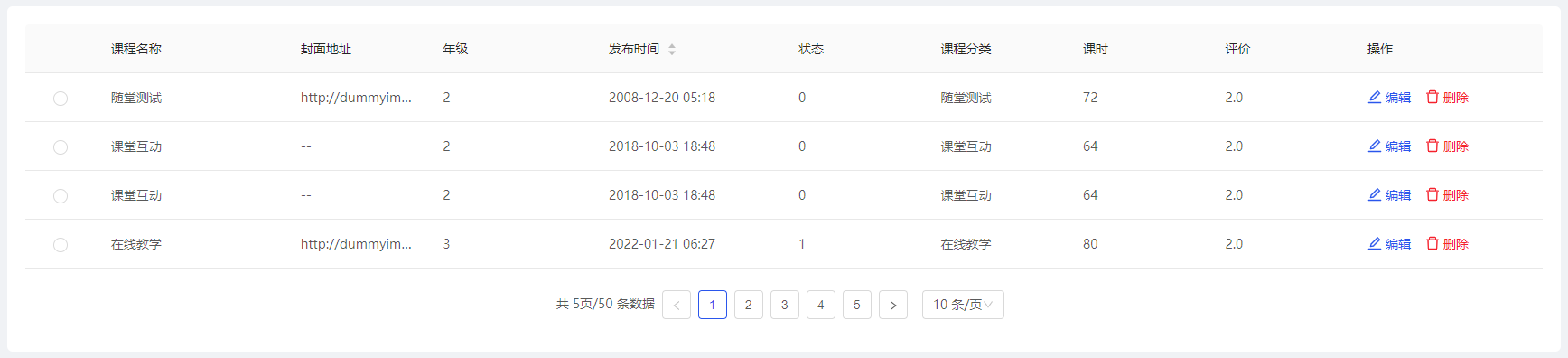
设置
tableType='radio'启用行单选模式
// template
<zl-table
    tableType="radio"
	:loading="tableLoading"
	:pagination="tablePagination"
	:dataSource="tableDataSource"
	:columns="tableColumns"
	v-model="selectedRowId"
    @change="
        (pagination, filters, sorter) => {
            handleTableChange(pagination, sorter)
        }
    ">
    <!-- 同示例一 -->
</zl-table>
// script 同示例一
(3)示例三
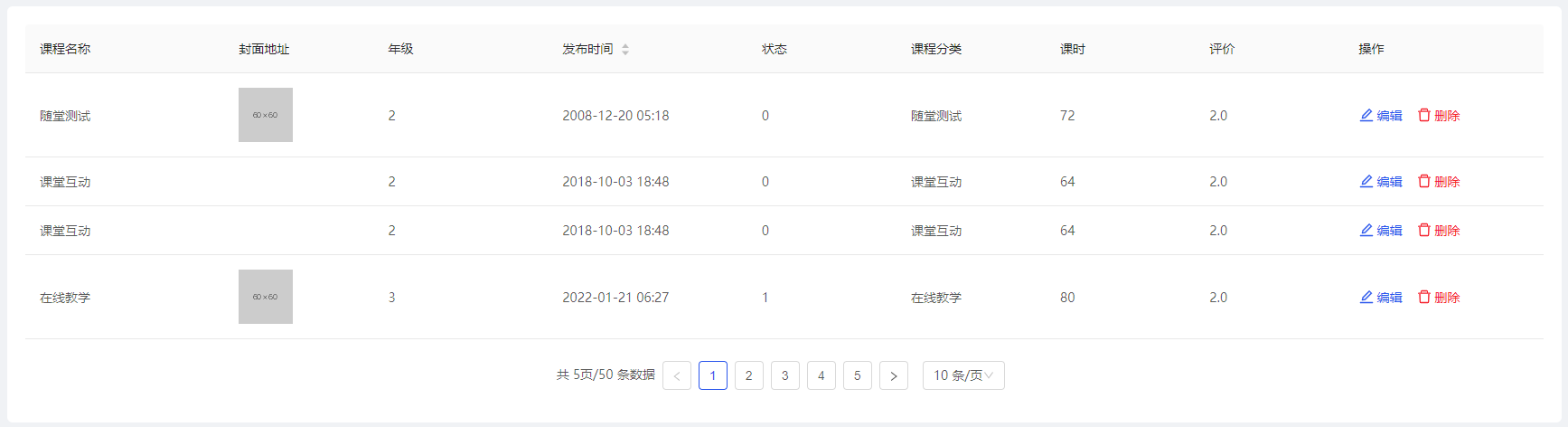
设置
nonSelect='true',关闭表格单选、多选操作,使用列配置项中的插槽scopedSlots: { customRender: 'previewUrl' }自定义渲染数据展示
// template
<zl-table
    :nonSelect="true"
	:loading="tableLoading"
	:pagination="tablePagination"
	:dataSource="tableDataSource"
	:columns="tableColumns"
    @change="
        (pagination, filters, sorter) => {
            handleTableChange(pagination, sorter)
        }
    ">
    <!-- 会覆盖组件内部的默认渲染,完全自定义 -->
    <template #previewUrl="{ record }">
		<img
     		:src="record.previewUrl"
     		alt="" />
    </template>
</zl-table>
// script 同示例一
zlTableEllipsis------表格单元格文字过多鼠标浮层组件
用于表格中单元格文字内容过多时,鼠标移入单元格显示的浮层提示组件,此效果为UI统一指定
1. 全局注册
// main.js
import { zlTableEllipsis } from 'zlit-components'
Vue.use(zlTableEllipsis)
2. 组件内单独使用
components: {
    zlTableEllipsis: () => import('zlit-components/components/zlTableEllipsis/index.vue')
}
3. API属性
| 属性 | 说明 | 类型 | 默认值 | 版本 | | ------ | ----------------------- | ------- | ------ | ----- | | text | 文本内容 | String | '' | 1.0.0 | | isHtml | 是否以innerHTML渲染文本 | Boolean | false | 1.0.0 |
4. 使用示例
具体操作请根据适用场景以及业务逻辑来取舍
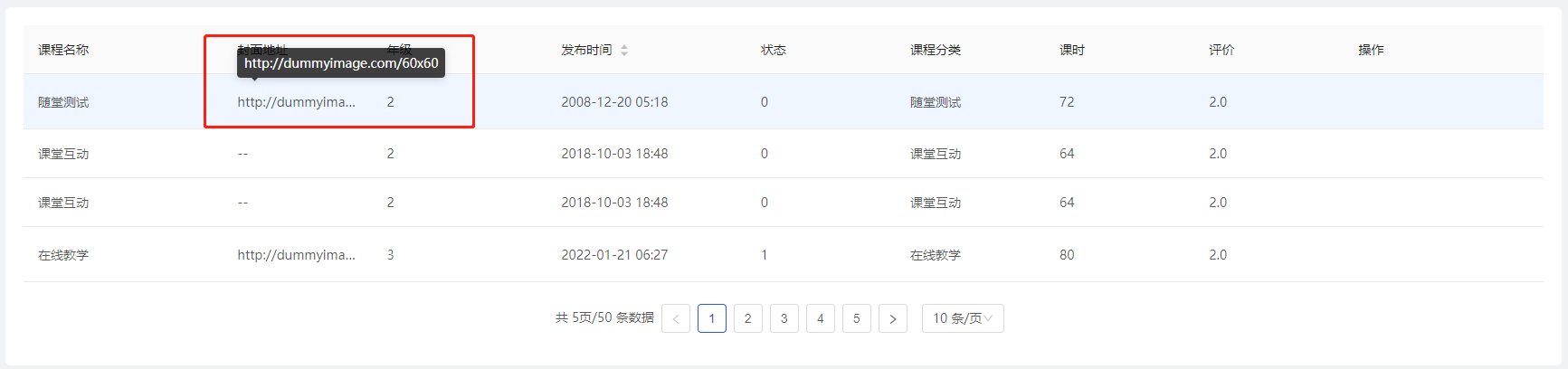
使用UI库表格组件,实现文字过多显示处理
注:【zlTable】组件内部已实现文字过多展示的处理,只需要配置对应列配置项即可。
//template
<a-table
    rowKey="id"
    :loading="tableLoading"
    :pagination="tablePagination"
    :dataSource="tableDataSource"
    :columns="tableColumns">
    <template #previewUrl="text">
	<zl-table-ellipsis
		:text="text"
		:isHtml="true" />
    </template>
</a-table>

// script 仅为示例数据
<script>
// 表格常用混入,内置部分变量、方法等
import tableMixins from '@/Mixins/tableMixins'
const tableColumns = [
    { title: '课程名称', dataIndex: 'title', width: 160 },
  	{
        title: '封面地址',
        dataIndex: 'previewUrl',
        width: 120,
        scopedSlots: { customRender: 'previewUrl' },
        ellipsis: true,
        isHtml: true
    },
  	{ title: '年级', dataIndex: 'grade', width: 140 },
  	{ title: '发布时间', dataIndex: 'publishTime', width: 160, sorter: true, field: 'F_publishTime' },
  	{ title: '状态', dataIndex: 'state', width: 120 },
  	{ title: '课程分类', dataIndex: 'curricularTaxonomy', width: 120 },
  	{ title: '课时', dataIndex: 'classHour', width: 120 },
  	{ title: '评价', dataIndex: 'evaluate', width: 120 },
  	{ title: '操作', dataIndex: 'operation', width: 160, scopedSlots: { customRender: 'operation' } }
]
export default {
    mixins: [tableMixins],
    data() {
        return {
            tableColumns
        }
    },
    methods: {
        getList() {
            this.CRUDPublic.doSelect({
                apiModulesName: 'testApi',
                apiMethodName: 'getList',
                ...
            }).then(res => {
                // 数据二次处理
            }).catch(err => {
                console.log(err)
            })
        }
    },
    components: {
        zlTableEllipsis: () => import('zlit-components/components/zlTableEllipsis/index.vue')
    }
}
</script>
zlEmpty------空状态组件
组件的width、height是自动的,继承父容器width、height
1. 全局注册
// main.js
import { zlEmpty } from 'zlit-components'
Vue.use(zlEmpty)
2. 组件内单独使用
components: {
    zlEmpty: () => import('zlit-components/components/zlEmpty/index.vue')
}
3. API属性
| 属性 | 说明 | 类型 | 默认值 | 版本 |
| ----------- | ----------------------------------------------- | ----------------- | ------------------- | ----- |
| description | 自定义描述内容,传入 false 时则不显示描述内容 | String | Boolean | 暂无数据 | 1.0.0 |
| image | 自定义占位图路径 | String | 显示默认图片 | 1.0.0 |
| imageStyle | 控制占位图的css样式 | Object | { height: '100px' } | 1.0.0 |
4. 插槽
| 插槽名称 | 说明 | 版本 |
| ----------- | ----------------------------------------------- | ----- |
| description | 自定义描述内容的插槽,会覆盖 description 属性 | 1.0.0 |
| image | 占位图插槽,会覆盖 image 属性 | 1.0.0 |
| footer | 额外扩展插槽,用于显示多余内容,使用频率较低 | 1.0.0 |
5. 使用示例
具体操作请根据适用场景以及业务逻辑来取舍
(1)示例一
使用默认空状态组件

// template
<zl-empty />

// script
<script>
export default {
  	components: {
    	zlEmpty: () => import('zlit-components/components/zlEmpty/index.vue')
	}
}
</script>
(2)示例二
自定义占位图

// template
// 方式一:使用image属性自定义占位图
<zl-empty :image="require('@i/img/systemDefault/nothing.png')" />

// 方式二:使用image插槽自定义占位图
<zl-empty>
	<template #image>
    	<img
             :src="require('@i/img/systemDefault/nothing.png')"
             alt="" />
    </template>
</zl-empty>

// script
<script>
export default {
  	components: {
    	zlEmpty: () => import('zlit-components/components/zlEmpty/index.vue')
	}
}
</script>
(3)示例三
自定义描述内容

// template
// 方式一:使用description属性自定义占位图
<zl-empty description="暂无学生" />

// 方式二:使用description插槽自定义占位图
<zl-empty>
	<template #description>
    	<span>暂无学生</span>
    </template>
</zl-empty>

// script
<script>
export default {
  	components: {
    	zlEmpty: () => import('zlit-components/components/zlEmpty/index.vue')
	}
}
</script>
(4)示例四
修改占位图css样式

// template
<zl-empty
	:imageStyle="{
		height: '200px'
	}" />

// script
<script>
export default {
  	components: {
    	zlEmpty: () => import('zlit-components/components/zlEmpty/index.vue')
	}
}
</script>
(5)示例五
使用footer插槽添加额外的元素,比如按钮、提示信息等

// template
<zl-empty>
    <template #footer>
		<a-button type="primary">点击添加</a-button>
    </template>
</zl-empty>

// script
<script>
export default {
  	components: {
    	zlEmpty: () => import('zlit-components/components/zlEmpty/index.vue')
	}
}
</script>
zlLoading------加载中组件
1. 全局注册
// main.js
import { zlLoading } from 'zlit-components'
Vue.use(zlLoading)
2. 组件内单独使用
components: {
    zlLoading: () => import('zlit-components/components/zlLoading/index.vue')
}
3. API属性
| 属性 | 说明 | 类型 | 默认值 | 版本 | | ---- | ------------------------------------------------------------ | ------ | --------- | ----- | | tip | 自定义文字描述 | String | 加载中... | 1.0.0 | | ... | 其余API和UI库相同 | ... | ... | ... |
4. 插槽
| 插槽名称 | 说明 | 版本 | | -------- | ----------------------------- | ----- | | default | 用于放置列表容器或其他DOM容器 | 1.0.0 |
5. 使用示例
具体操作请根据适用场景以及业务逻辑来取舍
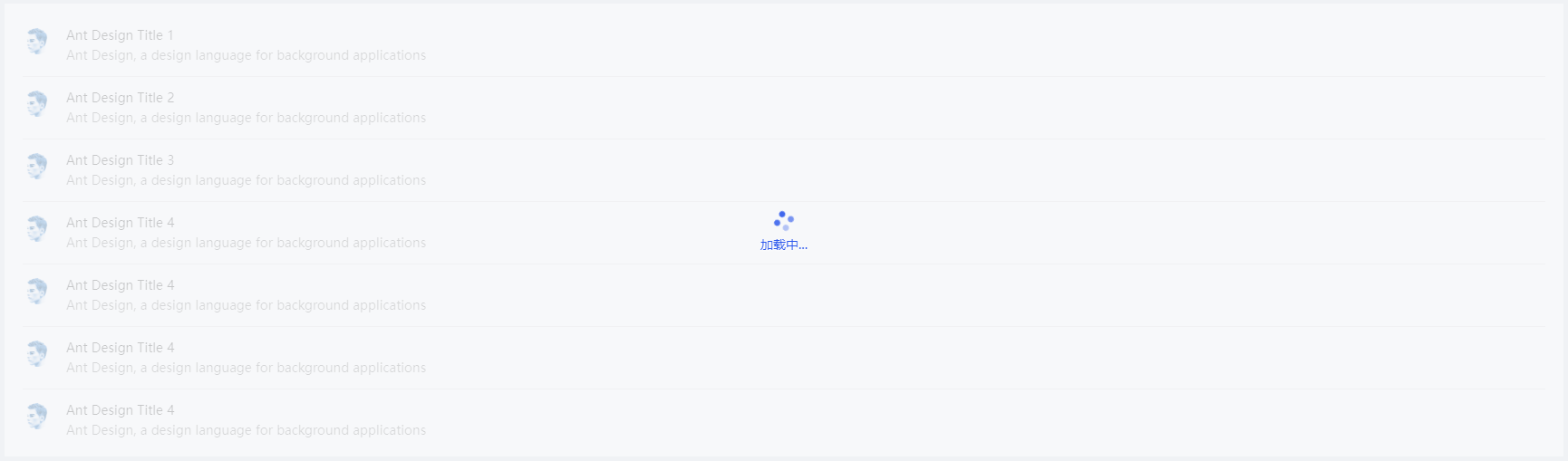
(1)示例一
使用默认加载中尺寸
// template,仅为示例布局
<zl-loading :spinning="spinning">
	<div class="spin-content">
		<a-list
			item-layout="horizontal"
          	:data-source="data">
          	<a-list-item
            	slot="renderItem"
            	slot-scope="item">
            	<a-list-item-meta description="Ant Design, a design language for background applications">
              		<a
                		slot="title"
                		href="https://www.antdv.com/">
                		{{ item.title }}
              		</a>
              		<a-avatar
                	slot="avatar"
                	src="https://zos.alipayobjects.com/rmsportal/ODTLcjxAfvqbxHnVXCYX.png" />
            	</a-list-item-meta>
          	</a-list-item>
        </a-list>
	</div>
</zl-loading>

// script
<script>
export default {
    data() {
        return {
            spinning: true,
            // 仅为示例数据
            data: [
                { title: 'Ant Design Title 1' },
                { title: 'Ant Design Title 2' },
                { title: 'Ant Design Title 3' },
                { title: 'Ant Design Title 4' },
                { title: 'Ant Design Title 4' },
                { title: 'Ant Design Title 4' }
            ]
        }
    },
  	components: {
    	zlLoading: () => import('zlit-components/components/zlLoading/index.vue')
	}
}
</script>

// style
<style scoped>
.spin-content {
	height: 500px;
    padding: 12px 20px;
    background: #fff;
}
</style>
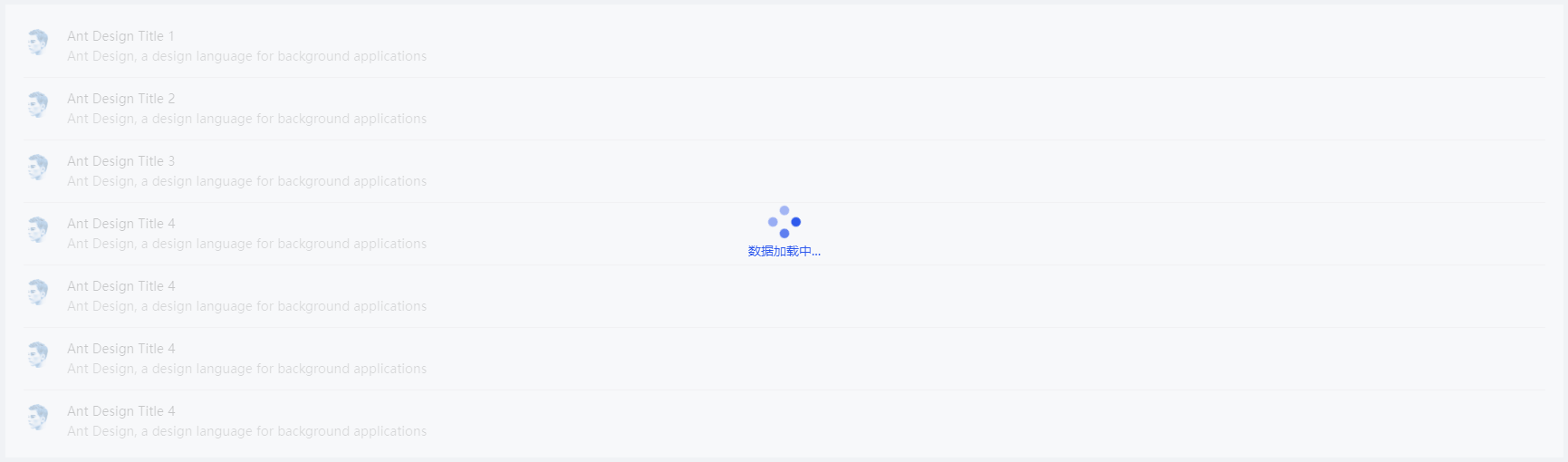
(2)示例二
改变icon尺寸以及描述文字
// template,仅为示例布局
<zl-loading
	:spinning="spinning"
    size="large"
    tip="数据加载中...">
    <div class="spin-content">
        <a-list
        	item-layout="horizontal"
            :data-source="data">
            <a-list-item
            	slot="renderItem"
            	slot-scope="item">
            	<a-list-item-meta description="Ant Design, a design language for background applications">
              		<a
                		slot="title"
                		href="https://www.antdv.com/">
                		{{ item.title }}
              		</a>
              		<a-avatar
                		slot="avatar"
                		src="https://zos.alipayobjects.com/rmsportal/ODTLcjxAfvqbxHnVXCYX.png" />
                </a-list-item-meta>
            </a-list-item>
        </a-list>
    </div>
</zl-loading>

// script、style同示例一
zlRadioGroup------筛选单选按钮组组件
1. 全局注册
// main.js
import { zlRadioGroup } from 'zlit-components'
Vue.use(zlRadioGroup)
2. 组件内单独使用
components: {
    zlRadioGroup: () => import('zlit-components/components/zlRadioGroup/index.vue')
}
3. API属性
| 属性 | 说明 | 类型 | 默认值 | 版本 | | ------------ | ---------------------------------------------- | ----------------------- | -------------------------------- | ----- | | groupInfo | 按钮组数据 | Object | {},详细说明见下方 | 1.0.0 | | customValue | 当前选中按钮的value值,内部已实现v-model语法糖 | Number|String|Boolean | '' | 1.0.0 | | labelAlign | label标签的文本对齐方式 | String | left | 1.0.0 | | visibleColon | label标签后跟随的冒号是否显示 | Boolean | false | 1.0.0 |
- groupInfo属性值说明,
/*
 * 数据格式:
 * 根属性中必须包含title、list字段,其中list为对象数组,其余根据业务逻辑随意扩展
 * list中的每个对象元素必须包含title、value字段,其余根据业务逻辑随意扩展
 */
groupInfo: {
    title: '分类',
    list: [
        { title: '全部', value: undefined },
        { title: '春节', value: 1 }
    ]
}
4. 事件
| 事件名称 | 说明 | 回调参数 | 版本 | | -------------- | ------------------------------------------------------------ | ----------------------- | ----- | | selectedHandle | 点击按钮的回调函数,包含两个参数。record:选中按钮的信息;index:选中按钮的下标 | function(record, index) | 1.0.0 |
5. 使用示例
具体操作请根据适用场景以及业务逻辑来取舍
(1)示例一
分类较多,在固定容器范围内显示不全时,样式展示,组件内部会自行计算


// template
<zl-radio-group
	v-model="festival"
	:groupInfo="festivalInfo"
	@selectedHandle="selectedHandle" />

// script
<script>
export default {
    data() {
        return {
            // 仅为示例数据
            festival: undefined,
            festivalInfo: {
                title: '分类',
                list: [
                    { title: '全部', value: undefined },
                    { title: '春节', value: 1 },
                    { title: '元宵节', value: 2 },
                    { title: '清明节', value: 3 },
                    { title: '端午节', value: 4 },
                    { title: '中秋节', value: 5 },
                    { title: '国庆节', value: 6 }
                ]
            }
        }
    },
    methods: {
    	selectedHandle(record, index) {
      		console.log(record, index)
    	}
  	},
  	components: {
    	zlRadioGroup: () => import('zlit-components/components/zlRadioGroup/index.vue')
	}
}
</script>
(2)示例二
label标签文本右对齐,固定容器内可全部展示

// template
<zl-radio-group
	labelAlign="right"
	v-model="state"
	:groupInfo="stateInfo"
	@selectedHandle="selectedHandle" />

// script
<script>
export default {
    data() {
        return {
            // 仅为示例数据
            state: undefined,
            stateInfo: {
                title: '状态',
                list: [
                    { title: '全部', value: undefined },
          			{ title: '未发布', value: 1 },
         			{ title: '发布中', value: 2 },
          			{ title: '已发布', value: 3 }
                ]
            }
        }
    },
    methods: {
    	selectedHandle(record, index) {
      		console.log(record, index)
    	}
  	},
  	components: {
    	zlRadioGroup: () => import('zlit-components/components/zlRadioGroup/index.vue')
	}
}
</script>
zlModal------弹框组件
1. 全局注册
// main.js
import { zlModal } from 'zlit-components'
Vue.use(zlModal)
2. 组件内单独使用
components: {
    zlModal: () => import('zlit-components/components/zlModal/index.vue')
}
3. API属性
| 属性 | 说明 | 类型 | 默认值 | 版本 |
| --------------- | ------------------------------------------------------------ | ------- | ------ | ----- |
| disabled | 是否禁用继续添加复选框、取消、保存按钮 | Boolean | false | 1.0.0 |
| visibleOk | 是否显示保存按钮 | Boolean | true | 1.0.0 |
| visibleCancel | 是否显示取消按钮 | Boolean | true | 1.0.0 |
| visibleContinue | 是否显示继续添加复选框 | Boolean | false | 1.0.0 |
| continueType | 继续添加文字描述,用于展示“勾选后,可连续添加多个[continueType]”。如:“勾选后,可连续添加多个学科”,前提 visibleContinue 为true | String | '' | 1.0.0 |
| ... | 以下API不支持修改其余API和UI库相同 | ... | ... | ... |
- 不支持修改的API
confirmLoading:组件内部采用了disabled属性进行同时更改
getContainer:组件内部已统一更改
okButtonProps:UI风格统一处理
cancelButtonProps:UI风格统一处理
4. 事件
| 事件名称 | 说明 | 回调参数 | 版本 | | -------- | ------------------------------------------------------------ | -------------------- | ----- | | ok | 点击保存按钮回调,参数为继续添加复选框是否为选中,true或者false | function(isContinue) | 1.0.0 | | cancel | 点击退出按钮回调 | function() | 1.0.0 |
5. 插槽
| 插槽名称 | 说明 | 版本 |
| ----------- | ------------------------------------------------------------ | ----- |
| title | 弹框标题 | 1.0.0 |
| closeIcon | 弹框关闭的icon | 1.0.0 |
| extraFooter | 弹框页脚左侧位置显示区域,前提 visibleContinue 为false,预留插槽,使用频率较低 | 1.0.0 |
| extraBtn | 取消按钮与保存按钮中间位置的插槽,用于扩展显示额外的按钮 | 1.0.0 |
| default | 默认插槽,用于展示弹框body区域内容 | 1.0.0 |
6. 使用示例
具体操作请根据适用场景以及业务逻辑来取舍
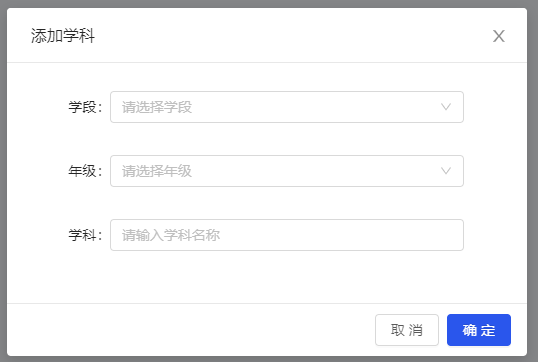
(1)示例一
基本使用方式
// template
<a-button @click="visible = true">点击</a-button>
<zl-modal
	title="添加学科"
	:visible="visible"
	:disabled="disabled"
	:afterClose="
		() => {
			Object.assign($data, $options.data())
		}
	"
	@ok="okHandler"
    @cancel="cancelHandler">
    <div class="content">
    	<a-form-model
			ref="formModel"
            :label-col="{ span: 4 }"
            :wrapper-col="{ span: 18 }">
            <a-form-model-item
            	label="学段"
                prop="stage">
                <a-select
                	placeholder="请选择学段"
                    allowClear>
                    <a-select-option :value="1">小学</a-select-option>
                    <a-select-option :value="2">初中</a-select-option>
                    <a-select-option :value="3">高中</a-select-option>
                </a-select>
            </a-form-model-item>
            <a-form-model-item
				label="年级"
                prop="grade">
                <a-select
                    placeholder="请选择年级"
                    allowClear>
                    <a-select-option :value="1">一年级</a-select-option>
                    <a-select-option :value="2">二年级</a-select-option>
                    <a-select-option :value="3">三年级</a-select-option>
                </a-select>
            </a-form-model-item>
            <a-form-model-item
                label="学科"
                prop="subjectName">
                <a-input
                	placeholder="请输入学科名称"
                    autocomplete="off"
                    allowClear />
			</a-form-model-item>
        </a-form-model>
    </div>
</zl-modal>

// script
<script>
export default {
    data() {
        return {
            // 仅为示例数据
            visible: false,
      		disabled: false
        }
    },
    methods: {
    	okHandler() {
			// 模拟接口请求
            this.disabled = true
            setTimeout(() => {
                Object.assign(this, {
                    visible: false,
                    disabled: false
                })
            }, 1500)
        },
        cancelHandler() {
          	this.visible = false
        }
  	},
  	components: {
		zlModal: () => import('zlit-components/components/zlModal/index.vue')
	}
}
</script>
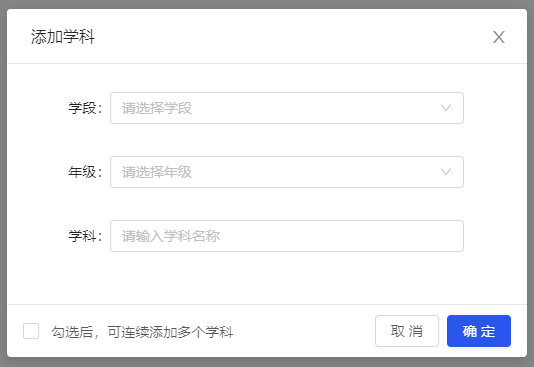
(2)示例二
显示继续添加复选框,通常添加数据时显示,编辑数据时隐藏,实际使用过程中请结合业务逻辑进行处理
// template
<a-button @click="visible = true">点击</a-button>
<zl-modal
	title="添加学科"
    :visible="visible"
    :disabled="disabled"
    :visibleContinue="visibleContinue"
    continueType="学科"
    :afterClose="
		() => {
        	Object.assign($data, $options.data())
        }
    "
    @ok="okHandler"
    @cancel="cancelHandler">
    <div class="content">// 同示例一</div>
</zl-modal>

// script
<script>
export default {
    data() {
        return {
            // 仅为示例数据
            visible: false,
      		disabled: false,
            visibleContinue: true
        }
    },
    methods: {
    	okHandler(isContinue) {
			if (isContinue) {
                // 继续添加只重置表单、不关闭modal弹框
                // 模拟接口请求
                this.disabled = true
                setTimeout(() => {
                  	this.disabled = false
                }, 1500)
            } else {
                // 模拟接口请求
                this.disabled = true
                setTimeout(() => {
                    Object.assign(this, {
                        visible: false,
                        disabled: false
                    })
                }, 1500)
            }
        },
        cancelHandler() {
          	this.visible = false
        }
  	},
  	components: {
		zlModal: () => import('zlit-components/components/zlModal/index.vue')
	}
}
</script>
(3)示例三
不展示页脚

// template
<a-button @click="visible = true">点击</a-button>
<zl-modal
	title="没有页脚"
    :visible="visible"
    :footer="null"
    @cancel="cancelHandler">
    <div class="content">展示其他内容</div>
</zl-modal>

// script
<script>
export default {
    data() {
        return {
            // 仅为示例数据
            visible: false
        }
    },
    methods: {
        cancelHandler() {
          	this.visible = false
        }
  	},
  	components: {
		zlModal: () => import('zlit-components/components/zlModal/index.vue')
	}
}
</script>
(4)示例四
使用插槽渲染
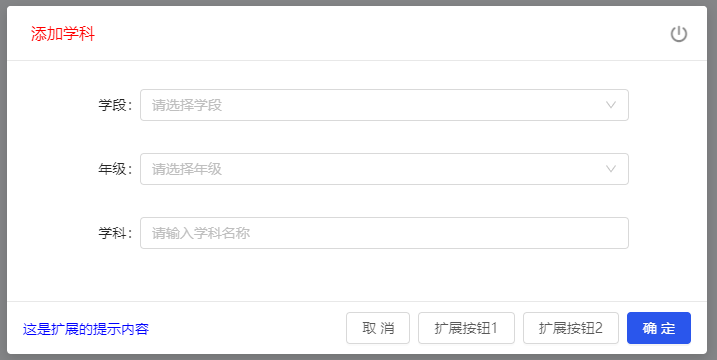
// template
<a-button @click="visible = true">点击</a-button>
<zl-modal
	:visible="visible"
    :disabled="disabled"
    :width="700"
    :afterClose="
		() => {
			Object.assign($data, $options.data())
        }
    "
    @ok="okHandler"
    @cancel="cancelHandler">
    <template #title>
		<p style="color: red">添加学科</p>
    </template>
    <template #closeIcon>
		<i class="iconfont icon-a-guanbi2"></i>
    </template>
    <template #extraFooter>
		<p style="color: blue">这是扩展的提示内容</p>
    </template>
    <template #extraBtn>
		<a-button :disabled="disabled">扩展按钮1</a-button>
		<a-button :disabled="disabled">扩展按钮2</a-button>
    </template>
    <div class="content">// 同示例一</div>
</zl-modal>

// script
<script>
export default {
    data() {
        return {
            // 仅为示例数据
            visible: false,
      		disabled: false
        }
    },
    methods: {
    	okHandler() {
			// 模拟接口请求
            this.disabled = true
            setTimeout(() => {
                Object.assign(this, {
                    visible: false,
                    disabled: false
                })
            }, 1500)
        },
        cancelHandler() {
          	this.visible = false
        }
  	},
  	components: {
		zlModal: () => import('zlit-components/components/zlModal/index.vue')
	}
}
</script>