
tofucode
v1.5.0
Published
Web UI for Claude Code - run Claude Agent SDK with a browser interface

Maintainers
 minitofu
Readme
tofucode
Web UI for Claude Code with full system access. Run Claude through a browser interface on remote VMs, servers, or local machines.
Quick Start
NPM
# Run directly with npx (recommended)
npx tofucode

# Or install globally
npm install -g tofucode
tofucode
Open http://localhost:3000 and start chatting.
Docker
# Pull and run
docker run -d \
  -p 3000:3000 \
  -e ANTHROPIC_API_KEY=your_key_here \
  -v $(pwd):/workspace \
  picotofu/tofucode:latest --root /workspace

# Open http://localhost:3000
Mount Points:
/home/node/.claude/.credentials.json- required - API credentials (isolated, recommended)/home/node/.claude- required - full Claude config (alternative, for host interop)ANTHROPIC_API_KEYenv var - required - API key (alternative)/workspace- recommended - project directory (always pair with--root /workspace)/home/node/.tofucode- optional - auth, settings, state storage
Note: Only one API authentication method is required (credentials file, full .claude folder, or env var)
Project root: Always pass --root to tell tofucode where your projects live. Without it, the app falls back to $HOME (/home/node), which is an empty directory unless you mount something there.
Git credentials: git and openssh-client are included in the image. Mount your SSH key and git config to enable git operations:
-v ~/.ssh:/home/node/.ssh:ro \
-v ~/.gitconfig:/home/node/.gitconfig:ro \
See Docker Guide for all configuration options.
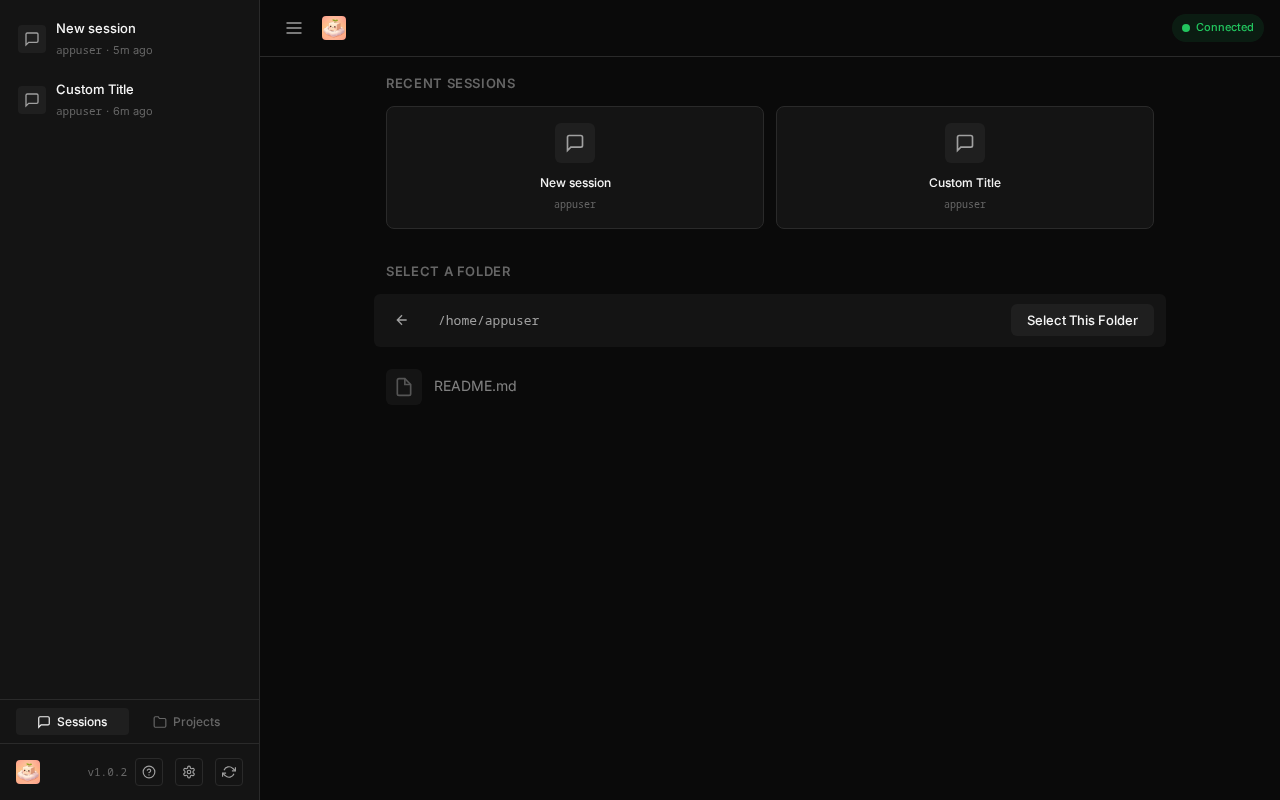
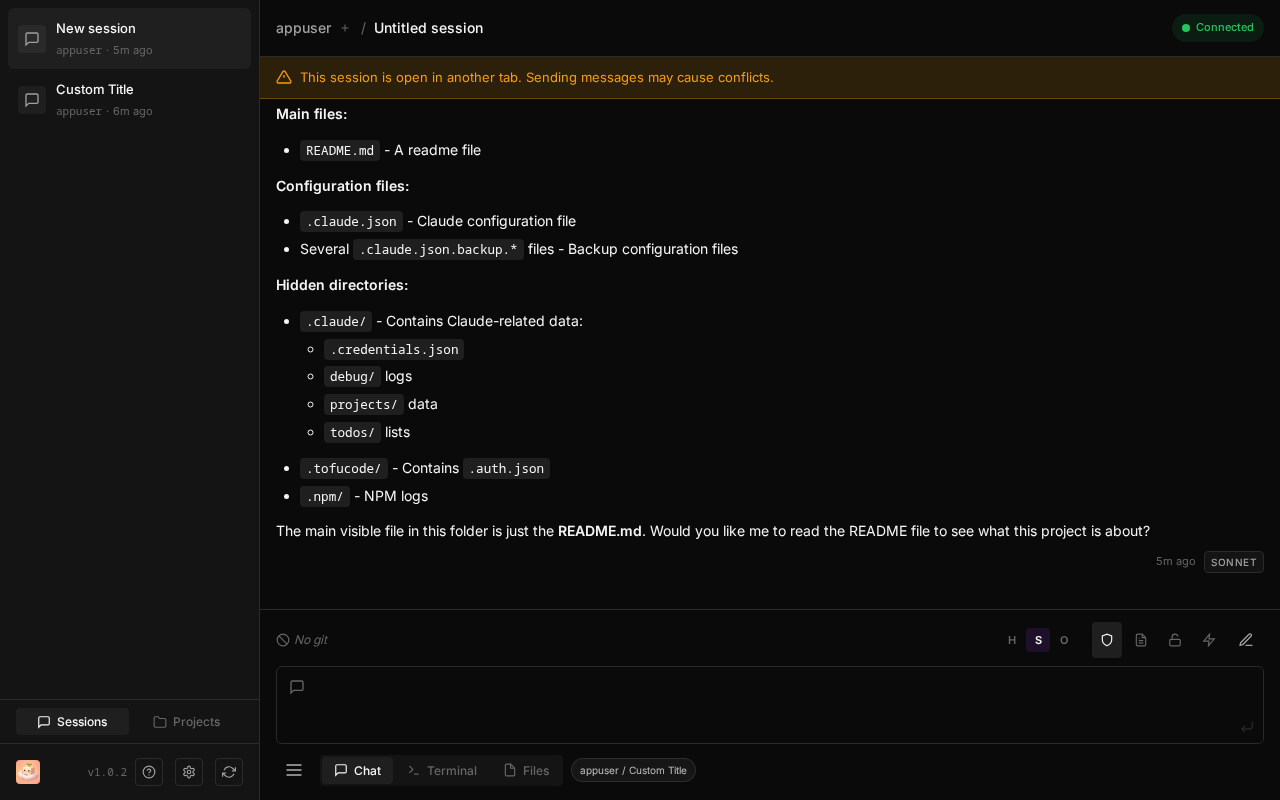
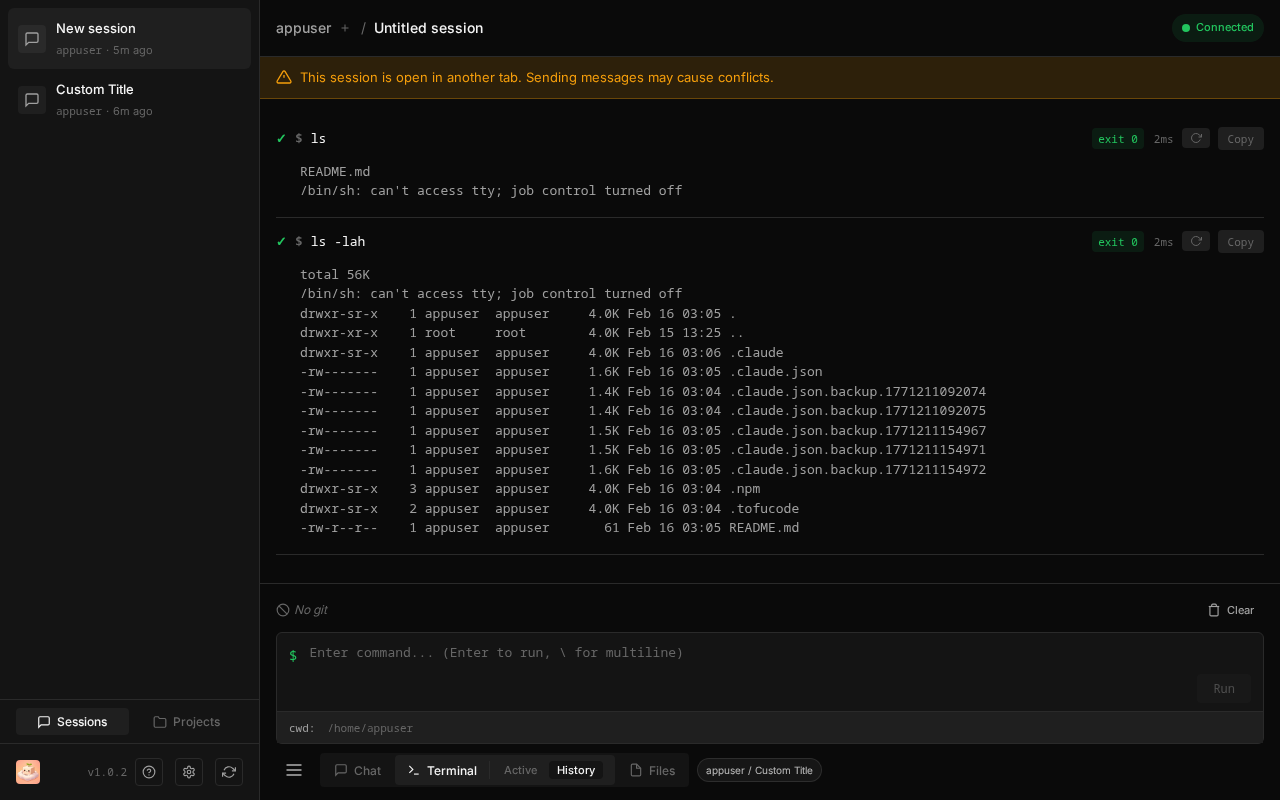
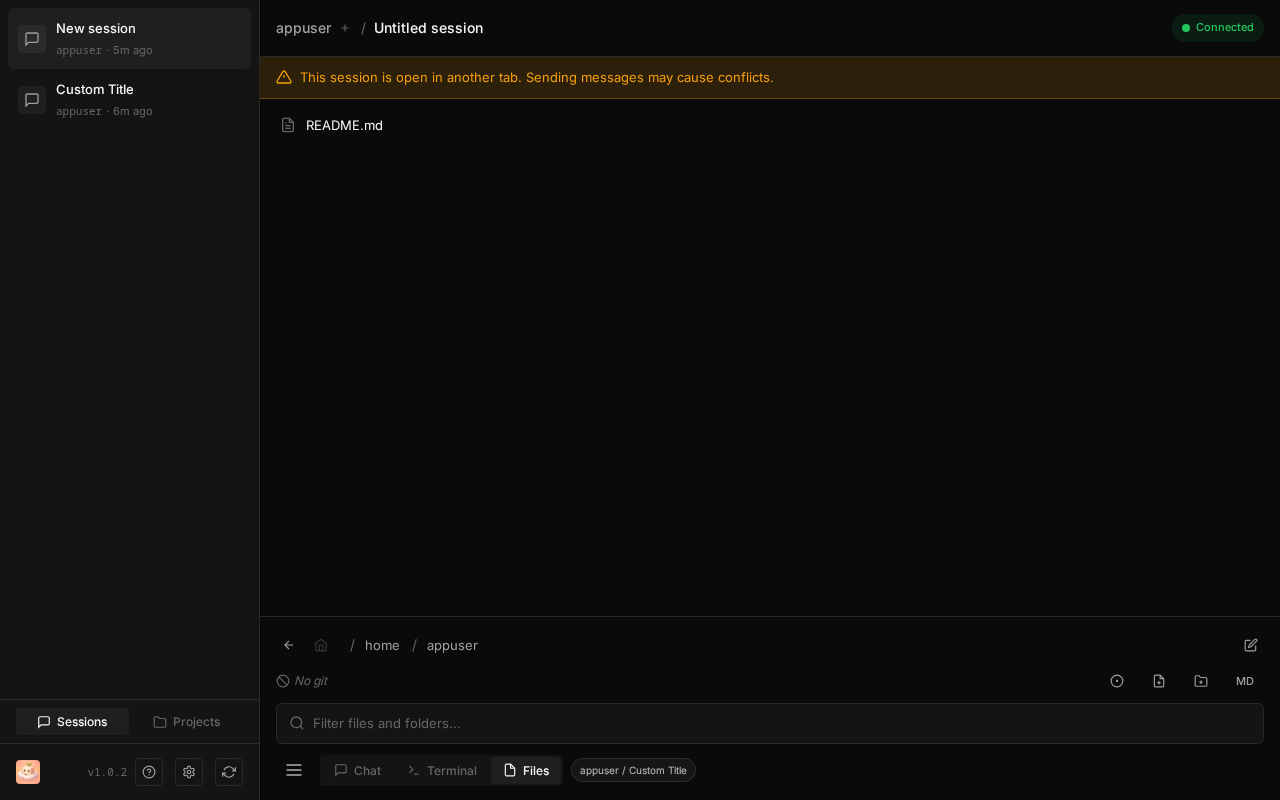
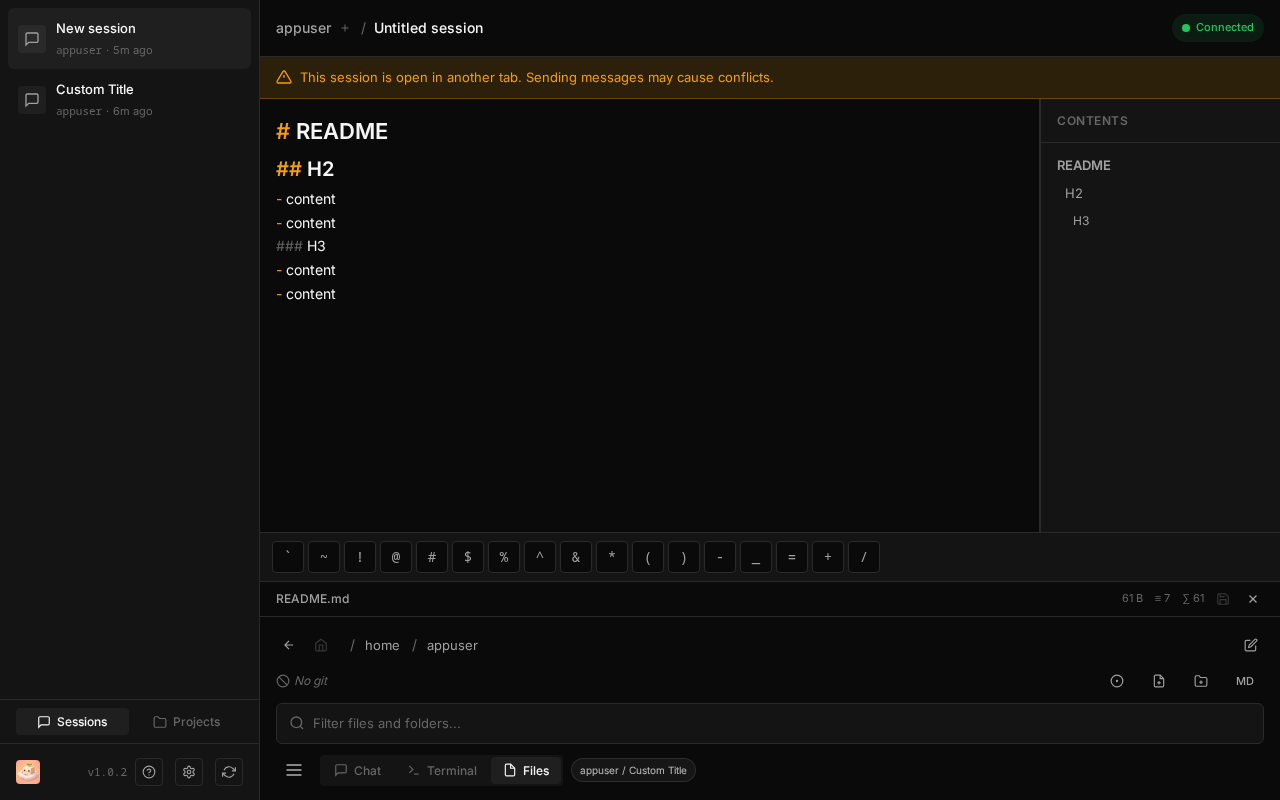
Screenshots
Homepage
Chat View
Terminal Mode
Files Browser
Markdown Editor
Requirements
- Node.js 18+
- Claude Code installed and configured with API key
- Anthropic API key configured in Claude Code
Setup
1. Install Claude Code
Follow the Claude Code installation guide to set up the claude CLI with your API key.
2. First Run
npx tofucodeOn first run:
- Open http://localhost:3000
- Create a password
- Select a project from
~/.claude/projects/or browse to a folder - Start chatting
Usage
# Start server (default command)
tofucode
tofucode start

# Custom port and host
tofucode start -p 8080 -h 127.0.0.1

# Run as daemon
tofucode start -d

# Lifecycle management
tofucode stop
tofucode restart
tofucode status

# Restrict access to a specific directory
tofucode start --root /path/to/project

# Use config file
tofucode start --config prod.json

# See all options
tofucode --help
Configuration
Three ways to configure (priority order):
- CLI arguments:
tofucode start -p 8080 --debug - Config file:
tofucode start --config prod.json(seeconfig.example.json) - Environment variables:
PORT=8080 DEBUG=true tofucode
| Setting | CLI | Config | Env Var |
|---------|-----|--------|---------|
| Port | -p 3000 | "port": 3000 | PORT=3000 |
| Host | -h 0.0.0.0 | "host": "0.0.0.0" | HOST=0.0.0.0 |
| No auth | --no-auth | "auth": false | AUTH_DISABLED=true |
| Daemon | -d | "daemon": true | - |
| Debug | --debug | "debug": true | DEBUG=true |
| Log file | --log-file <path> | "logFile": "<path>" | LOG_FILE=<path> |
| Bypass token | --bypass-token <token> | "bypassToken": "<token>" | DEBUG_TOKEN=<token> |
| Root path | --root <path> | "root": "<path>" | ROOT_PATH=<path> |
| Max file size (MB) | - | "maxFileSizeMb": 10 | MAX_FILE_SIZE_MB=10 |
| Disable update check | - | - | DISABLE_UPDATE_CHECK=true |
| Update check interval | - | - | UPDATE_CHECK_INTERVAL=3600000 |
| Model: Haiku | - | - | MODEL_HAIKU_SLUG=claude-haiku-4-5 |
| Model: Sonnet | - | - | MODEL_SONNET_SLUG=claude-sonnet-4-6 |
| Model: Opus | - | - | MODEL_OPUS_SLUG=claude-opus-4-6 |
Run tofucode --help for all options.
Model Configuration
By default, tofucode uses the latest Claude model versions:
- Haiku:
claude-haiku-4-5 - Sonnet:
claude-sonnet-4-6 - Opus:
claude-opus-4-6
You can override these defaults using environment variables:
# Use specific model versions
MODEL_SONNET_SLUG=claude-sonnet-4-5-20250929 \
MODEL_OPUS_SLUG=claude-opus-4-5-20251101 \
tofucode
Or in your .env file:
MODEL_HAIKU_SLUG=claude-haiku-4-5
MODEL_SONNET_SLUG=claude-sonnet-4-6
MODEL_OPUS_SLUG=claude-opus-4-6
This allows you to:
- Pin to specific model versions with snapshot dates
- Use legacy models if needed
- Test new models as they're released
See the Anthropic Models documentation for all available model identifiers.
Security: Root Path Restriction
Use --root to restrict file and terminal access to a specific directory:
tofucode start --root /home/user/projects/myappWhat it does:
- Limits Files tab navigation to the specified directory
- Validates terminal working directory (best effort)
- Filters project/session lists to only show items within the root
- Displays a "Restricted Mode" banner on the homepage
⚠️ Important: Best Effort Basis
The --root restriction is not foolproof:
- File access is strictly validated ✅
- Terminal CWD is validated ✅
- But users can still run commands like
cat /etc/passwdorcd /⚠️
For full isolation, use Docker:
docker run -d \
  -p 3000:3000 \
  -e ANTHROPIC_API_KEY=your_key_here \
  -e ROOT_PATH=/workspace \
  -v /path/to/project:/workspace \
  picotofu/tofucode:latest --root /workspace
Docker provides OS-level isolation that cannot be bypassed. See the Docker Guide for flexible volume mounting strategies.
Features
Core
- Chat Interface - Markdown rendering, syntax highlighting, collapsible tool outputs
- Terminal Mode - Shell commands with streaming output, history, bookmarks, and process watch mode
- Files Mode - Browse, edit, and preview files (markdown, CSV, images)
- Session Management - Multiple sessions with quick switcher (Cmd+K)
- Permission Modes - Control Claude's access (Default/Plan/Bypass/Skip)
Collaboration
- Interactive Questions - Claude can ask questions with selectable answers
- Plan Mode - Review implementation plans before execution
- Git Integration - View diffs and file changes
- Memo Feature - Quick-access notes (Cmd+M)
Platform
- Multi-tab Support - Session isolation and conflict warnings
- Authentication - Password protection (enabled by default)
- PWA Support - Install as standalone app on desktop/mobile
- Auto-Update - One-click upgrades for npm installs
- Docker Ready - Multi-arch images with flexible mounting
- MCP Manager - View, add, edit, and remove MCP servers (HTTP/SSE full CRUD, stdio config management, OAuth read-only display) via plug icon in sidebar
Keyboard Shortcuts
Global:
| Shortcut | Action |
|----------|--------|
| Ctrl/Cmd+K | Quick session switcher / folder browser |
| Ctrl/Cmd+P | File picker |
| Ctrl/Cmd+B | Toggle sidebar |
| Ctrl/Cmd+, | Open settings |
| Ctrl/Cmd+1 | Sidebar: Sessions tab |
| Ctrl/Cmd+2 | Sidebar: Projects tab |
| Ctrl/Cmd+3 | Sidebar: Tasks tab |
| Ctrl/Cmd+4 | Sidebar: Notes tab |
| Ctrl/Cmd+D | Jump to today's daily note |
| Ctrl/Cmd+M | Open memo |
| Ctrl/Cmd+L | Scroll to bottom (chat mode) |
| Ctrl/Cmd+[ | Cycle model (Haiku → Sonnet → Opus) |
| Ctrl/Cmd+] | Cycle permission mode (Default → Plan → Accept Edits → Bypass) |
| Ctrl/Cmd+Enter | Submit message (chat) / Run command (terminal) |
| Ctrl/Cmd+↑ | Navigate to previous conversation turn (chat mode) |
| Ctrl/Cmd+↓ | Navigate to next conversation turn (chat mode) |
| Escape | Close modals / Blur input |
Terminal Mode:
| Shortcut | Action |
|----------|--------|
| Ctrl+C | Clear current input |
| Ctrl+U | Clear from cursor to start |
| Ctrl+K | Clear from cursor to end |
| Ctrl+A | Move cursor to start |
| Ctrl+E | Move cursor to end |
| Ctrl+L | Clear input |
| ↑ / ↓ | Navigate command history |
Settings
Access settings via the gear icon in the sidebar. Settings are persisted in ~/.tofucode/settings.json.
Available Settings:
| Setting | Default | Description | |---------|---------|-------------| | Debug Mode | Off | Hover over UI elements to see their ID and class names for development | | Auto-save Files | On | Automatically save file changes after 1 second of inactivity in Files mode | | Symbol Toolbar | Top row + ` ~ / | Customize symbols shown in the file editor toolbar for quick insertion |
Tips:
- Settings apply across all sessions and persist after server restart
- Changes take effect immediately without reload
- Use
Ctrl/Cmd+Sfor immediate manual save when auto-save is disabled
Progressive Web App (PWA)
tofucode can be installed as a standalone application on desktop and mobile devices:
Installing as an App
Desktop (Chrome/Edge/Brave):
- Open tofucode in your browser
- Click the install icon (⊕) in the address bar
- Click "Install" in the prompt
- Launch from desktop/start menu like any native app
Mobile (iOS/Android):
- Open tofucode in Safari (iOS) or Chrome (Android)
- Tap the Share button (iOS) or Menu (Android)
- Select "Add to Home Screen"
- Launch from home screen
Benefits
- Standalone window - Runs without browser chrome (no address bar/tabs)
- Desktop/dock icon - Quick launch like native applications
- Offline UI - App shell loads instantly (requires connection for chat)
- Better mobile experience - Full-screen on mobile devices
- Auto-update notifications - Get prompted when new versions are available
How Updates Work
The PWA uses service workers to detect when the frontend code changes:
- Automatic detection - Service worker checks for updates on page navigation
- Update prompt - When a new version is available, you'll see a prompt to reload
- One-click update - Click "Update" to activate the new version instantly
- Content-addressed caching - Any JS/CSS change triggers an update notification
The PWA updates independently from the backend npm package. For full updates (backend + frontend), use the upgrade button in settings.
Discord Bot
tofucode supports a bring-your-own-bot Discord integration, letting you run Claude Code sessions from Discord threads.
- Each Discord channel maps to one project
- Each Discord thread is an isolated Claude Code session
- Sessions are shared with the Web UI — continue in either interface
- Web UI prompts are mirrored to Discord automatically (toggle in Settings → Discord)
- Slash commands:
/setup,/session,/resume,/cancel,/list,/status
See the Discord Setup Guide for full setup instructions, configuration options, and command reference.
Task Management
tofucode includes a built-in task panel (sidebar Tasks tab, or press T) backed by Notion.
- Browse & filter — filter by assignee (self / anyone / specific person) and status; live title search
- Grouping — automatically groups by assignee when "Anyone" is selected, by status when all statuses are shown, or both together (assignee outer → status inner); status groups follow Notion's To-do → In Progress → Done category order
- Task detail — click any task to open a detail view with editable title, status, assignee, and body
- Create tickets — create new Notion tickets directly from the sidebar
Setup: Configure your Notion API token and database URL in Settings → Notion.
Security
- Authentication enabled by default - Set password on first run
- Use
--no-authonly on trusted/local networks - Sessions stored locally in
~/.claude/projects/ - Auth data in
~/.tofucode/.auth.json - Full system access matching Claude Code permissions
- Login rate limiting - Brute-force protection on login and setup endpoints (3 attempts, 15-min lockout by default). Auth page shows attempts remaining and a live countdown on lockout. Lock clears on successful login, window expiry, or server restart. Configurable via
MAX_LOGIN_ATTEMPTSandLOGIN_WINDOW_MS.
Security Reports
Independent security assessments are conducted before each release to ensure user safety:
- v1.5.0 Security Report - Session branching, btw injection, rewind, effort selector, debug log sanitisation, dependency audit
- v1.4.0 Security Report - Kanban board, task delete, label management, board filters, dependency audit
- v1.3.0 Security Report - Notes feature, Notion task integration, file browser enhancements, Discord bot, dependency audit
- v1.2.1 Security Report - Multer DoS fix, DOMPurify XSS fix, new feature code review (no issues found)
- v1.2.0 Security Report - Upload path injection fix, symlink escape prevention, error info leaks, draft entry limits
- v1.1.0 Security Report - WebSocket hardening, security headers, auth improvements, process file permissions
- v1.0.5 Security Report - Command injection fix, input validation hardening, DoS protection
- v1.0.4 Security Report - Code review, file access hardening, session security, dependency audit
- v1.0.3 Security Report - WebSocket auth, file access, CORS, penetration testing
All security reports are publicly available in the docs/ folder for transparency.
Contributing
Development Setup
# Clone repository
git clone <repo-url>
cd tofucode

# Install dependencies
npm install

# Start dev server
npm run dev

# Open http://localhost:3000
Development Workflow
- Make changes to frontend (
src/) or backend (server/) - Frontend: Auto-reloads via Vite HMR
- Backend: Press
rs+ Enter in nodemon terminal to restart - Check logs:
tail -f dev.log - Run checks:
npm run check(linting + formatting) - Build:
npm run build
Code Style
- Always run
npm run checkafter implementation (Biome linting + formatting) - Rebuild frontend with
npm run buildafter code changes - Follow existing patterns in the codebase
- Write clear commit messages
Project Documentation
- CLAUDE.md - Development guide and workflow
- PLAN.md - Architecture and technical overview
- CHANGELOG.md - Release notes
Feature Documentation
The docs/ folder is organized by implementation status:
docs/completed/- Completed features (Terminal, File Explorer, PWA, etc.)docs/todo/- Planned features and ideas (Claude Interactivity, File Mentions, etc.)docs/- Reference documentation (DOCKER.md, STYLEGUIDE.md)
Testing
No automated test suite yet. Manual testing workflow:
- Test chat functionality (prompts, responses, tools)
- Test terminal mode (commands, output, history)
- Test files mode (browse, edit, save)
- Test session management (create, switch, rename)
- Test permission modes (default, plan, bypass)
- Test authentication flow (setup, login, logout)
- Test multi-tab behavior (warnings, synchronization)
License
MIT