unl-map-js
v0.1.7
Published
UNL Map Javascript SDK


Readme
Introduction
unl-map-js is a mapping library for developers of web applications, extending and enhancing functionalities of maplibre-gl-js. Apart from the capabilities of maplibre, the package exposes the following controls:
UNL grid lines and cells visualisation with a customisable precision;
Tile selector, including 'vectorial', 'traffic', 'terrain', 'satellite' and 'base' options;
Indoor maps overlay in the IMDF format;
Drawing tools for creating, updating and deleting clusters;
See Unl Map Js docs for a complete reference of the package.
Getting started
Installing
npm install unl-map-jsUsage in your application
Javascript
When using modules
import UnlSdk from "unl-map-js";When using CDN
<script src="https://unpkg.com/unl-map-js@latest/lib/unl-map-js.js"></script>CSS
Include the following CSS files in the <head> of your HTML file.
<link
  href="https://unpkg.com/[email protected]/dist/maplibre-gl.css"
  rel="stylesheet"
/>
<link
  href="https://unpkg.com/unl-map-js@latest/lib/unl-map-js.css"
  rel="stylesheet"
/>
Typescript
Typescript definition files are included as part of this package.
Initializing the map
Example usage
index.html
<!DOCTYPE html>
<html lang="en">
  <head>
    <meta charset="UTF-8" />
    <meta http-equiv="X-UA-Compatible" content="IE=edge" />
    <meta name="viewport" content="width=device-width, initial-scale=1.0" />
    <link
      href="https://unpkg.com/[email protected]/dist/maplibre-gl.css"
      rel="stylesheet"
    />
    <link
      href="https://unpkg.com/unl-map-js@latest/lib/unl-map-js.css"
      rel="stylesheet"
    />
    <link rel="stylesheet" href="styles.css" />
    <title>Hello world</title>
  </head>
  <body>
    <div id="map" class="map"></div>
    <script type="module" src="./dist/index.js"></script>
  </body>
</html>
index.js
import UnlSdk from "unl-map-js";

const map = new UnlSdk.Map({
apiKey:  <YOUR-UNL-API-KEY>,
vpmId: <YOUR-VPM-ID>,
gridControl: true,
indoorMapsControl: true,
tilesSelectorControl: true,
draftShapesControl: true,
container: "map",
center: [0, 0],
zoom: 1,
});
See SDK Authentication Docs for instructions on how to generate an apiKey and vpmId to get started with the UnlSdk.
Custom controls
On top of maplibre-gl-js, this package exposes the following custom controls that can be initialised during the map instantiation with the default options or added later using the addControl function on the map reference.
UNL grid and cells
Grid and cells control can be enabled during the UnlSdk.Map initialisation by passing the gridControl option true. With this approach, the grid & cells control will be initialised with the default options. The control's default position is 'top-right'.
const map = new UnlSdk.Map({
...
gridControl: true,
...
});
It can also be added after the initialisation by calling the addControl function on the map reference:
import UnlSdk from "unl-map-js";
const map = new UnlSdk.Map({
...
});
map.addControl(new UnlSdk.GridControl({ lineColor: "#FF0000", cellFillColor: "#00FF00"}), "bottom-right");
If the second approach is chosen, the following options can be specified during the GridControl initialisation:
| Option | Type | Default | Description |
| ---------------- | --------------- | --------- | -------------------------------------------------------------------------------- |
| defaultPrecision | CellPrecision | 9 | Default precision of the cells. It can be changed manually via the grid selector |
| lineColor | string | "#C0C0C0" | Grid line's colour |
| lineWidth | number | 0.5 | Grid line's width |
| cellFillColor | string | "#FFB100" | Cell's colour |
| cellBorderColor | string | "#FFB100" | Cell's border colour |
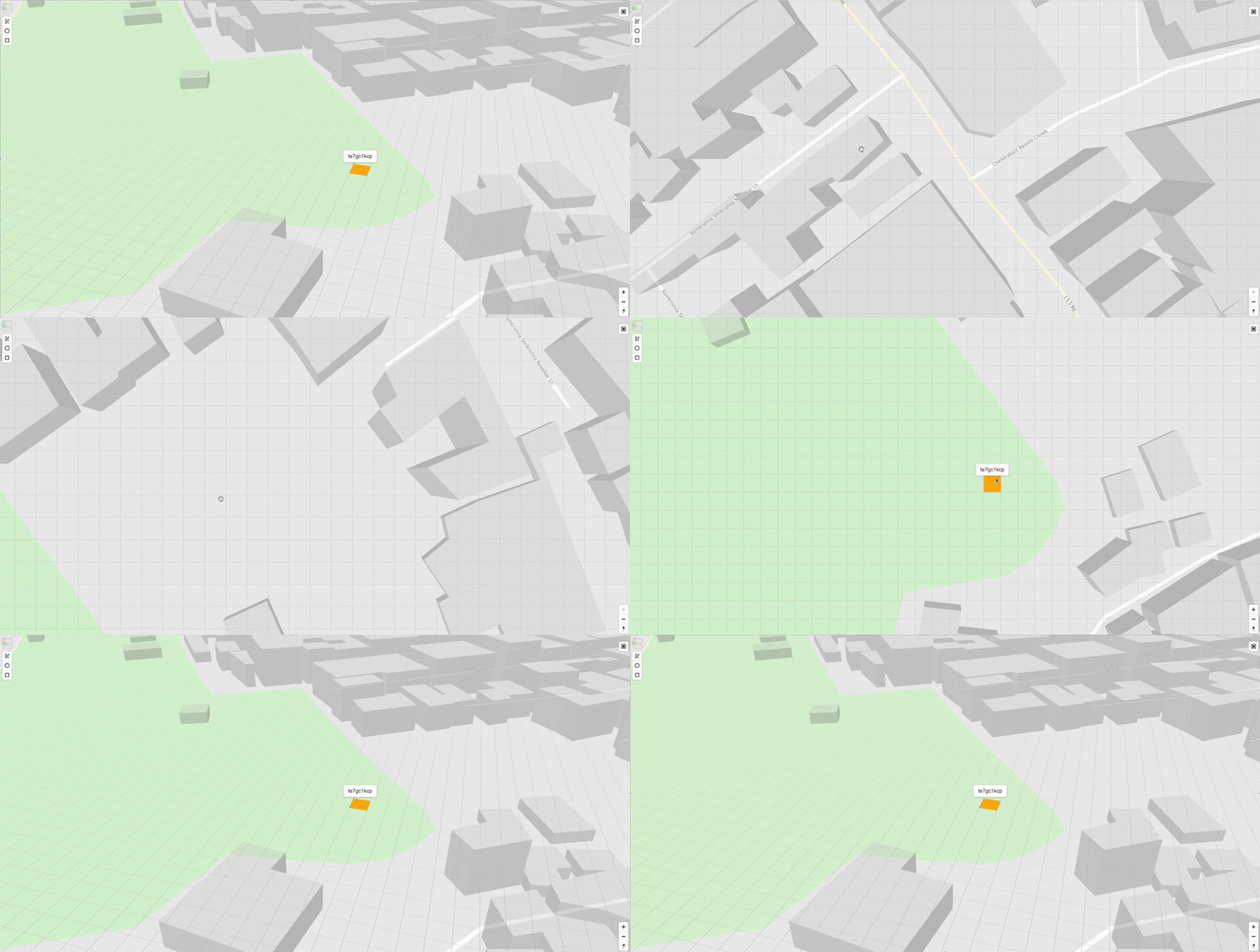
If GridControl is enabled, the cell will get highlighted by clicking on the map. It will render a popup displaying the location id of the corresponding selected cell. For performance reasons, the grid lines will be generated at certain zoom levels, dependant on the selected precision, according to the following table:
| Precision | Zoom level | | --------- | ---------- | | 10 | 20 | | 9 | 18 | | 8 | 16 | | 7 | 14 | | 6 | 12 | | 5 | 10 | | 4 | 8 | | 3 | 4 | | 2 | 3 | | 1 | 2 |
Map Event
Fires a precisionChange event on the map instance whenever the precision value is updated.
Example
// Listen for precision changes on the map
map.on('precisionChange', (e) => {
  console.log('New precision:', e.precision);
  // e.precision is a CellPrecision value
});
Event Data:
- precision (number): Updated precision value
Tiles selector
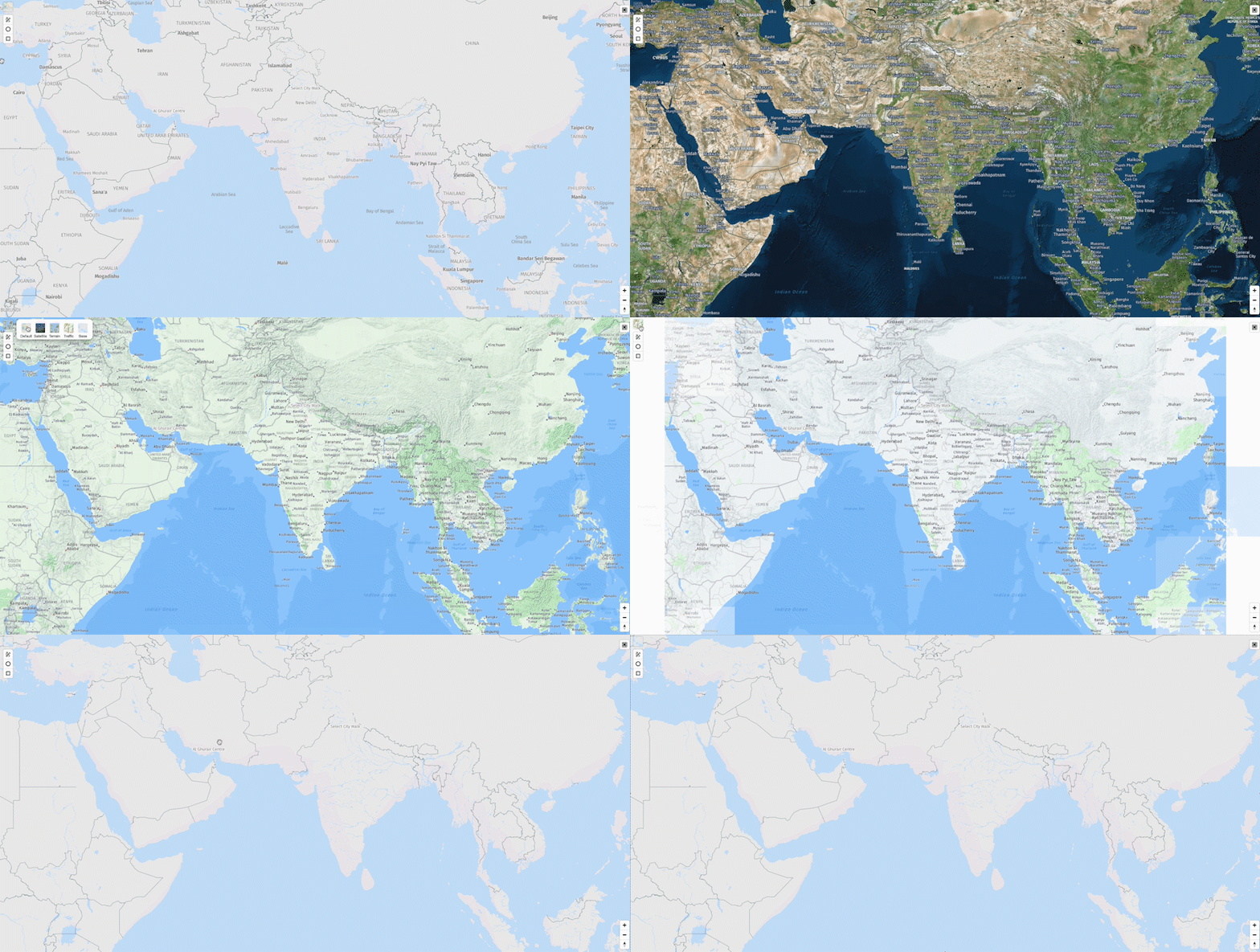
Tile selector control can be enabled during the UnlSdk.Map initialisation by passing the tilesSelectorControl option true. With this approach, the tile selector control will be initialised with the default options. The control's default position is 'top-left'.
const map = new UnlSdk.Map({
...
tilesSelectorControl: true,
...
});
It can also be added later by calling the addControl function on the map reference:
import UnlSdk from "unl-map-js";

const map = new UnlSdk.Map({
...
});

map.addControl(new UnlSdk.TilesSelectorControl({ tiles: ["vectorial", "satellite"] }), "bottom-right");
If the second approach is chosen, the following options can be specified during the TilesSelectorControl initialisation:
| Option | Type | Default | Description | | ---------------------- | ---------- | ---------------------------------------------------------------- | ------------------------------------------------------- | | tiles | MapTiles[] | ["rich", "vectorial", "traffic", "terrain", "satellite", "base"] | The options that will be included in the tiles selector | | displayControlsDefault | boolean | true | Display the default tile selector UI |
API Methods
new TilesSelectorControl() returns an instance of the TilesSelectorControl with the following API:
set(style: MapTile) => void
This method takes a MapTile parameter and updates the selected tile from the map.
The supported MapTile values are: rich, vector, traffic, terrain, satellite, base.
Example
const tilesSelectorControl = new UnlSdk.TilesSelectorControl(
  { displayControlsDefault: false },
  'top-left'
);

map.addControl(tilesSelectorControl);

mapTilesControl.setStyle('terrain');
Indoor maps overlay
Indoor maps overlay control can be enabled during the map initialisation by passing the indoorMapsControl option true. The tile selector control will be initialised with the default options. The control's default position is 'top-right'.
It can also be added later by calling the addControl function on the map reference:
import UnlSdk from "unl-map-js";

const map = new UnlSdk.Map({
...
});

map.addControl(new UnlSdk.IndoorControl(), "bottom-right");
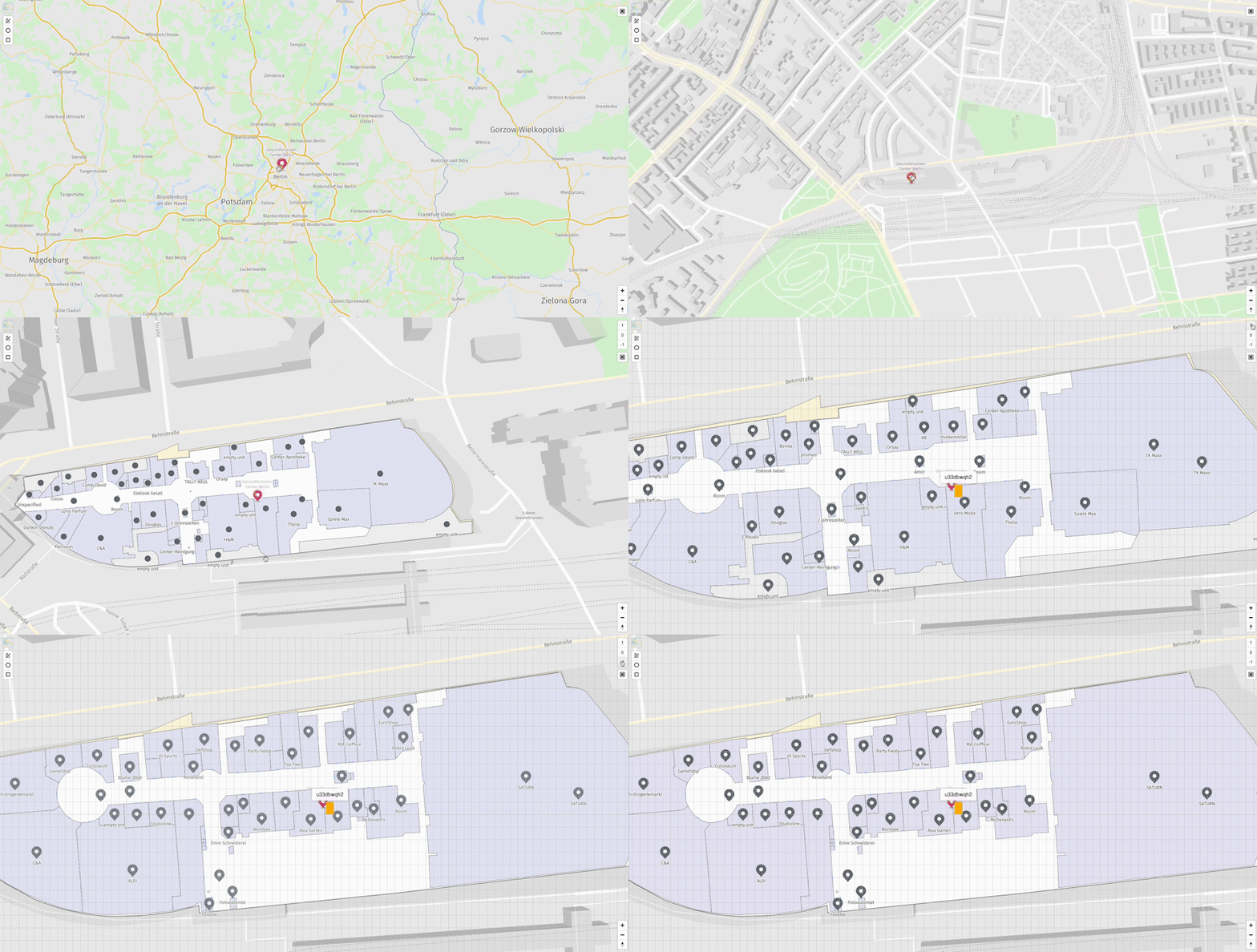
Enabling the indoor maps overlay, will fetch the venue maps and render the marker and outer area of the venues that were uploaded in the VPM whose id is passed as part of the map initialisation. By clicking on a venue, the full venue data will be downloaded, rendering the venue units and facilities, along with the level selector buttons.
Draft shapes
Draft shapes control can be enabled during the map initialisation by passing the draftShapesControl option true. In this way, the control will be enabled with the default parameters. The default position of the control is 'top-left'.
It can also be added later by calling the addControl function on the map reference:
import UnlSdk from "unl-map-js";

const map = new UnlSdk.Map({
...
});

map.addControl(new UnlSdk.DraftShapesControl(), "bottom-right");
Enabling the draft shapes control, will fetch and render all the shapes added in the VPM whose id is passed during the map initialisation. Additionally, by clicking on a shape, it can be moved, edited or deleted. New shapes can be created: polygon, circle or rectangles, via the three corresponding control buttons and they will get saved in the same VPM.