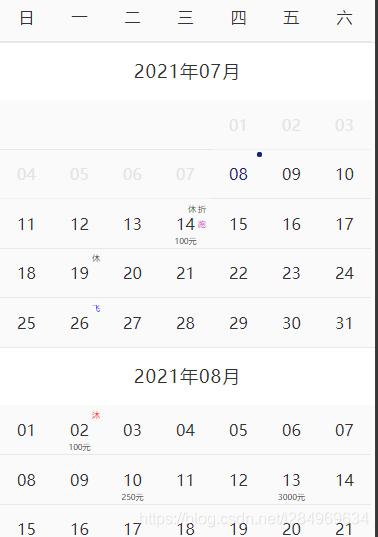
v-inline-date
v0.0.2
Published
@[TOC](v-inline-date)
Downloads
13


Readme
@TOC
使用
注意,使用v-inline-date的时候一定要确保项目安装了momentjs
// main.js
import vInlineDate from "v-inline-date";
import 'v-inline-date/v-inline-date/v-inline-date.css'
Vue.use(vInlineDate)

<template>
	<div>
		<v-inline-date startDate="2021-07-07"endDate="2022-07-08"></v-inline-date>
	</div>
</template>
设置可选则的时间范围
<v-inline-date startDate="2021-07-07" endDate="2022-07-08" ></v-inline-date>设置已经选择的时间
<v-inline-date
	startDate="2021-07-07"
	endDate="2022-07-08"
	current="2021-07-10">
</v-inline-date>
选择单个时间还是时间区间
单个时间
<v-inline-date
	startDate="2021-07-07"
	endDate="2022-07-08"
	current="2021-07-10"
	:dateType="0"
	>
</v-inline-date>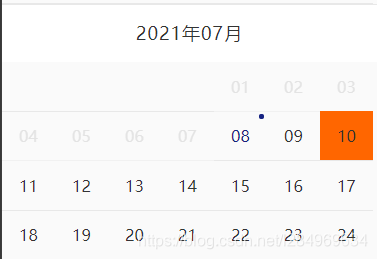
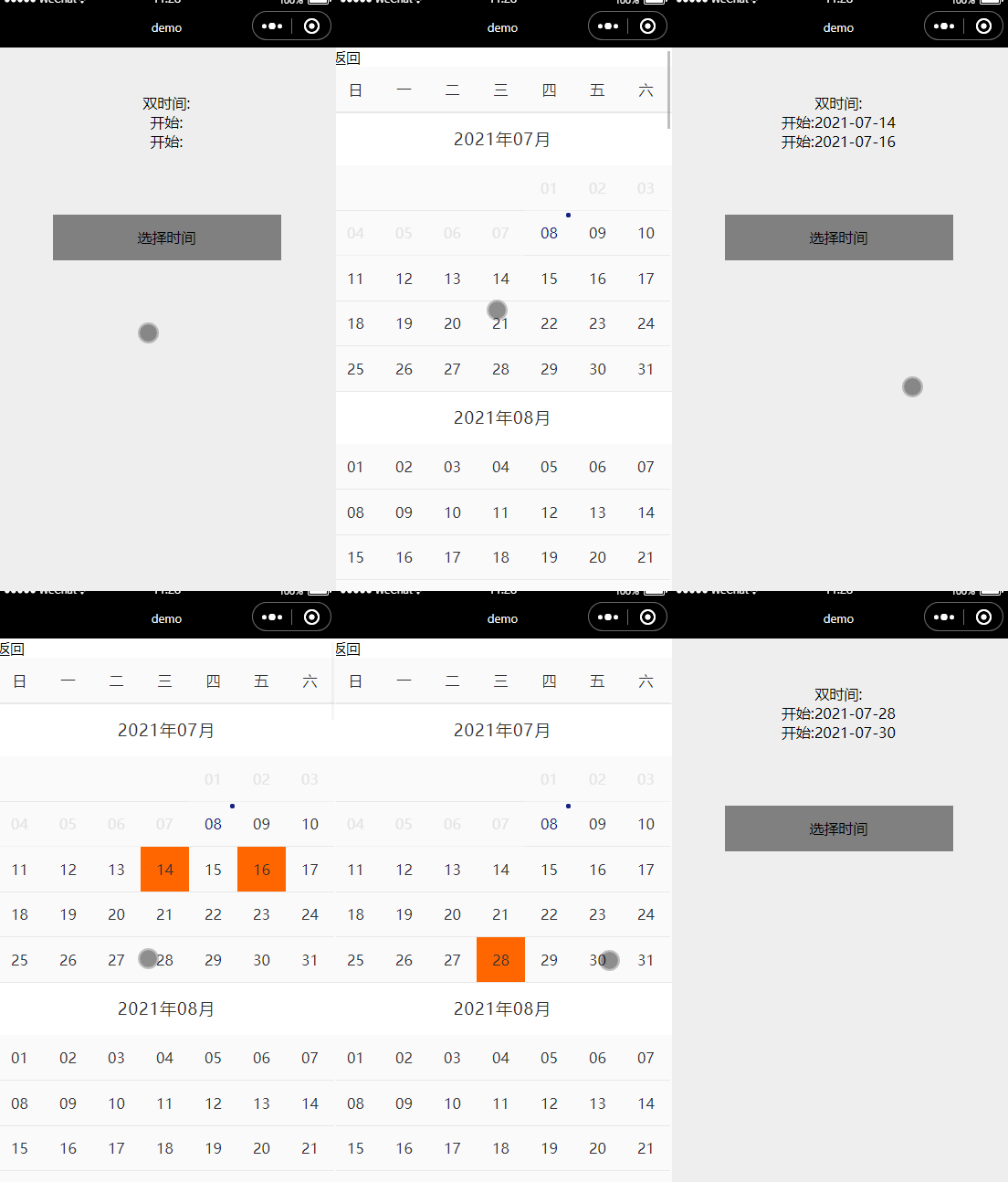
时间区间
<v-inline-date
	startDate="2021-07-08"
	endDate="2022-07-09"
	:current="['2021-07-09','2021-07-11']"
	:dateType="1"
	>
</v-inline-date>

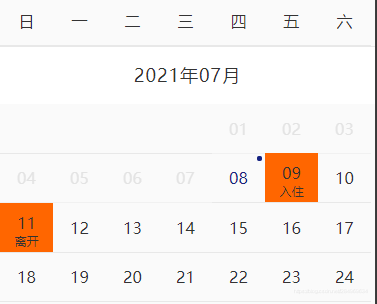
<!--添加描述-->
<v-inline-date
	startDate="2021-07-08"
	endDate="2022-07-09"
	:current="[{date:'2021-07-09',str:'入住'},{date:'2021-07-11',str:'离开'}]"
	:dateType="1"
	>
</v-inline-date>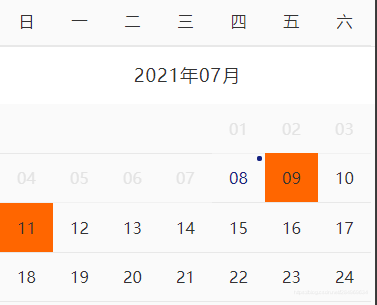
时间添加标签
<v-inline-date
	startDate="2021-07-07"
	endDate="2022-07-08"
	current="2021-07-19"
	:dateJson="dateJson"
	>
</v-inline-date>
<script>
data(){
	return{
		dataJson:[
			{ date: '2021-07-14',price: "100",discount: "折",rest1: "休",run: "跑",},
	        { date: '2021-07-19',rest: "休",},
	        { date: '2021-07-26',fly: "飞",}
	       ]
	}
}
</script>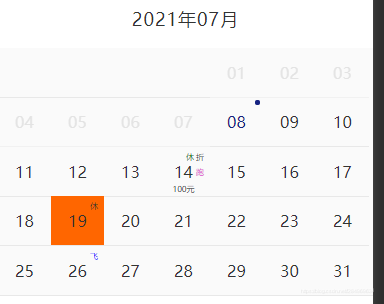
事件selectDate
<v-inline-date @selectDate="selectDateEvent"></v-inline-date>
<script>
methods:{
	selectDateEvent(e){
		console.log(e);
		// dateType为0的时候,e:{...}
		// dateType为1的时候,e:[{...},{...}]
	}
}
</script>
注意,
如果使用v-show展示v-inline-date的话,在打开v-inline-date的时候调用this.$refs.selectdate.init()即可
<div @click="openDate1">vif打开</div>
<div class="picker" v-if="dateIsShow1">
	 <v-inline-date :current="current"></v-inline-date>
</div>

<div @click="openDate2">vshow打开</div>
<div class="picker" v-show="dateIsShow2">
	 <v-inline-date ref="selectdate" :current="current"></v-inline-date>
</div>
<script>
methods:{
	// v-if打开
	openDate1(){
		this.dateIsShow1 = true;
	},
	// v-show打开
	openDate2(){
		this.dateIsShow1 = true;
		this.$refs.selectdate.init();
	}
}
</script>
说明
属性
| 属性名 | 描述 | 默认值| |--|--|--| | startDate |可选区间的开始时间 | moment().format('YYYY-MM-DD') 即今天 | | endDate|可选区间的结束时间 |moment().add(1,'year').format('YYYY-MM-DD') 即今天开始往后推一年 | | dateType | 0:只能选一个时间, 1:可以选时间区间 | 0 | | current| 当前已选的时间,当dateType=1的时候 current是一个长度为2的数组 | 无 | | dateJson|给某个日期添加标签,例如(假,休,折) | 无 |
事件 | 事件名 | 描述 | event| |--|--|--| | selectDate| 选中的时间 | dateType为0的时候,返回一个对象 dateType为1的时候,返回一个长度为2的数组 |
example
<v-inline-date
	ref="selectdate"
   :startDate="startDate"
   :endDate="endDate"
   :current="current"
   :dateJson="dateJson"
   :dateType="dateType"
   @selectDate="selectDateEvent"
 ></v-inline-date>

<script>
import vInlineDate from "@/components/v-inline-date/v-inline-date.vue";
import moment from 'moment';
export default {
  components: {vInlineDate},
  data() {
    return {
      startDate: moment().format('YYYY-MM-DD'), // 时间范围的开始时间
      endDate: moment().add(1,'year').format('YYYY-MM-DD'), // 时间范围的结束时间
      dateType:0, // 0:只能选一个时间,1:可以选两个时间,默认0
      current: '2021-07-09', // 当前已经选择的时间
     /*
      current: ['2021-07-08','2021-07-12'],  // dateType为1的时候支持数组
      current: [
	     {date:'2021-07-08',str:'入住'},
	     {date:'2021-07-12',str:'离开'},
	  ],  // dateType为1的时候支持数组,且可以配置日期上的文字
	*/
      dateJson:[ // 给某个日期添加标
		{ date: moment().add(6,'day').format('YYYY-MM-DD'),price: "100",discount: "折",rest1: "休",run: "跑",},
        { date: moment().add(11,'day').format('YYYY-MM-DD'),rest: "休",},
		]
    };
  },
}
</script>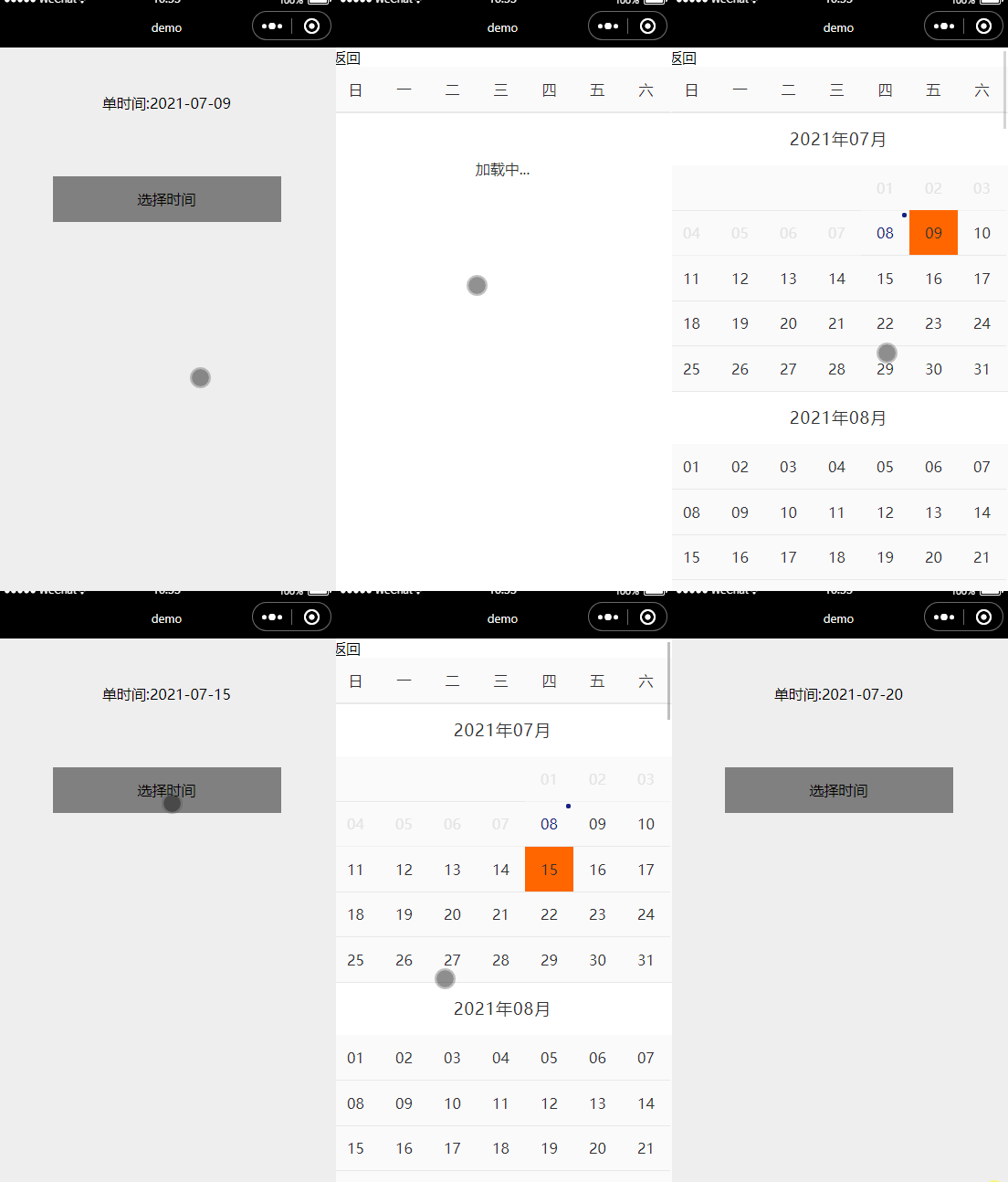
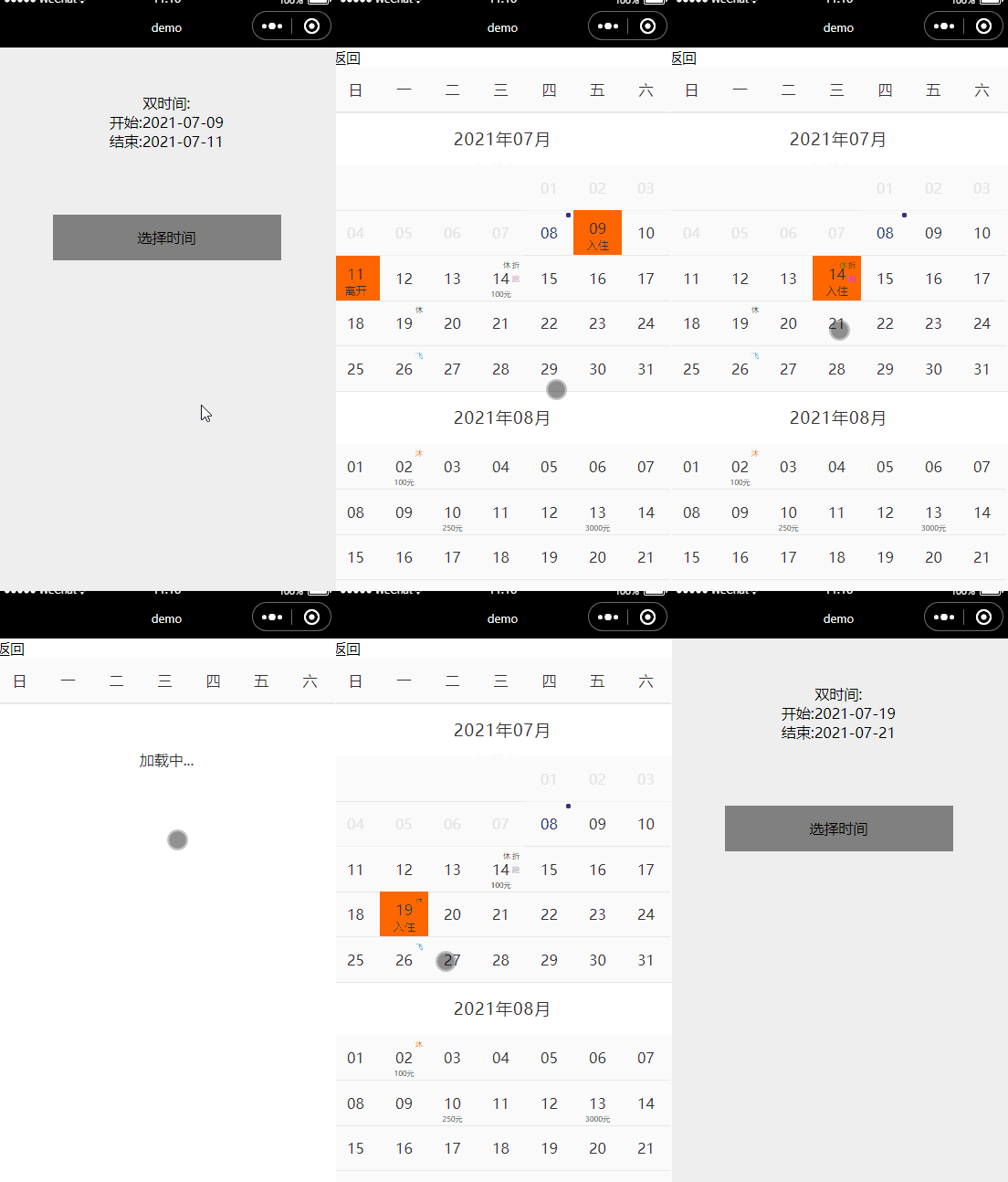
价格上添加文字,价格,标签等,如图