
virtual-scroller
v1.16.4
Published
A component for efficiently rendering large lists of variable height items

Maintainers
 catamphetamine
Readme
VirtualScroller
A universal open-source implementation of Twitter's VirtualScroller component: a component for efficiently rendering large lists of variable height items. Supports grid layout.
- For React users, it exports a React component from
virtual-scroller/react. - For those who prefer "vanilla" DOM, it exports a DOM component from
virtual-scroller/dom. - For everyone else, it exports a "core" component from
virtual-scroller. The "core" component supports any type of UI "framework", or even any type of rendering engine, not just DOM. Use it to create your own implementation for any UI "framework" or non-browser environment.
Demo
DOM component
- List
- Paginated List
- List in a scrollable container
- Table
- Table in a scrollable container
- Grid
- Paginated Grid
React component
- List
- Paginated List
- List in a scrollable container
- Table
- Table in a scrollable container
- Grid
- Paginated Grid
- List (using hook)
- Paginated List (using hook)
Rationale
Rendering extremely long lists in HTML can be performance-intensive and could lead to slow page load times and wasting mobile device battery. For example, consider a "messenger" app that renders a list of a thousand comments. Depending on the user's device and the complexity of the message component, the full render cycle could be anywhere from 100 milliseconds to 1 second. That kind of a delay results in degradation of the percieved performance and could lead to the user not wanting to use the website or the application.
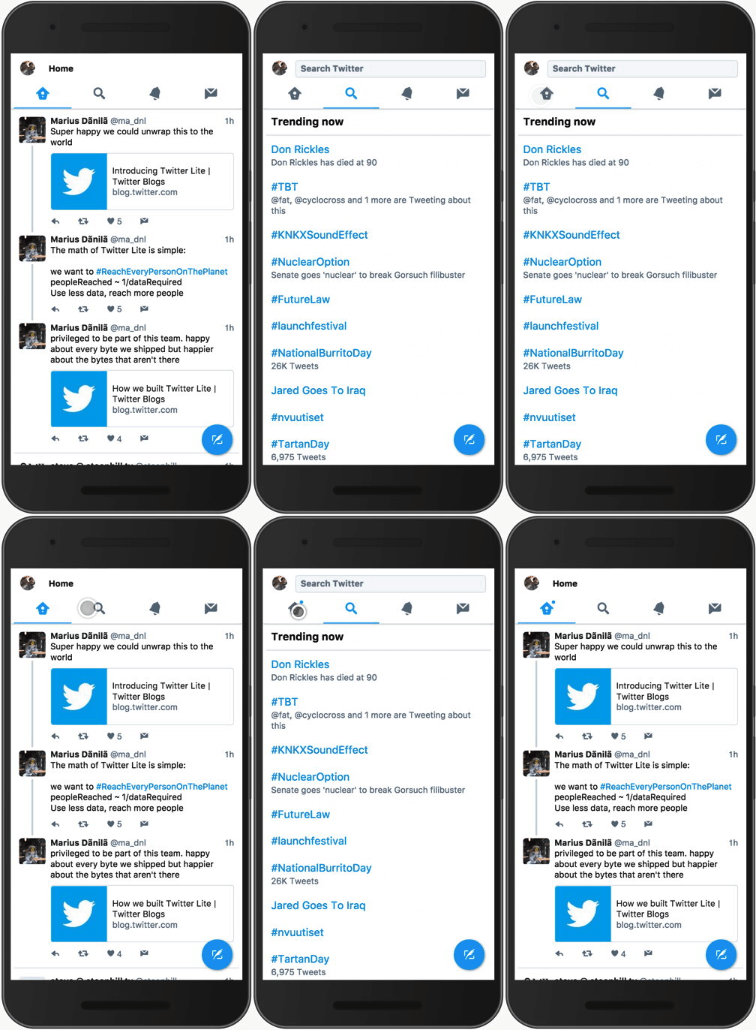
Twitter was experiencing the same issues and in 2017 they completely redesigned their website with responsiveness and performance in mind using the latest performance-boosting techniques available at the time. Afterwards, they wrote an article where they briefly mentioned this:
On slower devices, we noticed that it could take a long time for our main navigation bar to appear to respond to taps, often leading us to tap multiple times, thinking that perhaps the first tap didn’t register. It turns out that mounting and unmounting large trees of components (like timelines of Tweets) is very expensive in React. Over time, we developed a new infinite scrolling component called VirtualScroller. With this new component, we know exactly what slice of Tweets are being rendered into a timeline at any given time, avoiding the need to make expensive calculations as to where we are visually.
However, Twitter didn't share the code for their VirtualScroller component — unlike Facebook, Twitter doesn't share much of their code. This library is an attempt to create an open-source implementation of such VirtualScroller component for anyone to use in their projects.
How it works
VirtualScroller works by measuring each list item's height. As soon as the total height of the list items surpasses the window height, it stops the rendering because the user won't see those other items anyway. The non-rendered items are replaced with an empty space: not-visible items at the top are replaced with padding-top on the list element, and not-visible items at the bottom are replaced with padding-bottom on the list element. Then it listens to scroll / resize events and re-renders the list when the user scrolls the page or when the browser window is resized.
To observe the whole process in real time, go to the demo page, open Developer Tools, switch to the "Elements" tab, find <div id="messages"/> element, expand it and observe how it changes while scrolling the page.
Install
npm install virtual-scroller --saveAlternatively, one could include it on a web page directly via a <script/> tag.
Use
As it has been mentioned, this package exports three different components:
- For React framework —
virtual-scroller/react - For "vanilla" DOM —
virtual-scroller/dom - For any other case ("core") —
virtual-scroller
Below is a description of each component.
React
virtual-scroller/react exports a React component — <VirtualScroller/> — that implements a "virtual scroller" in a React environment.
The React component is based on the "core" component, and it requires the following properties:
items— an array of items.itemComponent— a React component that renders an item.The
itemComponentwill receive properties:item— The item object (an element of theitemsarray). Use it to render the item.stateandsetState()— Item component state management properties.- Use these instead of the standard
const [state, setState] = useState(). The reason is that the standarduseState()will always disappear when the item component is no longer rendered when it goes off-screen whereas this "special" state will always be preserved.
- Use these instead of the standard
onHeightDidChange()— Call this function whenever the item's height changes, if it ever does. For example, if the item could be "expanded" and the user clicks that button. The reason for manually calling this function is because<VirtualScroller/>only bothers measuring the item's height when the items is initially rendered. After that, it just assumes that the item's height always stays the same and doesn't track it in any way. Hence, a developer is responsible for manually telling it to re-measure the item's height if it has changed for whatever reason.- When calling this function, do it immediately after the item's height has changed on the screen, i.e. do it in
useLayoutEffect()hook.
- When calling this function, do it immediately after the item's height has changed on the screen, i.e. do it in
As an optional performance optimization, it is advised to wrap the
itemComponentwith aReact.memo()function. It will prevent needless re-renders of the component when its props haven't changed (and they never do). The rationale is that all visible items get frequently re-rendered during scroll.
itemComponentProps: object— (optional) any additional props for theitemComponent.itemsContainerComponent— a React component that will be used as a container for the items.- Must be either a simple string like
"div"or a React component that "forwards"refto the resultingElement. - Edge case: when list items are rendered as
<tr/>s and the items container is a<tbody/>, theitemsContainerComponentmust be"tbody", otherwise it won't work correctly.
- Must be either a simple string like
itemsContainerComponentProps: object— (optional) any additional props for theitemsContainerComponent.
Code example:
import React from 'react'
import VirtualScroller from 'virtual-scroller/react'

function List({ items }) {
  return (
    <VirtualScroller
      items={items}
      itemComponent={ListItem}
      itemsContainerComponent="div"
    />
  )
}

function ListItem({ item }) {
  const { username, date, text } = item
  return (
    <article>
      <a href={`/users/${username}`}>
        @{username}
      </a>
      <time dateTime={date.toISOString()}>
        {date.toString()}
      </time>
      <p>
        {text}
      </p>
    </article>
  )
}
tbody: boolean— When the list items container element is going to be a<tbody/>, it will have to use a special workaround in order for the<VirtualScroller/>to work correctly. To enable this special workaround, a developer could pass atbody: trueproperty. Otherwise,<VirtualScroller/>will only enable it whenitemsContainerComponent === "tbody".- Only the initial value of this property is used, and any changes to it will be ignored.
getColumnsCount(): number— Returns the count of the columns.getInitialItemState(item): any?— If you're usingstate/setState()properties, this function could be used to define the initialstatefor every item in the list. By default, the initial state of an item isundefined.initialState: object— The initial state of the entire list, including the initial state of each item. For example, one could snapshot this state right before the list is unmounted and then pass it back in the form of theinitialStateproperty when the list is re-mounted, effectively preserving the list's state. This could be used, for example, to instantly restore the list and its scroll position when the user navigates "Back" to the list's page in a web browser. P.S. In that specific case of usinginitialStateproperty for "Back" restoration, a developer might need to passreadyToStart: falseproperty until the "Back" page's scroll position has been restored.
onStateChange(newState: object, previousState: object?)— When this function is passed, it will be called every time the list's state is changed. Use it together withinitialStateproperty to preserve the list's state while it is unmounted.
Example of using initialState/onStateChange():
function ListWithPreservedState() {
  const listState = useRef()

  const onListStateChange = useCallback(
    (state) => {
      listState.current = state
    },
    []
  )

  useEffect(() => {
    return () => {
      saveListState(listState.current)
    }
  }, [])

  return (
    <VirtualScroller
      {...}
      initialState={hasUserNavigatedBackToThisPage ? getSavedListState() : undefined}
      onStateChange={onListStateChange}
    />
  )
}
getItemId(item): number | string- This is simply a proxy for the "core" component's
getItemIdoption. - Only the initial value of this property is used, and any changes to it will be ignored.
<VirtualScroller/>also uses it to create a Reactkeyfor every item's element. WhengetItemId()property is not passed, an item element'skeywill consist of the item's index in theitemsarray plus a random-generated prefix that changes every time whenitemsproperty value changes. This means that when the application frequently changes theitemsproperty, a developer could optimize it a little bit by supplying a customgetItemId()function whose result doesn't change when newitemsare supplied, preventing<VirtualScroller/>from needlessly re-rendering all visible items every time theitemsproperty is updated.
- This is simply a proxy for the "core" component's
preserveScrollPositionOnPrependItems: boolean— By default, when prepending new items to the list, the existing items will be pushed downwards on screen. For a user, it would look as if the scroll position has suddenly "jumped", even though technically the scroll position has stayed the same — it's just that the content itself has "jumped". But the user's perception is still that the scroll position has "jumped", as if the application was "buggy". In order to fix such inconvenience, one could passtruevalue here to automatically adjust the scroll position every time when prepending new items to the list. To the end user it would look as if the scroll position is correctly "preserved" when prepending new items to the list, i.e. the application works correctly.readyToStart: boolean— One could initially passfalsehere in order to just initially render the<VirtualScroller/>with the providedinitialStateand then hold off calling the.start()method of the "core" component, effectively "freezing" the<VirtualScroller/>until thefalsevalue is changed totrue. While in "frozen" state, the<VirtualScroller/>will not attempt to re-render itself according to the current scroll position, postponing any such re-renders untilreadyToStartpropertyfalsevalue is changed totrue.- An example when this could be required is when a user navigates "Back" to the list's page in a web browser. In that case, the application may use the
initialStateproperty in an attempt to instantly restore the state of the entire list from a previously-saved snapshot, so that it immediately shows the same items that it was showing before the user navigated away from the list's page. But even if the application passes the previously-snapshottedinitialState, by default the list will still re-render itself according to the current scroll position. And there wouldn't be any issue with that if the page's scroll position has already been restored to what it was before the user navigated away from the list's page. But if by the time the list is mounted, the page's scroll position hasn't been restored yet, the list will re-render itself with an "incorrect" scroll position, and it will "jump" to completely different items, very unexpectedly to the user, as if the application was "buggy". How could scroll position restoration possibly lag behind? In React it's actually very simple:<VirtualScroller/>re-renders itself in auseLayoutEffect()hook, which, by React's design, runs before anyuseLayoutEffect()hook in any of the parent components, including the top-level "router" component that handles scroll position restoration on page mount. So it becomes a "chicken-and-egg" problem. AndreadyToStart: falseproperty is the only viable workaround for this dilemma: as soon as the top-level "router" component has finished restoring the scroll position, it could somehow signal that to the rest of the application, and then the application would passreadyToStart: trueproperty to the<VirtualScroller/>component, unblocking it from re-rendering itself.
- An example when this could be required is when a user navigates "Back" to the list's page in a web browser. In that case, the application may use the
getScrollableContainer(): Element- This is simply a proxy for the "core" component's
getScrollableContaineroption. - Only the initial value of this property is used, and any changes to it will be ignored.
- This function will be initially called right after
<VirtualScroller/>component is mounted. However, even though all ancestor DOM Elements already exist in the DOM tree by that time, the corresponding ancestor React Elements haven't "mounted" yet, so theirrefs are stillnull. This means thatgetScrollableContainer()shouldn't use anyrefs and should instead get the DOM Element of the scrollable container directly from thedocument.
- This is simply a proxy for the "core" component's
Example of an incorrect getScrollableContainer() that won't work:
function ListContainer() {
  const scrollableContainer = useRef()

  const getScrollableContainer = useCallback(() => {
    // This won't work: it will return `null` because `<ListContainer/>` hasn't "mounted" yet.
    return scrollableContainer.current
  }, [])

  return (
    <div ref={scrollableContainer} style={{ height: "400px", overflow: "scroll" }}>
      <VirtualScroller
        {...}
        getScrollableContainer={getScrollableContainer}
      />
    </div>
  )
}
Example of a correct getScrollableContainer() that would work:
function ListContainer() {
  const getScrollableContainer = useCallback(() => {
    return document.getElementById("scrollable-container")
  }, [])

  return (
    <div id="scrollable-container" style={{ height: "400px", overflow: "scroll" }}>
      <VirtualScroller
        {...}
        getScrollableContainer={getScrollableContainer}
      />
    </div>
  )
}
itemsContainerComponentRef: object— Could be used to get access to theitemsContainerComponentinstance.- For example, if
itemsContainerComponentis"ul"thenitemsContainerComponentRef.currentwill be set to the<ul/>Element.
- For example, if
onItemInitialRender(item)— When passed, this function will be called for each item when it's rendered for the first time. It could be used to somehow "initialize" an item, if required.bypass: boolean— Disables the "virtual" aspect of the list, effectively making it a regular "dumb" list that just renders all items.getEstimatedVisibleItemRowsCount(): number— Should be specified if server-side rendering is used. Can be omitted if server-side rendering is not used.getEstimatedItemHeight(): number— Should be specified if server-side rendering is used. Can be omitted if server-side rendering is not used.getEstimatedInterItemVerticalSpacing(): number— Should be specified if server-side rendering is used. Can be omitted if server-side rendering is not used.Any other "core" component options could be passed here.
- Such as:
measureItemsBatchSize
- Only the initial values of those options will be used, any any changes to those will be ignored.
- Such as:
updateLayout()— Forces a re-calculation and re-render of the list.- This is simply a proxy for the "core" component's
.updateLayout()method.
- This is simply a proxy for the "core" component's
If the itemComponent has any internal state, it should be stored in the "virtual scroller" state rather than in the usual React state. This is because an item component gets unmounted as soon as it goes off screen, and when it does, all its React state is lost. If the user then scrolls back, the item will be re-rendered "from scratch", without any previous state, which could cause a "jump of content" if the item was somehow "expanded" before it got unmounted.
For example, consider a social network feed where the feed items (posts) can be expanded or collapsed via a "Show more"/"Show less" button. Suppose a user clicks a "Show more" button in a post resulting in that post expanding in height. Then the user scrolls down, and since the post is no longer visible, it gets unmounted. Since no state is preserved by default, when the user scrolls back up and the post gets mounted again, its previous state will be lost and it will render in a default non-expanded state, resulting in a perceived "jump" of page content by the difference in height between the expanded and non-expanded post state.
To fix that, itemComponent receives the following state management properties:
state— The state of the item component. It is persisted throughout the entire lifecycle of the list.In the example described above,
statemight look like{ expanded: true }.This is simply a proxy for the "core" component's
.getState().itemStates[i].
setState(newState)— Use this function to save the item component state whenever it changes.In the example described above,
setState({ expanded: true/false })would be called whenever a user clicks a "Show more"/"Show less" button.This is simply a proxy for the "core" component's
.setItemState(item, newState).
onHeightDidChange()— Call this function immediately after (if ever) the item element height has changed.In the example described above,
onHeightDidChange()would be called immediately after a user has clicked a "Show more"/"Show less" button and the component has re-rendered itself. Because that sequence of events has resulted in a change of the item element's height,VirtualScrollershould re-measure the item's height in order for its internal calculations to stay in sync.This is simply a proxy for the "core" component's
.onItemHeightDidChange(item).
Example of using state/setState()/onHeightDidChange():
function ItemComponent({
  item,
  state,
  setState,
  onHeightDidChange
}) {
  const [internalState, setInternalState] = useState(state)

  const hasMounted = useRef()

  useLayoutEffect(() => {
    if (hasMounted.current) {
      setState(internalState)
      onHeightDidChange()
    } else {
      // Skip the initial mount.
      // Only handle the changes of the `internalState`.
      hasMounted.current = true
    }
  }, [internalState])

  return (
    <section>
      <h1>
        {item.title}
      </h1>
      {internalState && internalState.expanded &&
        <p>{item.text}</p>
      }
      <button onClick={() => {
        setInternalState({
          ...internalState,
          expanded: !expanded
        })
      }}>
        {internalState && internalState.expanded ? 'Show less' : 'Show more'}
      </button>
    </section>
  )
}
By default, on server side, it will just render the first item, as if the list only had one item. This is because on server side it doesn't know how many items it should render because it doesn't know neither the item height nor the screen height.
To fix that, a developer should specify certain properties — getEstimatedVisibleItemRowsCount(): number and getEstimatedItemHeight(): number and getEstimatedInterItemVerticalSpacing(): number — so that it could calculate how many items it should render and how much space it should leave for scrolling. For more technical details, see the description of these parameters in the "core" component's options.
import React from 'react'
import { useVirtualScroller } from 'virtual-scroller/react'

function List(props) {
  const {
    // "Core" component `state`.
    // See "State" section of the readme for more info.
    state: {
      items,
      itemStates,
      firstShownItemIndex,
      lastShownItemIndex
    },
    // CSS style object.
    style,
    // CSS class name.
    className,
    // This `ref` must be passed to the items container component.
    itemsContainerRef,
    // One could use this `virtualScroller` object to call any of its public methods.
    // Except for `virtualScroller.getState()` — use the returned `state` property instead.
    virtualScroller
  } = useVirtualScroller({
    // The properties of `useVirtualScroller()` hook are the same as
    // the properties of `<VirtualScroller/>` component.
    //
    // Additional properties:
    // * `style`
    // * `className`
    //
    // Excluded properties:
    // * `itemComponent`
    // * `itemComponentProps`
    // * `itemsContainerComponent`
    // * `itemsContainerComponentProps`
    //
    items: props.items
  })

  return (
    <div ref={itemsContainerRef} style={style} className={className}>
      {items.map((item, i) => {
        if (i >= firstShownItemIndex && i <= lastShownItemIndex) {
          return (
            <ListItem
              key={item.id}
              item={item}
              state={itemStates && itemStates[i]}
            />
          )
        }
        return null
      })}
    </div>
  )
}

function ListItem({ item, state }) {
  const { username, date, text } = item
  return (
    <article>
      <a href={`/users/${username}`}>
        @{username}
      </a>
      <time dateTime={date.toISOString()}>
        {date.toString()}
      </time>
      <p>
        {text}
      </p>
    </article>
  )
}
DOM
virtual-scroller/dom exports a VirtualScroller class that implements a "virtual scroller" in a standard Document Object Model environment such as a web browser.
The VirtualScroller class is based on the "core" component, and its constructor has the following arguments:
itemsContainerElement— Items container DOMElement. Alternatively, one could pass agetItemsContainerElement()function that returns a DOMElement.items— The list of items.renderItem(item): Element— A function that transforms aniteminto a DOMElement.options— (optional) See the "Available options" section below.
Code example:
import VirtualScroller from 'virtual-scroller/dom'

// A list of comments.
const items = [
  {
    username: 'john.smith',
    date: new Date(),
    comment: 'I woke up today'
  },
  ...
]

function renderItem(item) {
  const { username, date, comment } = item

  // Comment element.
  const element = document.createElement('article')

  // Comment author.
  const author = document.createElement('a')
  author.setAttribute('href', `/users/${username}`)
  author.textContent = `@${username}`
  element.appendChild(author)

  // Comment date.
  const time = document.createElement('time')
  time.setAttribute('datetime', date.toISOString())
  time.textContent = date.toString()
  element.appendChild(time)

  // Comment text.
  const text = document.createElement('p')
  text.textContent = comment
  element.appendChild(text)

  // Return the DOM Element.
  return element
}

// Where the list items will be rendered.
const itemsContainerElement = document.getElementById('comments')

// Create a "virtual scroller" instance.
// It automatically renders the list and starts listening to scroll events.
const virtualScroller = new VirtualScroller(
  itemsContainerElement,
  items,
  renderItem
)

// When the list will no longer be rendered, the "virtual scroller" should be stopped.
// For example, that could happen when the user navigates away from the page.
//
// virtualScroller.stop()
onItemUnmount(itemElement: Element)— Will be called every time when the list unmounts a DOMElementfor some item that is no longer visible. Rather than discarding such a DOMElement, the application could reuse it for another item. Why? Because they say that reusing existing DOMElements is 2-6 times faster than creating new ones.readyToStart: boolean— By default, the list gets rendered and starts working immediately afternew VirtualScroller()constructor is called. Theoretically, one could imagine how such streamlined pipeline might not be suitable for all possible edge cases, so to opt out of the immediate auto-start behavior, a developer could pass areadyToStart: falseoption when creating aVirtualScrollerinstance. In that case, theVirtualScrollerinstance will perform just the initial render (with the initialstate), after which it will "freeze" itself until the developer manually calls.start()instance method, at which point the list will be unblocked from re-rendering itself in response to user's actions, such as scrolling the page.readyToRender: boolean— ThereadyToStart: falseoption described above "freezes" the list for any updates but it still performs the initial render of it. If even the initial render of the list should be postponed, passreadyToRender: falseoption, and it will not only prevent the automatic "start" of theVirtualScrollerat creation time, but it will also prevent the automatic initial render of it until the developer manually calls.start()instance method.Any other options are simply passed through to the "core" component.
The following instance methods are just proxies for the corresponding methods of the "core" component:
start()stop()setItems(items, options)setItemState(item, itemState)onItemHeightDidChange(item)
Core
The default export is a "core" VirtualScroller class: it implements the core logic of a "virtual scroller" component and can be used to build a "virtual scroller" for any UI framework or even any rendering engine other than DOM. This core class is not meant to be used in applications directly. Instead, prefer using one of the high-level components provided by this library: virtual-scroller/react or virtual-scroller/dom. Or implement your own: see source/test folder for an example of using the core component to build an "imaginary" renderer implementation.
State
The core VirtualScroller component works as a "state machine", i.e. at any given moment in time, anything that is rendered on screen is precisely expressed by the state, and vice versa. I'll call it a "contract".
So every time the user scrolls, the "virtual scroller" core component recalculates the currently-visible item indexes and updates the state, which triggers a re-render.
The "re-render" part is completely outsourced to a given higher-level "implementation", such as virtual-scroller/dom, which passes a render(state) function as a parameter to the core component. And, since the "re-render" must not break the "contract", it must render everything immediately and in-full in that function.
Sometimes though, by design, re-rendering could only be done "asynchronously" (i.e. after a short delay), such as in React and virtual-scroller/react. In that case, in order to not break the "contract", the state update will have to be put on hold by the same exact delay. virtual-scroller/react achieves that by passing custom setState() and getState() functions as parameters to the core component, instead of passing a render() function parameter. The custom setState() and getState() functions temporarily "hide" the state changes until those changes have been rendered by React.
The main state properties are:
items: any[]— The list of items (can be updated via.setItems()).firstShownItemIndex: number— The index of the first item that should be rendered.lastShownItemIndex: number— The index of the last item that should be rendered.beforeItemsHeight: number— Thepadding-topwhich should be applied to the "container" element: it emulates all items beforefirstShownItemIndexas if they were rendered.afterItemsHeight: number— Thepadding-bottomwhich should be applied to the "container" element: it emulates all items afterlastShownItemIndexas if they were rendered.
The following state properties are only used for saving and restoring VirtualScroller state, and normally shouldn't be accessed:
itemStates: any[]— The "states" of all items. If an item's appearance is not "static" and could change, then every aspect of the item's appearance that could change should be represented in the item's "state", and that "state" must be preserved somewhere. That's because of the nature of howVirtualScrollerworks: no-longer-visible items get un-rendered, and when they later become visible again, they should precisely restore their latest-rendered appearance by re-rendering from a previously preserved "state".The item "state" could be preserved anywhere in the application, or the developer could use
VirtualScroller's built-in item "state" storage. To preserve an item's state in the built-in storage, call.setItemState(item, itemState)instance method (described below) immediately after an item's state has changed.An example would be an item representing a social media comment, with a "Show more"/"Show less" button that shows or hides the full text of the comment. Immediately after the full text of a comment has been shown or hidden, it should call
.setItemState(item, { showMore: true/false })instance method along with.onItemHeightDidChange(item)instance method (described below), so that next time when the item is rendered, it could restore its appearance fromvirtualScroller.getState().itemStates[i].For another similar example, consider a social network feed, where each post optionally has an attachment. Suppose there's a post in the feed having a YouTube video attachment. The attachment is initially shown as a small thumbnail that expands into a full-sized embedded YouTube video player when a user clicks on it. If the expanded/collapsed state of such attachment wasn't preserved, then the following "glitch" would be observed: the user expands the video, then scrolls down so that the post with the video is no longer visible, the post gets unmounted due to going off screen, then the user scrolls back up so that the post with the video is visible again, the post gets mounted again, but the video is not expanded and instead a small thumbnail is shown because there's no previous "state" to restore from.
- In this example, besides preserving the item state itself, one should also call
.onItemHeightDidChange(item)instance method (described below) right after the YouTube video has been expanded/collapsed.
- In this example, besides preserving the item state itself, one should also call
itemHeights: number[]— The measured heights of all items. If an item's height hasn't been measured yet then it'sundefined.By default, items are only measured once: when they're initially rendered. If an item's height changes afterwards, then
.onItemHeightDidChange(item)instance method must be called right after it happens (described later in the document), otherwiseVirtualScroller's calculations will be off. For example, if an item is a social media comment, and there's a "Show more"/"Show less" button that shows the full text of the comment, then it must call.onItemHeightDidChange(item)immediately after the comment text has been expanded or collapsed.- Besides the requirement of calling
.onItemHeightDidChange(item), every change in an item's height must also be reflected in the actual data: the change in height must be either a result of the item's internal properties changing or it could be a result of changing the item's "state". The reason is that when an item gets hidden, it's no longer rendered, so when it becomes visible again, it should precisely restore its last-rendered appearance based on the item's properties and any persisted "state".
- Besides the requirement of calling
verticalSpacing: number?— Vertical item spacing. Isundefineduntil it has been measured. Is only measured once, when at least two rows of items have been rendered.columnsCount: number?— The count of items in a row. Isundefinedif nogetColumnsCount()parameter has been passed toVirtualScroller, or if the columns count is1.scrollableContainerWidth: number?— The width of the scrollable container. For DOM implementations, that's gonna be either the browser window width or some scrollable parent element width. Isundefineduntil it has been measured after theVirtualScrollerhas beenstart()-ed.
By default, VirtualScroller stores the state inside a VirtualScroller instance and updates it "synchronously".
That works for most rendering environments, but in some exotic ones, like React, the environment itself needs to take over the state management in order to render it correctly.
To support such cases, VirtualScroller provides the following instance methods:
onRender()— When using custom (external) state management,.onRender()function must be called every time right after the list has been "re-rendered" in response to a state update, including the initial "render".- When "re-rendering" the list, it should always use the "latest" known state, i.e. the argument of the "latest" known
setState()call, otherwise the list may not behave correctly.
- When "re-rendering" the list, it should always use the "latest" known state, i.e. the argument of the "latest" known
getInitialState(): object— Returns the initialVirtualScrollerstate for the cases when a developer configuresVirtualScrollerfor custom (external) state management.useState({ getState, setState, updateState? })— Enables custom (external) state management. Expects the following parameters:getState(): object— A function that returns the currentVirtualScrollerstate.VirtualScrollerinstance will call this function every time it needs to read anything from thestate.setState(newState: object)— A function that sets the currentVirtualScrollerstate.VirtualScrollerinstance will call this function every time it needs to update thestate.- This function must ensure that
virtualScroller.onRender()function is called right after the newstatehas been "rendered".- If the new
stateis going to be "rendered" "synchronously", i.e. immediately without any delay, then thissetState(newState)function must first call the rendering function and then, immediately after, callvirtualScroller.onRender()function.- In such scenario, there'd really be no reason for anyone to resort to custom (external) state management because the same could be achieved by using the default state management and passing a custom "synchronous"
render()function as a parameter.
- In such scenario, there'd really be no reason for anyone to resort to custom (external) state management because the same could be achieved by using the default state management and passing a custom "synchronous"
- If the new
stateis going to be "rendered" "asynchronously", i.e. after a momentary delay, then thissetState(newState)function must "schedule" such "asynchronous" "re-render".- An example would be the React implementation of
VirtualScroller: in React, any state updates are "asynchronous" by design, i.e. state updates aren't "rendered" immediately and are instead queued and then "rendered" in a single compound state update for better performance.
- An example would be the React implementation of
- If the new
- This function must ensure that
updateState(stateUpdate: object)— (optional)setState()function parameter could be replaced withupdateState()function parameter. The only difference between the two is thatupdateState()gets called with just the portion of the state that is being updated whilesetState()gets called with the whole updated state object, so it's just a matter of developer's preference.
For a usage example, see ./source/react/VirtualScroller.js. The steps are:
Create a
VirtualScrollerinstance.Get the initial state value via
virtualScroller.getInitialState().Initialize the externally managed state with the initial state value.
Define
getState()andupdateState()functions for reading or updating the externally managed state.Call
virtualScroller.useState({ getState, updateState })."Render" the list and call
virtualScroller.start().
When using custom (external) state management, contrary to the default (internal) state management approach, the render() function parameter can't be passed to the VirtualScroller constructor. The reason is that VirtualScroller wouldn't know when exactly should it call such render() function because by design it can only be called right after the state has been updated, and VirtualScroller doesn't know when exactly does the state get updated, because state updates are done via an "external" updateState() function that could as well apply state updates "asynchronously" (after a short delay), like in React, rather than "synchronously" (immediately). That's why the updateState() function must re-render the list by itself, at any time it finds appropriate, and right after the list has been re-rendered, it must call virtualScroller.onRender().
Code example:
import VirtualScroller from 'virtual-scroller'

const items = [
  { name: 'Apple' },
  { name: 'Banana' },
  ...
]

const getContainerElement = () => document.getElementById('fruits-list')

const virtualScroller = new VirtualScroller(getContainerElement, items, {
  // Re-renders the list based on the `state`.
  render(state) {
    const {
      items,
      firstShownItemIndex,
      lastShownItemIndex,
      beforeItemsHeight,
      afterItemsHeight
    } = state

    container.paddingTop = beforeItemsHeight
    container.paddingBottom = afterItemsHeight

    container.children = items
      .slice(firstShownItemIndex, lastShownItemIndex + 1)
      .map(createItemElement)
  }
})

// Start listening to scroll events.
virtualScroller.start()

// Stop listening to scroll events.
virtualScroller.stop()
VirtualScroller class constructor arguments:
getContainerElement()— returns the container "element" for the list item "elements".items— an array of items.options— (optional)render(state, prevState)— "re-renders" the list according to the newstate.- The
render()function can only be specified when it immediately re-renders the list. Sometimes, an immediate re-render is not possible. For example, in React framework, re-render is done "asynchronously", i.e. with a short delay. In such case, instead of specifying arenderparameter when creating avirtualScrollerinstance, one should omit it and then call an instance method —virtualScroller.useState({ getState, setState/updateState })— wheregetStatefunction returns the currently-rendered state andsetState/updateStatefunction is responsible for triggerring an eventual "re-render" of the list according to the newstate.
- The
Options
state: object— The initial state forVirtualScroller. Can be used, for example, to quicky restore the list when it's re-rendered on "Back" navigation.render(state: object, previousState: object?)— When a developer doesn't pass customgetState()/updateState()parameters (more on that later),VirtualScrolleruses the default ones. The defaultupdateState()function relies on a developer-suppliedrender()function that must "render" the currentstateof theVirtualScrolleron the screen. See DOMVirtualScrollerimplementation for an example of such arender()function.onStateChange(newState: object, previousState: object?)— An "on change" listener for theVirtualScrollerstatethat gets called wheneverstategets updated, including when setting the initialstate.Is not called when individual item heights (including "before resize" ones) or individual item states are updated: instead, individual item heights or states are updated in-place, as
state.itemHeights[i] = newItemHeightorstate.itemStates[i] = newItemState. That's because thosestateproperties are the ones that don’t affect the presentation, so there's no need to re-render the list when those properties do change — updates to those properties are just an effect of a re-render rather than a cause for a new re-render.onStateChange()parameter could be used to keep a copy ofVirtualScrollerstateso that it could be quickly restored in case theVirtualScrollercomponent gets unmounted and then re-mounted back again — for example, when the user navigates away by clicking on a list item and then navigates "Back" to the list.(advanced) If state updates are done "asynchronously" via a custom (external)
updateState()function, thenonStateChange()gets called after such state updates get "rendered" (aftervirtualScroller.onRender()gets called).
getScrollableContainer(): Element— (advanced) If the list is being rendered in a "scrollable container" (for example, if one of the parent elements of the list is styled withmax-heightandoverflow: auto), then passing the "scrollable container" DOM Element is required for correct operation. "Gotchas":If
getColumnsCount()parameter depends on the "scrollable container" argument for getting the available area width, then the "scrollable container" element must already exist when creating aVirtualScrollerclass instance, because the initialstateis calculated at construction time.When used with one of the DOM environment
VirtualScrollerimplementations, the width and height of a "scrollable container" should only change when the browser window is resized, i.e. not manually viascrollableContainerElement.width = 720, becauseVirtualScrolleronly listens to browser window resize events, and any other changes in "scrollable container" width won't be detected.
getColumnsCount(container: ScrollableContainer): number— (advanced) Provides support for "grid" layout. Should return the columns count. Thecontainerargument provides a.getWidth()method for getting the available area width.getEstimatedVisibleItemRowsCount(): numberand/orgetEstimatedItemHeight(): numberand/orgetEstimatedInterItemVerticalSpacing(): number— These functions are only used during the initial render of the list, i.e. whenVirtualScrollerdoesn't know anything about the item dimensions.getEstimatedVisibleItemRowsCount()is used to guess how many rows of items should be rendered in order to cover the screen area. Sidenote: It will actually render more items than that, with a "prerender margin" on top and bottom, just to account for future scrolling.getEstimatedItemHeight()is used to guess the average item height before any of the items have been rendered yet. This average item height is then used to calculate the size of the scrollbar, i.e. how much the user can scroll. It can also be used to calculate the count of visible rows of items if the screen size is known andgetEstimatedVisibleItemRowsCount()function is not specified.getEstimatedInterItemVerticalSpacing()is used to guess the vertical spacing between the items. It is used to calculate the size of the scrollbar, i.e. how much the user can scroll.- After the initial render has finished, the list will measure the heights of the rendered items and will use those values to calculate the average item height, the vertical spacing between the items and the count of visible rows of items, and with these new values it will re-render itself.
- This means that on client side,
getEstimatedVisibleItemRowsCount()andgetEstimatedItemHeight()andgetEstimatedInterItemVerticalSpacing()don't really matter because the list will immediately re-render itself with the correct measured values anyway, and the user will not even observe the results of the initial render because a follow-up render happens immediately. - On server side though,
getEstimatedVisibleItemRowsCount()andgetEstimatedItemHeight()andgetEstimatedInterItemVerticalSpacing()completely determine the output of a "server-side render". - When these parameters aren't specified, the list will render just the first item during the initial render.
"Advanced" (rarely-used) options
bypass: boolean— Passtrueto disable the "virtualization" behavior and just render the entire list of items.getInitialItemState(item): any?— Creates the initial state for an item. It can be used to populate the default initial states for list items. By default, an item's state isundefined.initialScrollPosition: number— If passed, the page will be scrolled to thisscrollYposition.onScrollPositionChange(scrollY: number)— Is called whenever a user scrolls the page.
getItemId(item): number | string— (advanced) Whenitemsare dynamically updated via.setItems(),VirtualScrollerdetects an "incremental" update by comparing "new" and "old" item "references": this way,VirtualScrollercan understand that the "new"itemsare (mostly) the same as the "old"itemswhen some items get prepended or appended to the list, in which case it doesn't re-render the whole list from scratch, but rather just renders the "new" items that got prepended or appended. Sometimes though, some of the "old" items might get updated: for example, ifitemsis a list of comments, then some of those comments might get edited in-between the refreshes. In that case, the edited comment object reference should change in order to indicate that the comment's content has changed and that the comment should be re-rendered (at least that's how it has to be done in React world). At the same time, changing the edited comment object reference would breakVirtualScroller's "incremental" update detection, and it would re-render the whole list of comments from scratch, which is not what it should be doing in such cases. So, in cases like this,VirtualScrollershould have some way to understand that the updated item, even if its object reference has changed, is still the same as the old one, so that it doesn't break "incremental" update detection. For that,getItemId(item)parameter could be passed, whichVirtualScrollerwould use to compare "old" and "new" items (instead of the default "reference equality" check), and that would fix the "re-rendering the whole list from scratch" issue. It can also be used whenitemsare fetched from an external API, in which case all item object references change on every such fetch.onItemInitialRender(item)— (advanced) Will be called for eachitemwhen it's about to be rendered for the first time. This function could be used to somehow "initialize" an item before it gets rendered for the first time. For example, consider a list of items that must be somehow "preprocessed" (parsed, enhanced, etc) before being rendered, and such "preprocessing" puts some load on the CPU (and therefore takes some time). In such case, instead of "preprocessing" the whole list of items up front, the application could "preprocess" only the items that're actually visible, preventing the unnecessary work and reducing the "time to first render".The function is guaranteed to be called at least once for each item that ever gets rendered.
In more complex and non-trivial cases it could be called multiple times for a given item, so it should be written in such a way that calling it multiple times wouldn't do anything. For example, it could set a boolean flag on an item and then check that flag on each subsequent invocation.
- One example of the function being called multiple times would be when run in an "asynchronous" rendering framework like React. In such frameworks, "rendering" and "painting" are two separate actions separated in time, so one doesn't necessarily cause the other. For example, React could render a component multiple times before it actually gets painted on screen. In that example, the function would be called for a given item on each render until it finally gets painted on screen.
- Another example would be calling
VirtualScroller.setItems()function with a "non-incremental"itemsupdate. Anitemsupdate would be "non-incremental", for example, if some items got removed from the list, or some new items got inserted in the middle of the list, or the order of the items changed. In case of a "non-incremental"itemsupdate,VirtualScrollerresets then previous state and basically "forgets" everything about the previous items, including the fact that the function has already been called for some of the items.
measureItemsBatchSize: number— (advanced) (experimental) Imagine a situation when a user doesn't gradually scroll through a huge list but instead hits an End key to scroll right to the end of such huge list: this will result in the whole list rendering at once, because an item needs to know the height of all previous items in order to render at correct scroll position, which could be CPU-intensive in some cases — for example, when using React due to its slow performance when initially rendering components on a page. To prevent freezing the UI in the process, ameasureItemsBatchSizecould be configured, that would limit the maximum count of items that're being rendered in a single pass for measuring their height: ifmeasureItemsBatchSizeis configured, then such items will be rendered and measured in batches. By default it's set to100. This is an experimental feature and could be removed in future non-major versions of this library. For example, the future React 17 will come with Fiber rendering engine that is said to resolve such freezing issues internally. In that case, introducing this option may be reconsidered.
prerenderMarginRatio: number— (currently unused) The list component renders not only the items that're currently visible but also the items that lie within some additional vertical distance (called "prerender margin") on top and bottom to account for future scrolling. This way, it doesn't have to recalculate the layout on each scroll event and is only forced to recalculate the layout if the user scrolls past the "prerender margin". Therefore, "prerender margin" is an optimization that "throttles" layout recalculation. By default, the "prerender margin" is equal to scrollable container height: this seems to be the most optimal value to account for "Page Up" / "Page Down" scrolling. This parameter is currently not customizable because the default value of1seems to work fine in all possible use cases.delayRecursiveRenderUntilNextTick: boolean— Sometimes, a list has to be re-rendered multiple times in succession in order to finish rendering. For example, this happens at the initial render when item heights are unknown and the list has to first render and measure the first item and then immediately render a necessary amount of follow-up items. Another example when this happens is when there're a lot of items in the list and the user suddenly moves the scrollbar to the very end of the list. This causes the list to start gradually rendering all the items from top to bottom until it gets to the bottom of the list.- Such immediate successive re-rendering may not necessarily be favored by all rendering engines out there. One example is React which really doesn't like it when one re-render is immediately followed up by another re-render. Passing
delayRecursiveRenderUntilNextTick: trueoption toVirtualScrollerconstructor resolves the issue by forcing any successive re-render to not be immediate but rather happen after a momentary delay, i.e. "at next tick". - Not specifying a
delayRecursiveRenderUntilNextTickoption will enable the def
- Such immediate successive re-rendering may not necessarily be favored by all rendering engines out there. One example is React which really doesn't like it when one re-render is immediately followed up by another re-render. Passing