
visual-storyboard
v0.3.6
Published
Core types, transport interfaces, writer helpers, and default transports for visual-storyboard.
Downloads
8,743


Readme
visual-storyboard
A toolkit for capturing named screenshots during automated tests and viewing them as a visual storyboard. Works with any testing tool; ships with a built-in Playwright integration.
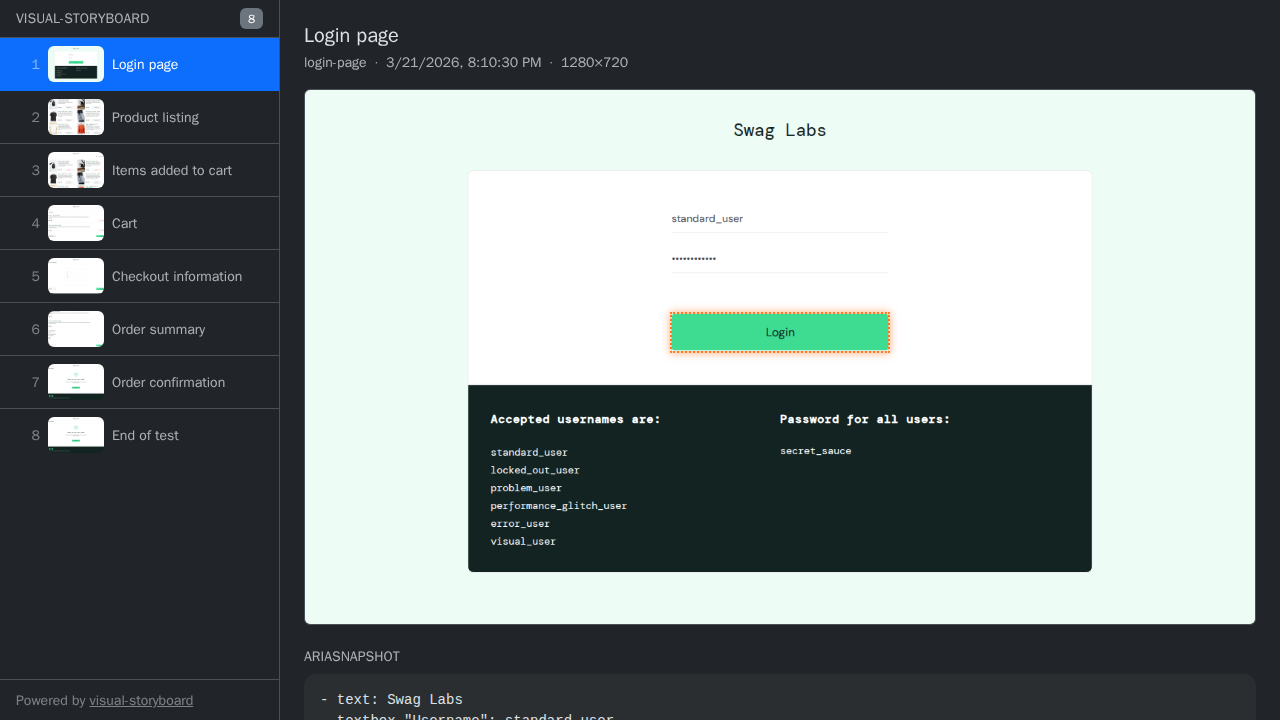
Click the image to open the live example in the viewer.
Source and issue tracker: github.com/dtinth/visual-storyboard
Playwright integration
The quickest way to get started. Create a support file:
// e2e/support.ts
import { test } from "@playwright/test";
import { PlaywrightStoryboard } from "visual-storyboard/integrations/playwright";

export const storyboard = new PlaywrightStoryboard({ test }).install();
By default storyboards are written to test-storyboards/<slug>/storyboard.ndjson next to test-results/ (add test-storyboards/ to .gitignore). To write elsewhere, pass a custom transport factory:
import {
  PlaywrightStoryboard,
  createPlaywrightFileOutputTransportFactory,
} from "visual-storyboard/integrations/playwright";

export const storyboard = new PlaywrightStoryboard({
  test,
  transport: createPlaywrightFileOutputTransportFactory("my-storyboards"),
}).install();
Then call capture in your tests:
// e2e/my.spec.ts
import { test } from "@playwright/test";
import { storyboard } from "./support";

test("checkout flow", async ({ page }) => {
  await page.goto("/");
  await storyboard.capture("Login page", page.getByRole("button", { name: "Login" }));
  // ... interact ...
  await storyboard.capture("Order confirmation", page.locator(".confirmation"));
});
capture accepts a locator (records a bounding-box highlight and scrolls the element into view) or a page (full-page screenshot, no highlight). An ARIA snapshot is always captured alongside the screenshot.
After each test the integration automatically captures a final "End of test" frame and closes the transport.
When to capture
There are two natural moments to call capture:
1. Before performing an important action — capture the UI in the state that prompted the action. For example, before clicking a button:
const submitButton = page.getByRole("button", { name: "Submit" });
await expect(submitButton).toBeVisible();
await storyboard.capture("Ready to submit", submitButton);
await submitButton.click();
If you provide a beforeCapture hook that already waits for the element to be stable and visible, the explicit assertion can be skipped.
2. After an action, once the outcome is verified — assert the expected result first, then capture. This ensures the frame shows a confirmed, stable state rather than a transitional one:
await submitButton.click();
await expect(page.getByRole("heading", { name: "Order confirmed" })).toBeVisible();
await storyboard.capture("Order confirmed", page.getByRole("heading", { name: "Order confirmed" }));
Tip: extract locators into consts. A locator often appears in the assertion, the capture call, and the action itself. Extracting it avoids repetition:
const confirmationHeading = page.getByRole("heading", { name: "Order confirmed" });
await expect(confirmationHeading).toBeVisible();
await storyboard.capture("Order confirmed", confirmationHeading);
PlaywrightStoryboardOptions
| Option | Type | Description |
| --------------- | --------------------------------------------------------------- | ----------------------------------------------------------------------------------------------------------------------- |
| test | TestLike | The Playwright test object (required) |
| transport | StoryboardOutputTransport \| PlaywrightOutputTransportFactory | Transport instance or per-test factory. Defaults to defaultPlaywrightOutputTransportFactory (test-storyboards/ dir) |
| enabled | () => boolean | Return false to disable capture (e.g. based on an env var) |
| beforeCapture | (locator) => Promise<void> | Hook called before each locator capture — use it to wait for animations to settle |
Core API (visual-storyboard)
StoryboardWriter
High-level helper that manages slug uniqueness and delegates I/O to a transport.
import { StoryboardWriter } from "visual-storyboard";
import { FileTransport } from "visual-storyboard/transports/file";

const writer = new StoryboardWriter({
  storyboardId: "my-test",
  transport: new FileTransport({ outputDir: "out/my-storyboard" }),
});

await writer.writeInfo({ title: "My test", annotations: { branch: "main" } });
await writer.createFrame("Step 1", { imageBuffer, highlights: [], viewport });
await writer.finalize();
writer.writeInfo(options) — writes an info event with a title, optional description, and arbitrary key-value annotations.
writer.createFrame(name, options) — uploads the screenshot asset and appends a frame event. Options: imageBuffer, highlights, viewport, annotations (e.g. { ariaSnapshot }), imageContentType.
writer.finalize() — flushes and closes the transport.
FileTransport
Writes everything into a single directory: storyboard.ndjson plus screenshot assets. Asset URLs in the NDJSON are relative, so the directory is fully self-contained and portable.
import { FileTransport } from "visual-storyboard/transports/file";

new FileTransport({ outputDir: "out/my-storyboard" });
// out/my-storyboard/storyboard.ndjson
// out/my-storyboard/<frame-slug>.png
Custom transports
Implement StoryboardOutputTransport to send storyboards anywhere:
import type { StoryboardOutputTransport } from "visual-storyboard";

class MyTransport implements StoryboardOutputTransport {
  async writeAsset(asset) {
    // upload asset.data (Uint8Array), return { url, contentType, byteLength, sha256 }
  }
  async writeEvent(event) {
    // append JSON line to your storage
  }
  async close() {
    // flush / release resources
  }
}
NDJSON format
Each line is a JSON object with a type field:
{ type: "info", version: 1, time, title, description?, annotations? }— storyboard metadata, written once at the start{ type: "frame", version: 1, time, name, slug, screenshot, highlights, viewport, annotations }— one per captured step;screenshot.urlis relative to the NDJSON file