
vue-js-driver
v1.0.5
Published
基于driver.js封装的vue2版本轻量级新手引导库

Maintainers
 hua909000
Readme
vue-js-driver




基于driver.js封装的vue2版轻量级新手引导库
✨ 特性
- 🚀 简单轻量
- 💪 高度可定制
- ✋ 阻止用户交互
- ⌨️ 支持键盘控制
- 👏 突出显示任何内容
- 🆓 开源版本支持免费商用
- 🌀 所有主流浏览器表现一致
🎬 在线体验
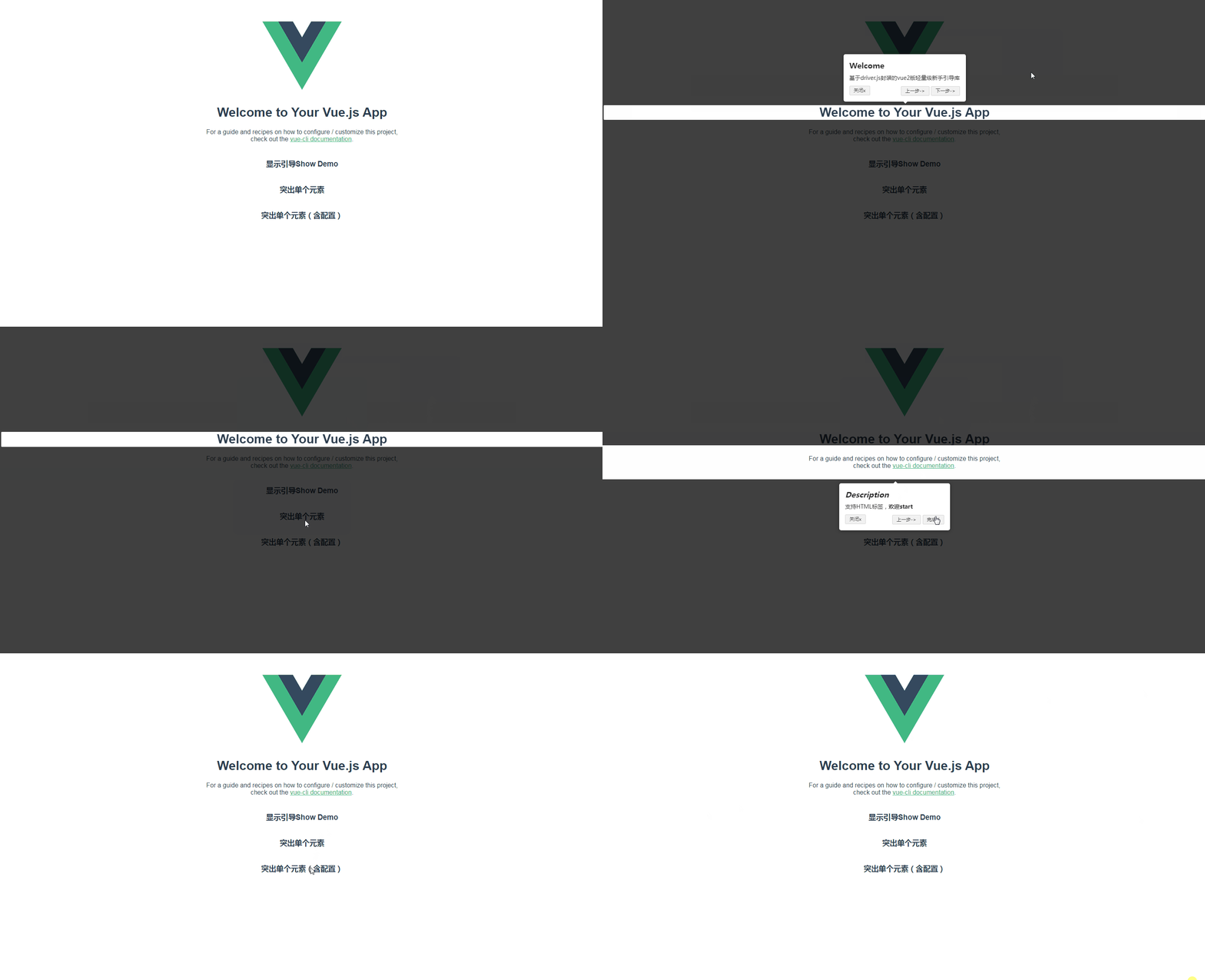
📦 安装
npm install vue-js-driver
yarn add vue-js-driver
pnpm add vue-js-driver
👉 快速上手
引入
// main.js全局引入 或 HelloWorld.vue组件内引入
import Vue from 'vue';

import vueJsDriver from 'vue-js-driver';
import driverConfig from '@/config/driverConfig.js';

Vue.use(vueJsDriver, driverConfig);
配置Driver
// driverConfig.js
export default {
  className: '', // 包裹Driver弹窗的类名,避免css作用域污染
  allowClose: false, // 是否允许点击遮罩时关闭
  opacity: 0, // 背景透明度,`0` 表示只弹窗无遮罩
  padding: 0, // 元素与边缘的距离
  stageBackground: 'transparent', // 高亮元素的背景颜色
  prevBtnText: '上一步->', // 当前步骤上一步按钮的文本
  nextBtnText: '下一步->', // 当前步骤下一步按钮的文本
  closeBtnText: '关闭x', // 当前步骤关闭按钮的文本
  doneBtnText: '完成√', // 最后一个按钮的文本
  showButtons: false // 是否显示底部的控制按钮
  ...
}
配置步骤
// steps.js
export default {
  homeSteps: [ // 首页步骤
    {
      element: '#welcome', // 高亮的元素,内部通过querySelector获取元素,还可通过DOM的方法获取,例如document.getElementById('welcome')
      popover: {
          title: '这是标题', // 弹窗的标题,为空则不显示,注:支持HTML
          description: '这是描述', // 弹窗的主体内容,注:支持HTML
          position: 'right', // 弹窗显示的位置
      },
      padding: 25 // 弹窗与高亮元素的内边距,会扩大高亮元素的宽/高
      ...
      // 更多配置:https://github.com/kamranahmedse/driver.js/blob/master/src/index.js
    }
  ],
  otherSteps: [], // 其他页面步骤
  ...
}
使用
<!-- HelloWorld.vue -->
<template>
  <div class="hello">
    <h1 id="welcome">{{ msg }}</h1>
    <p class="description">
      For a guide and recipes on how to configure / customize this project,<br>
      check out the
      <a href="https://cli.vuejs.org" target="_blank" rel="noopener">vue-cli documentation</a>.
    </p>
    <h3 @click="showDriver">显示引导Show Demo</h3>
    <h3 @click="highSingleElement">突出单个元素</h3>
    <h3 @click="highSingleElement2">突出单个元素(含配置)</h3>
  </div>
</template>

<script>
import steps from '../steps.js';

export default {
  props: {
    msg: String
  },
  methods: {
    showDriver () {

      // 通过$vueJsDriver来调用,1代表跳转到第二步,不传默认跳转至第一步
      this.$vueJsDriver.showDriver(steps.homeSteps, 1);
    },
    highSingleElement () {
      this.$sfDriverJs.highlight('#welcome');
    },
    highSingleElement2 () {
      this.$sfDriverJs.highlight({
        element: '#welcome',
        popover: {
          title: 'Title for the Popover',
          description: 'Description for it',
          position: 'bottom',
          offset: 20
        }
      });
    }
  },
  ...
}
API
Driver选项
| 参数 | 说明 | 类型/回调参数 | 可选值 | 默认值 |
| --------------------- | ------------------------------------------------------------ | ------------------- | ------ | ------------- |
| className | 包裹Driver弹窗的类名 | string | — | vue-js-driver |
| animate | 是否开启过渡动画 | boolean | — | true |
| opacity | 背景透明度,0 表示只弹窗无遮罩 | number | 0-1 | 0.75 |
| padding | 元素与边缘的距离 | number | — | 10 |
| allowClose | 是否允许点击遮罩时关闭 | boolean | — | true |
| overlayClickNext | 是否允许点击遮罩时移动到下一步 | boolean | — | false |
| stageBackground | 高亮元素的背景颜色 | string | — | #ffffff |
| doneBtnText | 最后一个按钮的文本 | string | — | 完成 |
| closeBtnText | 当前步骤关闭按钮的文本 | string | — | 关闭 |
| nextBtnText | 当前步骤下一步按钮的文本 | string | — | 下一步 |
| prevBtnText | 当前步骤上一步按钮的文本 | string | — | 上一步 |
| showButtons | 是否显示底部的控制按钮 | boolean | — | true |
| keyboardControl | 是否允许键盘控制,Esc关闭、操作键(←上一步、→下一步)用于移动 | boolean | — | true |
| scrollIntoViewOptions | scrollIntoView() 方法的选项 | object | — | null |
| onHighlightStarted | 元素即将高亮时调用 | function(element){} | — | — |
| onHighlighted | 元素完全高亮时调用 | function(element){} | — | — |
| onDeselected | 取消选择时调用 | function(element){} | — | — |
| onReset | 遮罩将要关闭时调用 | function(element){} | — | — |
| onNext | 任何步骤中移动到下一步时调用 | function(element){} | — | — |
| onPrevious | 任何步骤中移动到上一步时调用 | function(element){} | — | — |
Step步骤选项
| 参数 | 说明 | 类型/回调参数 | 可选值 | 默认值 | | --------------- | ------------------------------------------------------------ | ------------------- | ------------------------------------------------------------ | -------- | | element | 需高亮的选择器字符或Node,内部通过querySelector获取元素,还可通过DOM的方法获取 | string/Node | — | — | | stageBackground | 高亮元素的背景颜色 | string | — | #ffffff | | padding | 弹窗与高亮元素的内边距,会扩大高亮元素的宽/高 | number | — | — | | onNext | 从当前步骤移动到下一步时调用 | function(element){} | — | — | | onPrevious | 从当前步骤移动到上一步时调用 | function(element){} | — | — | | popover | 弹窗的配置项,具体参考以下选项,注:为空不会显示弹窗 | object | — | — | | className | 除了Driver选项中的通用类名称之外,还可以指定包裹当前指定步骤弹窗的类名 | string | — | '' | | title | 弹窗的标题,为空则不显示,注:支持HTML | string | — | — | | description | 弹窗的主体内容,注:支持HTML | string | — | — | | position | 弹窗的位置 | string | left, left-center, left-bottom, top, top-center, top-right, right, right-center, right-bottom,bottom, bottom-center, bottom-right, mid-center | bottom | | offset | 弹窗的平移距离,如弹窗在高亮元素下方,offet控制左右位移,margin控制上下 | number | 可负数 | — | | margin | 弹窗与高亮元素的外边距 | number | 可负数 | — | | padding | 弹窗与高亮元素的内边距 | number | 可负数 | — | | showButtons | 是否显示底部的控制按钮 | boolean | — | true | | doneBtnText | 最后一个按钮的文本 | string | — | Done | | closeBtnText | 当前步骤关闭按钮的文本 | string | — | Close | | nextBtnText | 当前步骤下一步按钮的文本 | string | — | Next | | prevBtnText | 当前步骤上一步按钮的文本 | string | — | Previous |
方法
| 事件名称 | 说明 | 参数 |
| ------------------------------------------------------------ | ------------------------------------------------------------ | ------------------------------------------------------ |
| showDriver | 启用Driver | (steps, index)steps所有步骤的参数,index开始高亮的索引 |
| isActivated | 检查Driver是否激活,注:非事件,为Driver的属性 | true激活,false未激活 |
| defineSteps | 设置要高亮显示的步骤数据 | (steps)高亮步骤的数组 |
| start | 启用引导 | (stepNumber)开始高亮的位置,默认为0 |
| moveNext | 移动到步骤列表中的下一步 | — |
| movePrevious | 移动到步骤列表中的上一步 | — |
| hasNextStep | 检查是否有可移动到的下一步的元素 | — |
| hasPreviousStep | 检查是否有可移动到的上一步的元素 | — |
| preventMove | 阻止当前移动,如果要执行某些异步任务并手动移动到下一步,则在onNext或onPrevious中很有用 | — |
| highlight | 使用查询选择器或步骤定义高亮显示的元素 | (string|stepDefinition)查询选择器或步骤数据 |
| refresh | 重新定位弹出窗口和突出显示的元素 | — |
| reset | 重置遮罩并且清屏 | (immediate)立即重置,不要动画,默认为false |
| hasHighlightedElement | 检查是否有高亮元素 | — |
| const activeElement = $vueJsDriver.getHighlightedElement() | 获取当前高亮元素 | — |
| activeElement.getCalculatedPosition | 获取当前高亮元素的坐标 | — |
| activeElement.hidePopover | 隐藏弹窗 | — |
| activeElement.showPopover | 显示弹窗 | — |
| activeElement.getNode | 获取当前高亮元素后面的DOM元素 | — |
| const lastActiveElement = $vueJsDriver.getLastHighlightedElement() | 获取最后一个高亮元素 | — |
您可以使用各种选项来实现您可能想要的任何选择